












As one of the most popular instant messaging apps globally, Telegram is the platform of choice for countless users to share videos. However, many users often encounter an incredibly frustrating issue: videos get stuck on loading with the spinning wheel, even though the network shows traffic, and the progress bar remains stationary.
If you’re also struggling with this, this article delves into the four core reasons causing Telegram video lag and provides a complete troubleshooting guide, from software to network, to help you fully resolve video loading issues.
I. Why Do Telegram Videos Keep Spinning and Not Loading?
Despite Telegram’s powerful distributed CDN architecture, slow video loading during actual cross-border transmission is usually caused by the following four factors.
1.Poor Network Transmission Quality
Even with built-in client optimization mechanisms, when the physical link quality significantly deteriorates, application-level optimizations cannot effectively work.
- Network Congestion: Public Wi-Fi or peak periods with multiple users competing for limited bandwidth lead to packet queuing, increased delay, and TCP congestion control reducing speed.
- Proxy Node Bottleneck: Low-cost VPNs or shared proxies often suffer from oversold lines. A single exit IP may serve thousands of users, with throughput far below the required video bitrate.
Technical Indicators Reference:
| Network Quality | Latency | Effective Throughput | Playback Experience |
|---|---|---|---|
| High Quality | <100ms | >10Mbps | Smooth 4K |
| Low Quality | >200ms | <1Mbps | Frequent buffering |
2.Saturated Application Cache
Telegram caches media files to improve performance, but if not cleared regularly, this can actually slow down video loading.
Typical behavior: Network traffic shows data transfer, but the video progress bar stays stuck.
3.Mismatched Video File Bitrate and Decoding Load
Telegram supports transmitting uncompressed high-bitrate videos (including 4K/8K), which require higher demands on both the transmission link and device.
- Throughput Mismatch: High-bitrate videos require sustained and stable throughput, but mobile networks are unstable due to signal interference and load; Wi-Fi can’t ensure steady throughput; Telegram throughput is limited.
- Excessive Load: Older devices may lack hardware acceleration support, and software decoding consumes CPU resources, causing system scheduling delays.
- Typical behavior: Buffering progress moves back and forth, first-frame loading >5 seconds, interruptions during playback, and device heating causing lag.
4.Limited Third-party Content Source Transmission Link
Some videos forwarded from channels originate from third-party external links or unofficial overseas storage nodes. These videos cannot leverage Telegram’s official global acceleration service and are susceptible to cross-border access restrictions, leading to severe congestion during peak access times.
Typical behavior: Significant experience differences during the same video period, lag during peak times, slow first play but relatively smooth subsequent plays.

II. How to Troubleshoot Telegram Video Loading Issues Step by Step
We recommend troubleshooting and optimizing the issue from software, network, and device levels in the following order.
(A) Software Troubleshooting
1.Regularly Clear App Cache
- Principle: Telegram caches media files to optimize the experience, but excessive cache can slow down read/write speeds, resulting in the progress bar getting stuck despite network traffic.
- Operation: Go to Settings > Data and Storage > Storage Usage, set “Keep Media” to 1 month, and manually click “Clear Cache.” This will help rebuild the index and improve response speed.
2.Turn Off Auto-Download
- Principle: Background automatic downloads compete for bandwidth, causing insufficient bandwidth for the currently playing video.
- Operation: In Settings > Data and Storage, turn off “Auto-download media over mobile data/Wi-Fi.” Ensure bandwidth is dedicated to the current content.
3.Update the App Version
- Principle: Older versions may have poor compatibility with new video encoding formats or transmission protocols, leading to decoding failures or connection issues.
- Operation: Check for updates in the App Store or official website.
4.Close Background Apps
- Principle: Other apps or system processes occupy CPU/Memory resources, delaying video decoding and scheduling.
- Operation: Close unnecessary background apps or restart the device to free up resources.
5.Turn Off Power-saving Mode
- Principle: Power-saving mode limits background activity and network performance, potentially affecting video loading stability.
- Operation: Turn off power-saving mode, or add Telegram to the whitelist.
6.Try Desktop Version
- Principle: For large video files, the PC version typically has stronger decoding capability and faster hard disk read/write speeds, making it better for handling large file playback.
- Operation: If there’s serious lag on mobile, try playing on a computer to compare.
(B) Network Troubleshooting
1.Impact of Poor Proxy Nodes
- Principle: Low-cost VPNs or shared nodes are often oversold, meaning a single exit IP serves too many users, with throughput far below video bitrate requirements.
- Solution: Choose high-quality, stable proxy services, and avoid heavily oversold public nodes. We typically recommend using IPFoxy’s dedicated static residential IP, which is stable, has low peak latency, and significantly improves Telegram video loading experience.
2.DNS Resolution Delay
- Principle: DNS is responsible for domain name resolution, and default ISP DNS may be slow or unstable, affecting initial connection time.
- Solution: Use public DNS services.
3.Router Node Congestion
- Principle: Cross-border transmission goes through multiple routing nodes, and if one node has high latency or packet loss, it can slow down the whole link.
- Diagnosis: Run a traceroute to telegram.org to check if there are any sudden latency spikes or timeouts.
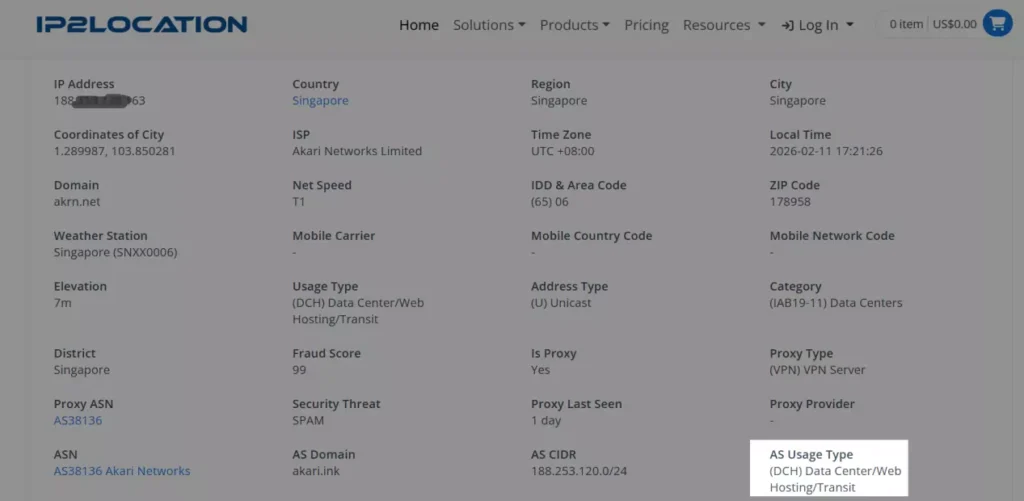
4.Limited IP Purity
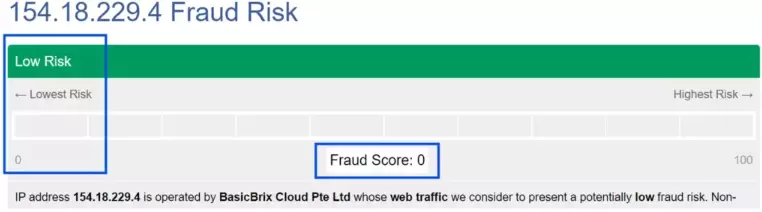
- Principle: If an IP is labeled as “data center” or a shared exit, Telegram may limit that IP’s traffic, causing abnormal loading.
- Solution: Choose real residential broadband IPFoxy to avoid public machine rooms or cloud-based IPs. This reduces the risk of rate-limiting.
5.Local Network Device Status
- Operation: Restart the router, enable QoS to prioritize video traffic, or change Wi-Fi channels to avoid interference.
(C) Device and Content Source Troubleshooting
1.Check Video File Bitrate and Decoding Load
- Test Other Videos: Try playing other videos to determine if the issue is specific to one video.
- Adjust Video Quality: For high-bitrate videos, try lowering the video quality or using a higher-performance device.
2.System Time Error
- Principle: HTTPS encryption requires accurate system time. Time discrepancies may lead to handshake failure or connection interruptions.
- Operation: Enable automatic system time synchronization.
3.Check Third-party Content Source
- Validate Video Source: Pay attention to whether forwarded videos come from unofficial storage nodes, especially cross-border videos. These sources may suffer from cross-border access restrictions.
- Try Different Time Periods: If the video lags during peak hours, it may be a server load issue. Try playing it during off-peak hours.
III. FAQ
- Why does Telegram video still lag despite bandwidth being sufficient?
Sufficient bandwidth doesn’t necessarily mean high video transmission quality. Video lag is often caused by delay, jitter, or packet loss, not just bandwidth. - Will using proxy IP affect my Telegram account?
Account restrictions are more related to behavior patterns (like bulk messaging or reporting) rather than using proxy IPs. However, low-reputation IPs (like public proxies or data center IPs) can trigger security mechanisms, increasing verification frequency. Using clean residential IPs reduces risks. - How to check if my current IP is flagged?
- Use IP reputation platforms to check its score and history.
- Observe if frequent CAPTCHA or login challenges occur.
- Compare the same account performance on different networks.
IV. Conclusion
The issue of Telegram video loading indefinitely can be caused by multiple factors such as network quality, cache mechanisms, video bitrate, or third-party sources. By following the systematic troubleshooting guide in this article, you can address the problem step-by-step at the software, network, and device levels, ultimately optimizing the experience.
Say goodbye to the endless loading and enjoy smooth playback. Start today with the right approach and the right tools to stop Telegram video buffering!