












In daily work and data scraping tasks, many users encounter restricted access, IP detection, or the need to switch network environments. In such cases, configuring a proxy server becomes a practical and effective solution. Whether you are conducting eCommerce business testing or improving network flexibility, learning how to set up a proxy in your browser is a highly useful skill.
As one of the most widely used browsers in the world, Google Chrome is the default working environment for many professionals. This article provides a step-by-step guide on how to configure a proxy server in Google Chrome using a browser extension, helping you complete the setup quickly and use it efficiently.
I. Why Configure a Proxy in Google Chrome?
After configuring a proxy in Chrome, it can be applied to many scenarios, including multi-account management, social media or platform account operations, ad testing, data collection and crawler debugging, price monitoring, and localized content access testing.
By assigning independent IP addresses to different accounts, you can effectively reduce account association risks while improving operational stability and flexibility. During data scraping or automation testing, proxies also help simulate different regional network environments, improving adaptability.
There are several common methods for proxy configuration, each suitable for different use cases:
- System-wide proxy configuration
Integrate the proxy directly into the operating system’s network settings. Once configured, all applications and browsers using that network connection will access the internet through the specified IP, not just Chrome. This method is suitable for scenarios requiring unified traffic management, though it offers less flexibility. - Mobile device configuration
If you need to change the IP address in a mobile browser, you can use dedicated mobile applications to configure the IP. This approach is suitable for mobile testing, mobile account management, or specific app-based network switching needs. - Using browser extensions
Google Chrome has a rich extension ecosystem. Some extensions allow users to quickly configure and manage proxy settings.
This article focuses on the simplest and most direct method: configuring a proxy through a Chrome extension. It is easy to operate and suitable for daily business use.
II. Tools Required to Configure a Proxy in Google Chrome
- Browser: Google Chrome
Google Chrome has the largest global market share and user base. Its powerful extension system allows flexible management of network requests, making it a common environment for proxy configuration and account management. - Proxy Provider: IPFoxy Global Proxy
IPFoxy is a global proxy service provider with network resources covering 200+ countries and regions and a pool of 90+ million high-quality IP addresses. It offers residential proxy, mobile proxy, and datacenter proxy services. - Chrome Proxy Extension: Proxy Switchy Omega 3 (ZeroOmega)
Proxy Switchy Omega 3 (ZeroOmega) is a widely used free Chrome proxy management extension. It features a clear interface, simple configuration, and supports multiple proxy profiles with quick switching.
III. How to Set Up a Proxy in Google Chrome
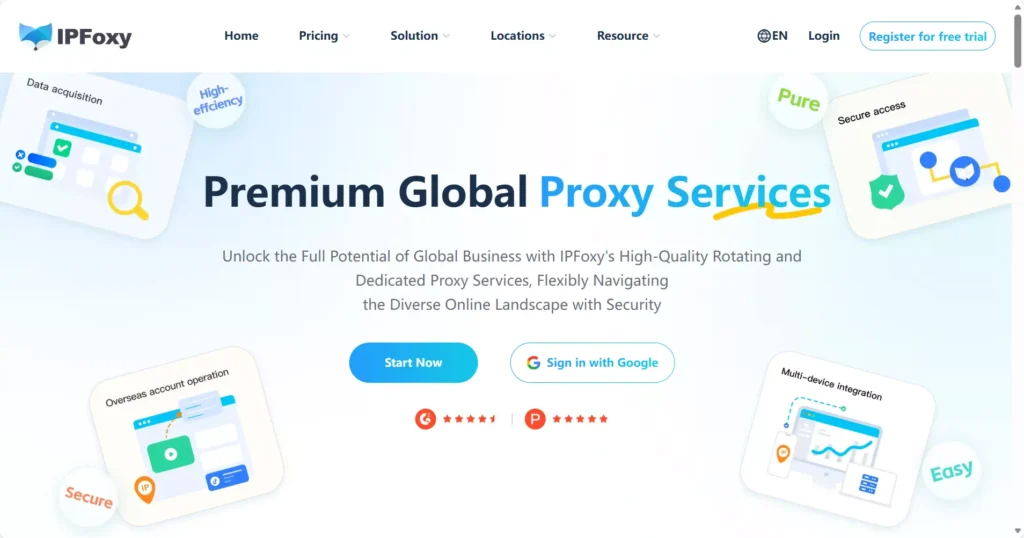
- Obtain a Proxy IP:Visit the IPFoxy official website, register and log in, then select the proxy type suitable for your business needs. New users can receive a free proxy upon registration.
2. Choose the Required Proxy Type:IPFoxy provides four types of proxies: residential proxy, static datacenter proxy, rotating residential proxy, and rotating mobile proxy, meeting different network requirements across various business scenarios.
If you are unsure which type to choose, refer to the relevant guide and select according to your specific use case:
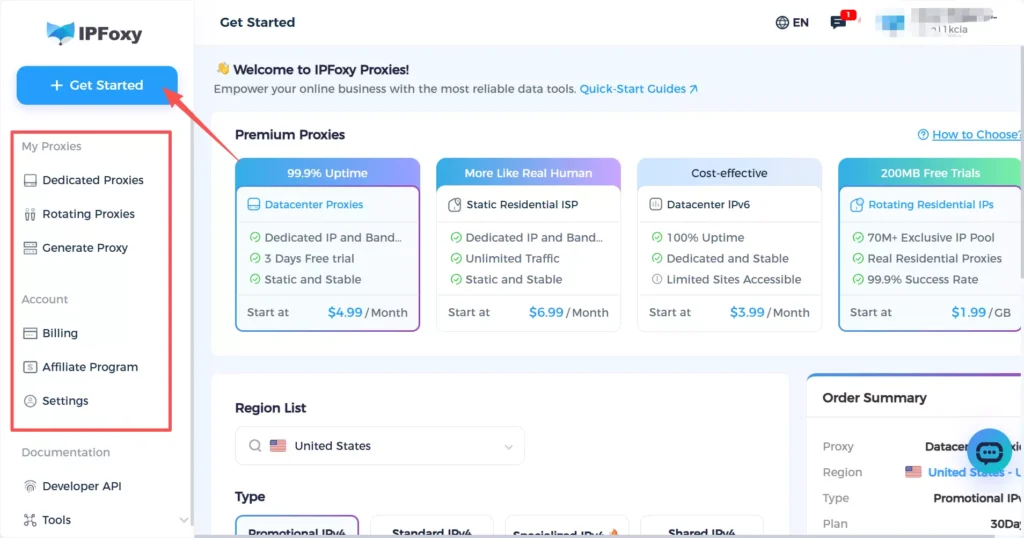
3. Configure Proxy Information:After purchasing a proxy, go to the proxy management page from the left sidebar.
Static Proxy
A static proxy provides a fixed IP address that remains unchanged during use. It is suitable for business scenarios requiring a stable long-term network environment.
IPFoxy’s residential proxy is based on real residential network environments, offering high IP purity and behavior closer to real user access. It is suitable for account management and long-term login maintenance.
IPFoxy’s static datacenter proxy features fast connection speed and stable response time, making it suitable for data scraping and batch requests where efficiency is critical.
Since the system default proxy protocol is SOCKS5 and Chrome only supports HTTP protocol configuration, you need to switch the protocol first.
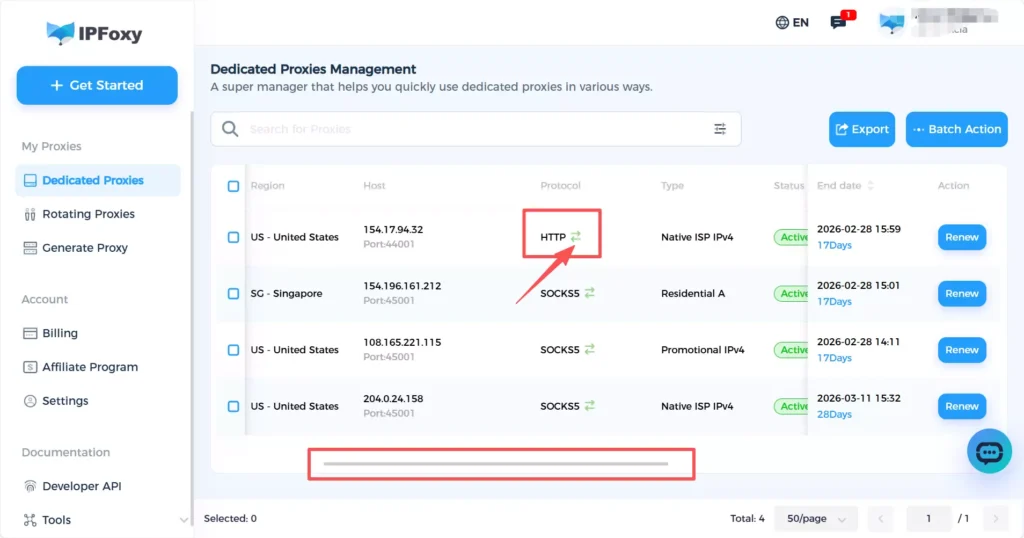
Then click on the proxy information to view the detailed configuration and copy it.
Rotating Proxy
A rotating proxy is suitable for scenarios requiring frequent IP changes, such as data scraping, price monitoring, ad verification, and multi-account environment testing. With automatic rotation, it reduces the risk of restrictions caused by high-frequency usage of a single IP while improving request success rates.
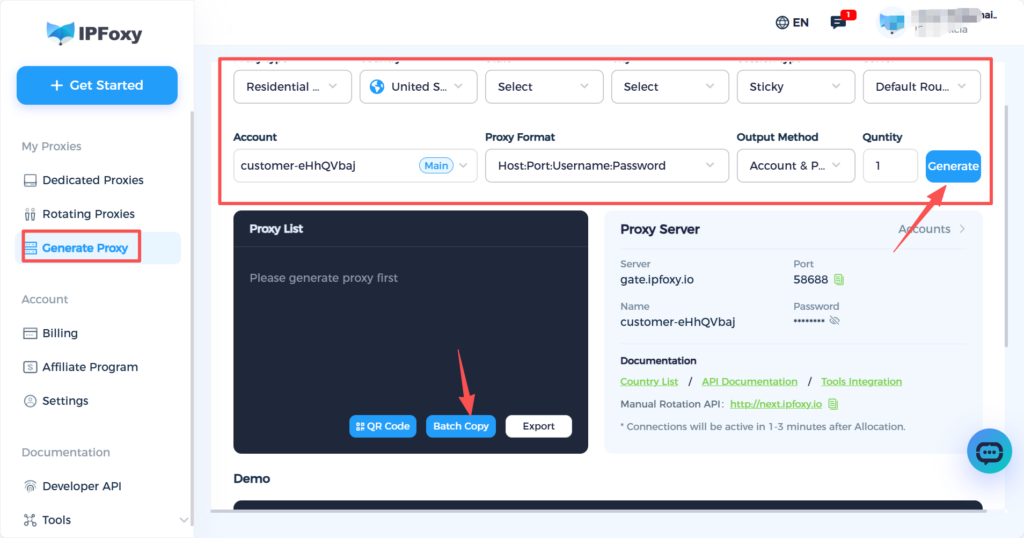
IPFoxy rotating proxy supports multiple country and region node selections. After generating a route, you can use it directly. It is convenient and suitable for applications requiring high IP flexibility and scale.
Select route information including proxy type, country/region, and rotation interval. Click generate and copy the proxy information displayed below.
4. Configure the Proxy in Chrome Using the Extension
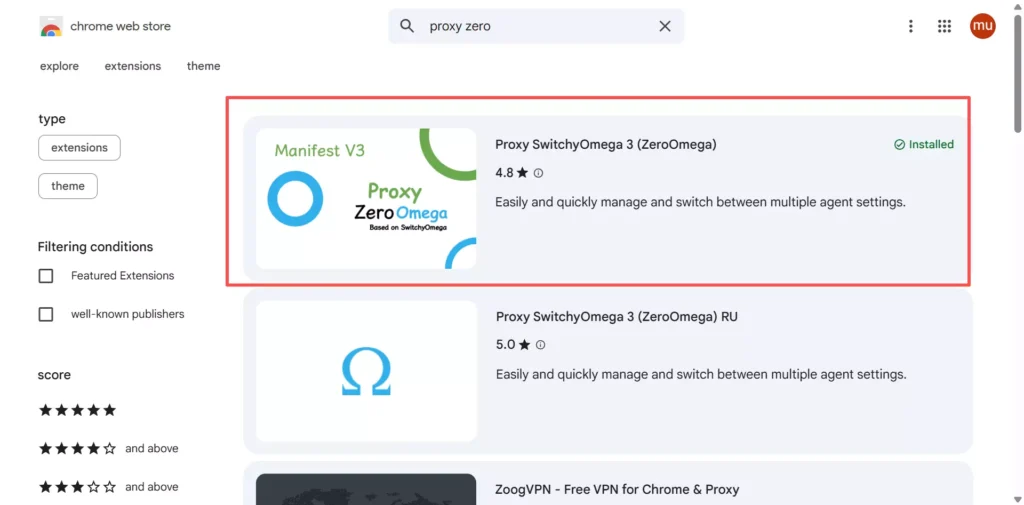
Open Google Chrome and search for Proxy Switchy Omega 3 (ZeroOmega), then click “Add to Chrome.”
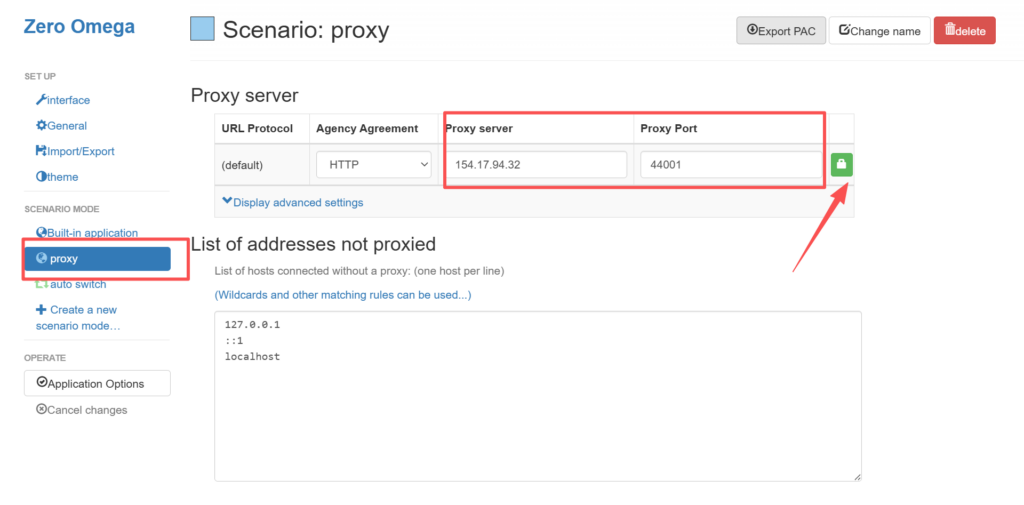
In the left sidebar, select Proxy. Enter the proxy server address and port. Click the lock icon on the right to enter the proxy username and password.
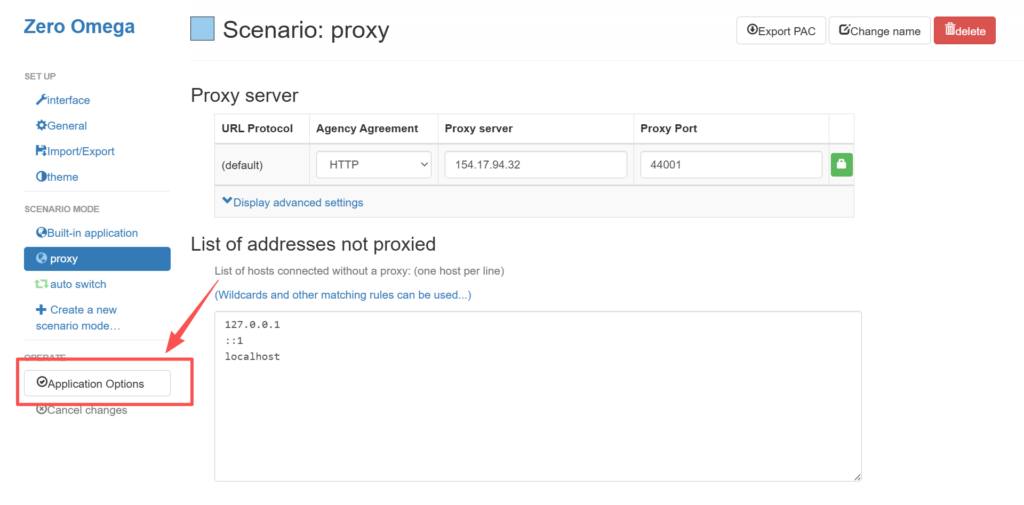
After completing the proxy configuration, click “Apply Options” at the bottom of the left sidebar to save.
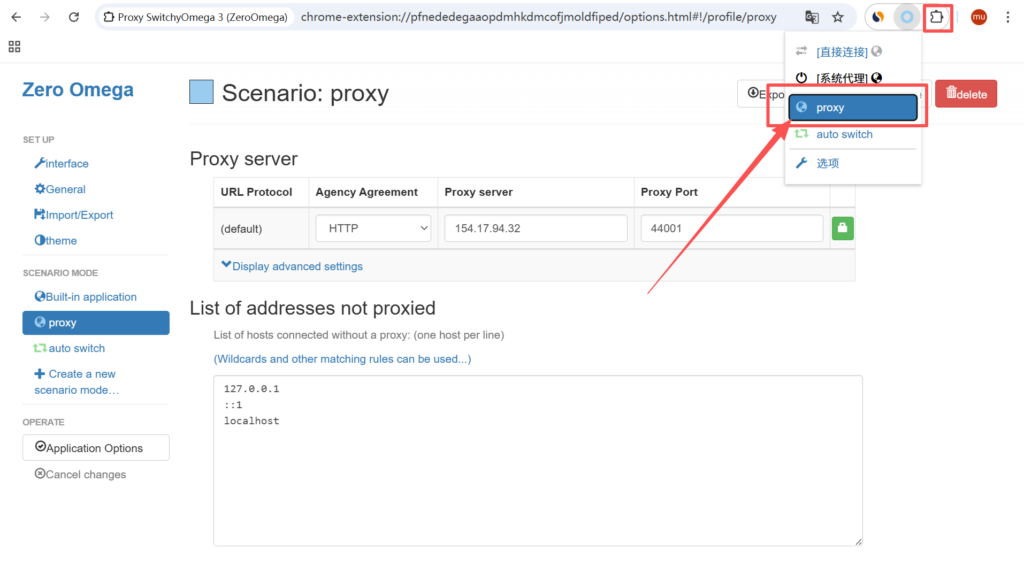
Then click the extension icon in the upper-right corner of Chrome, select Proxy Switchy Omega 3 (ZeroOmega), and choose the Proxy mode to activate the configuration.
5. Check Whether the Proxy IP Has Changed Successfully
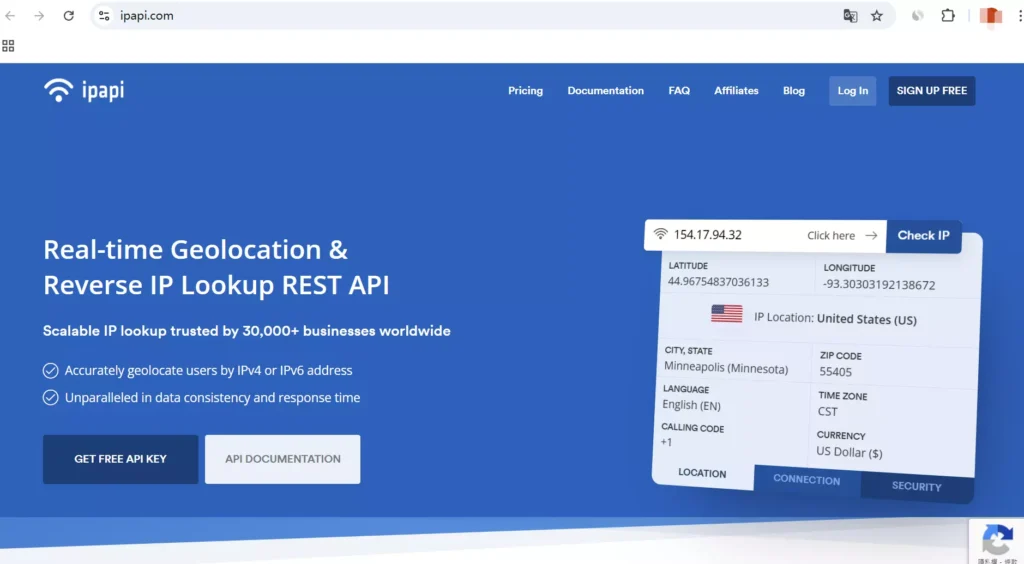
Open an IP checking website in your browser and verify whether your IP address has changed.
IV. Frequently Asked Questions (FAQ)
This may be caused by several common issues:
1. The extension settings were not saved by clicking “Apply”
2. The proxy mode was not properly activated in the extension menu
3. he protocol type does not match (for example, using SOCKS5 while Chrome only supports HTTP in this setup)
4. Incorrect username or password
5. Local firewall or network restrictions blocking the proxy connection
Possible reasons include:Incorrect port number; The proxy server is temporarily unavailable; Account authorization issues; Local DNS cache problems. Try regenerating a line, refreshing the proxy configuration, or restarting the browser.
Common reasons include: Proxy expired or insufficient balance. Rotation cycle ended for rotating proxies. Local network changes. Browser cache causing anomalies.
You can regenerate the route, refresh the extension configuration, or restart the browser for testing.
Conclusion
By following the steps above, you now understand how to set up a proxy server in Google Chrome, from obtaining proxy information to configuring the extension and verifying that it works properly. The process is straightforward when each step is completed carefully. Mastering browser proxy configuration can improve network flexibility and provide greater control for e-commerce testing, data scraping, and general network management tasks.