











When registering or logging in to LinkedIn, many users encounter the same issue:
👉 The page shows “Verification code sent,” but no email or SMS ever arrives.
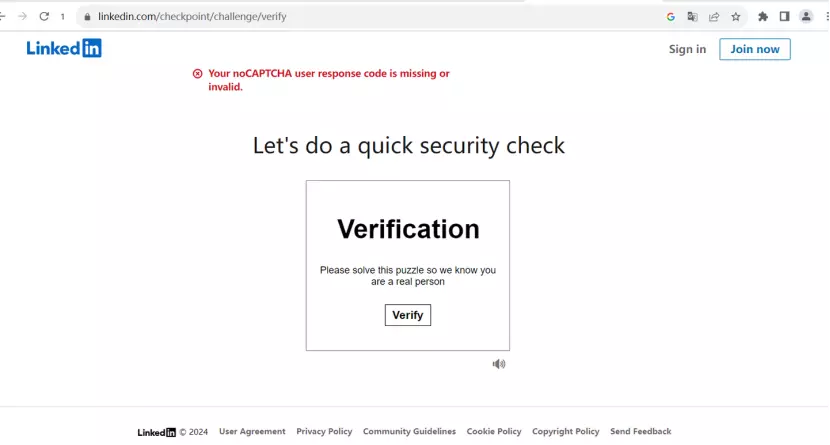
Sometimes it even says “You’ve exceeded the number of verification attempts.”
This problem often looks like an email or SMS failure, but in most cases it is related to LinkedIn’s risk control system.
This article explains the issue from three angles:
- Why LinkedIn does not send you a verification code
- Immediate solutions that work now
- How to reduce the chance of this happening again in the long term
I. Why LinkedIn Does Not Send a Verification Code
In most cases, this is not caused by a single error but by a combination of risk control rules.
1、High-risk IP or network
If you are using public VPNs, shared proxy IPs, or data center IPs to log in to a personal account, LinkedIn is more likely to classify the traffic as abnormal or automated behavior and may block the verification code from being sent.
2、Too many verification requests in a short time
For example, repeatedly clicking “Resend,” refreshing the page, or logging in to multiple accounts within a short period.
The system may assume you are trying to bypass the verification process and temporarily disable the verification channel.
3、Low credibility of the phone number or email
This includes virtual numbers, phone numbers used for multiple LinkedIn accounts, temporary email addresses, or bulk-registered mailboxes.
Even if LinkedIn shows “sent,” the message may be blocked by the carrier or email provider.
4、Unstable login environment
For example, mismatched IP country and phone number country, frequent device switching, company intranet, or public Wi-Fi.
All of these increase the likelihood of triggering secondary verification.
II. Quick Fixes: How to Resolve the LinkedIn Verification Code Issue
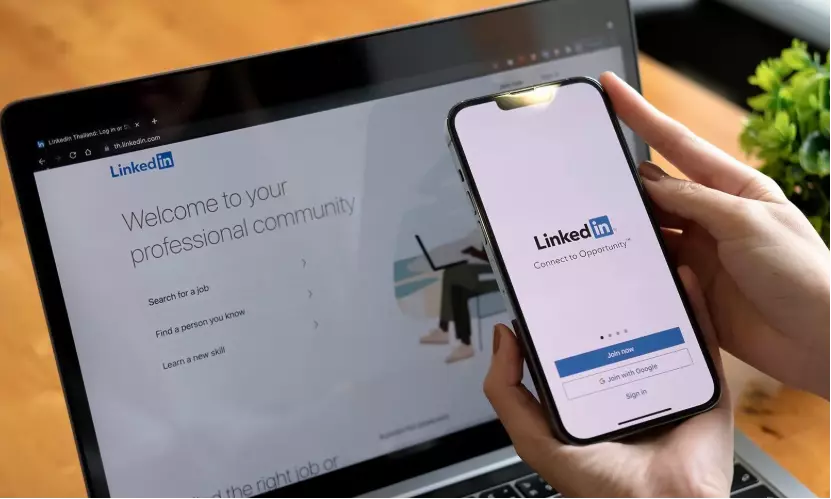
If you are currently stuck on the verification page, check the following options first.
1、Solutions by verification method
(1) Verification code sent by email
When the code is sent by email, the issue is usually on the email side rather than LinkedIn itself.
You can check the following:
- Look in the spam or junk folder, as LinkedIn system emails are often misclassified.
- Check whether you have email filtering rules that may block messages from linkedin.com.
- Click “Resend” on the login page and confirm that the bound email address is the one you are actively using.
- If you still cannot receive the email, try switching to SMS verification.
(2) Verification code sent by SMS
SMS verification issues are more common when using international networks. You can check the following:
- Confirm that SMS blocking or spam filtering is not enabled on your phone, as some Android devices automatically block international messages.
- Check whether the phone number format is correct, such as including the country code.
- Optimize your network connection, as SMS delivery may be delayed or lost on unstable networks. Switching to a more stable network often improves success rates.
- You can also restart your phone or toggle airplane mode once to clear temporary signal issues.
2、Do not keep clicking “Resend”
If you have already tried multiple times, it is recommended to stop for 12 to 24 hours.
Continuing to resend may directly trigger the “too many requests” limit.
If you have successfully logged in to this account on a certain device before, try again on that device.
LinkedIn usually applies lighter verification to familiar devices and stable networks, and the verification step may not be triggered at all.
4、Switch the verification method
If you are currently using SMS, try switching to email. If you are using email, try switching to SMS.
Different channels have different success rates.
5、Submit an appeal to the platform
If you encounter repeated failures, receive direct login restriction messages, or cannot verify even after switching methods, the account may have entered a stricter review process.
In this case, it is recommended to:
- Go to the LinkedIn Help Center and submit an appeal.
- Complete identity verification as required.
- Wait for manual review to restore access.
This situation cannot be solved by repeated attempts, and continued operation may extend the restriction period.
IV. Long-Term Solution: How to Reduce the Chance of Triggering LinkedIn Verification
If you use LinkedIn long-term for recruiting, sales development, multi-account management, or market expansion, “not receiving verification codes” is often an early signal of higher suspension risk.
In the long run, the key is to make your login environment closer to that of a real individual user. This helps reduce verification triggers and improves account stability.
Public nodes are heavily reused, show concentrated behavior patterns, and are easily flagged as abnormal sources.
In comparison, stable residential networks with low sharing rates are more likely to pass platform checks.
In real social media operations, using residential proxy IPs from real ISP sources can significantly reduce secondary verification frequency, verification code triggers, and abnormal login alerts.
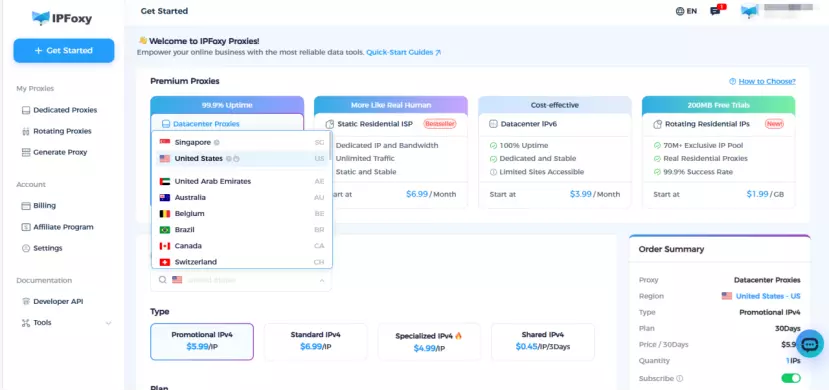
For example, in multi-account operations, assigning each account an independent residential proxy from a provider like IPFoxy, sourced from real household networks, is more suitable for LinkedIn login and account maintenance scenarios.
2、Keep account identity consistent
This includes a fixed login country, fixed device type, and stable browser environment.
Avoid situations where the IP location changes frequently or the phone number country does not match the IP country.
Such “identity switching” is a key signal monitored by LinkedIn’s risk control system.
3、Phone number verification and login frequency
Use compliant phone numbers instead of disposable virtual numbers.
After a failed attempt, wait before retrying.
Avoid operating multiple accounts in a short time and avoid continuous verification requests.
From a system perspective, verification codes are not a service feature but a risk control checkpoint.
V. FAQ: Common Questions About LinkedIn Verification Codes
It means the system detected too many verification requests in a short time and temporarily closed the verification channel to prevent abuse.
It is recommended to stop all attempts for 12 to 24 hours and avoid clicking “Resend.”
Possible reasons include interception by email or SMS systems, an abnormal network environment, or a temporarily restricted delivery channel.
You can check spam folders, switch verification methods, and wait for a while before trying again.
Frequent IP or region changes are treated as abnormal behavior, especially when the country changes significantly.
It is recommended to keep a fixed country network and avoid frequent node switching.
VI. Conclusion
Not receiving a LinkedIn verification code is usually not an email or SMS problem but a result of risk control decisions.
If you need stable access to LinkedIn for business development, repeatedly requesting verification codes is less effective than fixing the login environment itself.