











As one of today’s most talked-about AI tools, Claude is widely used for content writing, long-form analysis, code generation, and more. However, signing up is not always straightforward, especially for first-time users.
Some users find that they cannot complete sign-up, others get stuck at phone verification, and some are asked to complete Persona identity verification shortly after registering or when preparing to subscribe. It is worth getting your account environment, network connection, email address, and payment method ready before you begin.
Drawing on practical experience, this guide walks you through the entire process—from pre-registration preparation and environment setup to account creation, plan selection, and KYC verification.
I. What Is Claude?
Claude is an AI assistant developed by Anthropic. It can help with content creation, translation, document summarization, code generation, research, and more. Individual users can access the web app and get things done through chat without applying for an API key first.
Claude models are currently grouped into the following families:
| Model | Key Characteristics | Best For |
| Claude Haiku | Fast responses; ideal for lightweight tasks | Simple Q&A, information extraction, content classification |
| Claude Sonnet | Balances capability and efficiency | Everyday writing, software development, document processing |
| Claude Opus | Designed for complex reasoning and demanding tasks | In-depth analysis, complex programming, multi-step workflows |
Models and plans are two different things: the model determines the capabilities available for a task, while your plan affects which features and usage limits you get. After signing up, you can check the models currently available to your account.
Which Countries and Regions Does Claude Support?
Claude is not available in every country or region worldwide. It is currently supported in the United States, the United Kingdom, Canada, Japan, Singapore, Australia, and a number of European countries and regions. Availability may change over time. Before signing up, check whether your country or region is supported and make sure you meet the applicable service requirements.
II. What Do You Need Before Signing Up for Claude?
Before you start, prepare the following four things. This helps avoid having to change your email, network, or browser setup halfway through registration.
1. Device and Browser
We recommend signing up on a computer and creating a clean, dedicated browser profile for Claude, such as a separate Chrome Profile. Keeping Claude in its own browser environment makes it easier to maintain consistent settings for future logins and everyday use. If you already use an antidetect browser to manage accounts, you can also create a separate profile there.
Whichever browser you use, we recommend that you:
- Use a consistent browser environment for each account;
- Avoid frequently clearing cookies and login data;
- Avoid repeatedly switching between multiple Claude accounts in the same environment;
- Make sure your browser can access Google and Claude before starting registration.
2. A Stable, Reliable IP Address
Choose an IP address that is stable, comes from a reputable source, and can be used consistently over time. In this context, a “clean” IP generally means avoiding addresses with unknown origins, extensive sharing, or a history of suspicious activity.
Do not focus on the “residential” label alone. IP quality matters too:
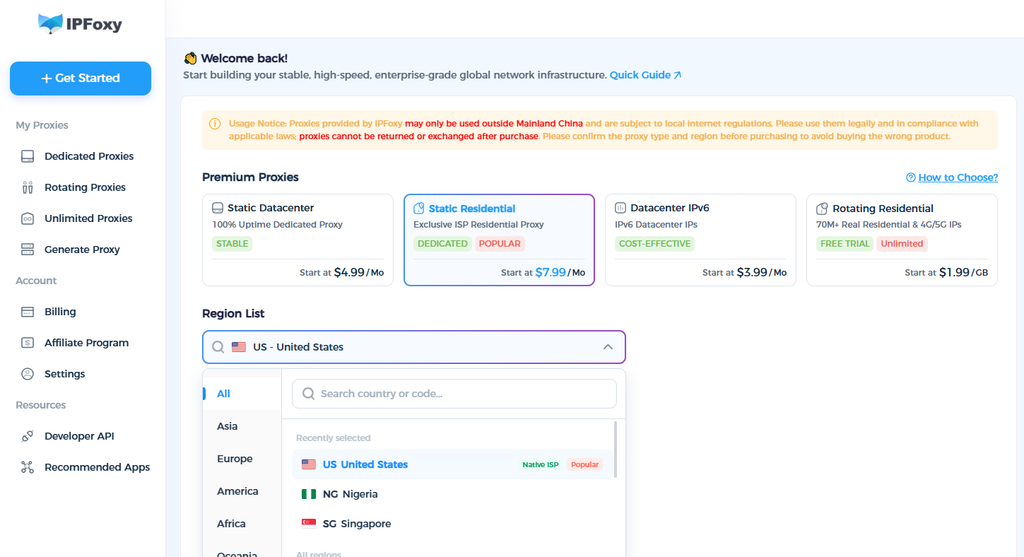
- Dedicated ISP Proxies: An address associated with a residential ISP connection that remains fixed and is assigned exclusively to you. It most closely resembles a typical household connection.
- Shared residential Proxies: Although it is a residential address, multiple users share the same exit. Activity from other users may affect its reputation, so it is not the preferred option.
- Datacenter Proxies: An address hosted by a cloud or data center provider. It may be easier for some services to identify as datacenter traffic.
For example, you can use a US static residential IP from IPFoxy in a dedicated environment. An exclusive address can help reduce exposure to activity from other users. We will cover the setup steps later in this guide.
3. Email Address and Phone Number
We recommend Gmail, followed by Outlook or Proton Mail. If you plan to use Gmail, complete its registration first and sign in within the same browser profile you intend to use for Claude.
You may wish to refer to the tutorial published by IPFoxy: → How to Create a Gmail Account in 2026: QR Code & sMS Verification Guide
Avoid disposable email addresses. They may fail to receive verification messages, expire unexpectedly, or leave you unable to recover your account later. For long-term access, use an email address you control and can continue to access.
It is important to distinguish between two separate phone verification processes:
- Google account verification: During Google sign-in, you may be asked to verify the phone number linked to your Google account.
- Claude phone verification: You will need a phone number from a region supported by Claude, in accordance with the requirements shown during sign-up.
4. Payment Card: Prepare One If Needed
You do not need a payment card to create a free Claude account or try the free plan. If you decide to upgrade to Pro or Max, use a payment card that you are authorized to use and that meets the payment requirements.
There is no need to rush into a Max subscription with a new account. We recommend trying the free plan for a few days to a week first, getting familiar with the features, and confirming that your account and connection work as expected before considering an upgrade to Pro or Max.
III. How to Sign Up for Claude in 2026: 8 Steps
The following walkthrough uses a dedicated Chrome Profile with English-language browser settings, a US IP from IPFoxy, and Google sign-in to illustrate the registration process.
In our test, this setup did not trigger any additional phone verification or Persona KYC checks. Verification requirements can vary from account to account, so use the steps below as a reference for preparing your environment rather than a guarantee that no additional checks will appear.
1、Set Up Your Account Profile
This is an important preparation step before moving on to registration.
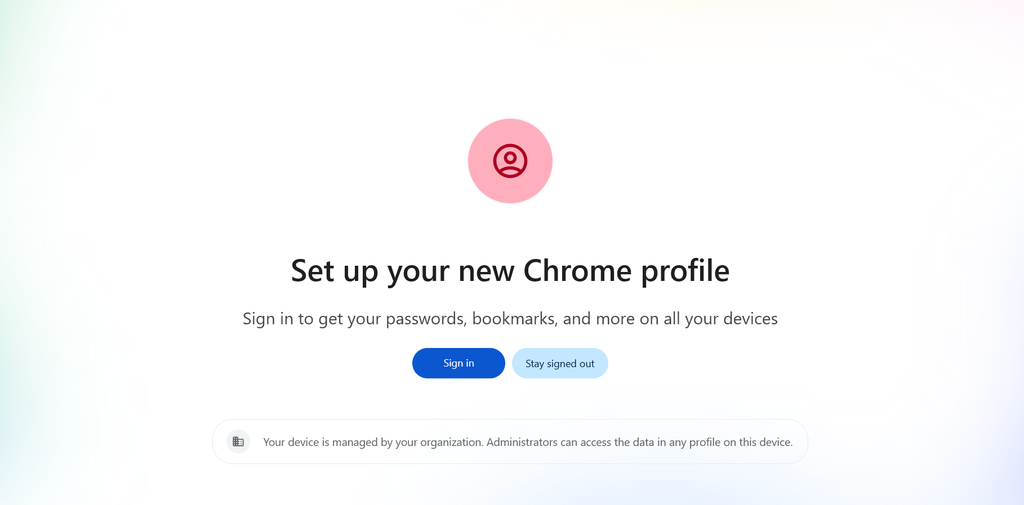
Step 1: Create a Separate Chrome Profile
Open Chrome, click the profile icon in the upper-right corner, and select “Add” or “Add new profile” to create a profile dedicated to Claude.
Step 2: Set the Browser Language and Time Zone to English
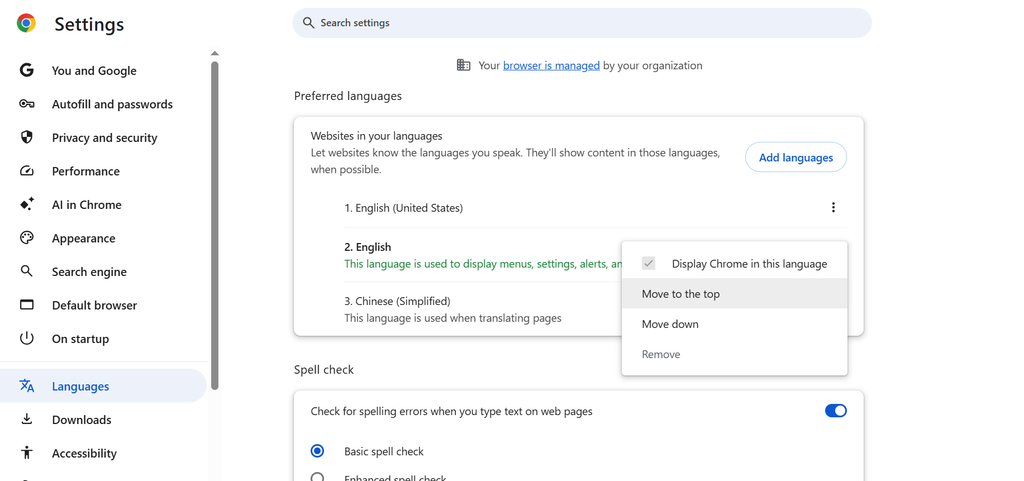
In our testing, browser environments set to a non-English language were more likely to encounter identity verification. You can adjust the settings as follows:
- Time zone (Windows): Go to Settings → Time & Language → Date & Time. Turn off “Set time zone automatically” and select the relevant time zone manually (for example, Eastern Time, UTC-5).
- Language: Enter chrome://settings/languages in the Chrome address bar. Add English (United States), move it to the top of your preferred languages, and restart the browser.
Step 3: Configure an IPFoxy ISP Proxy
- Chrome does not have a built-in proxy configuration option for this workflow, so you will need to install the IPFoxy Proxy Manager extension.
For a more detailed illustrated guide to configuration, please refer to the IPFoxy official documentation →
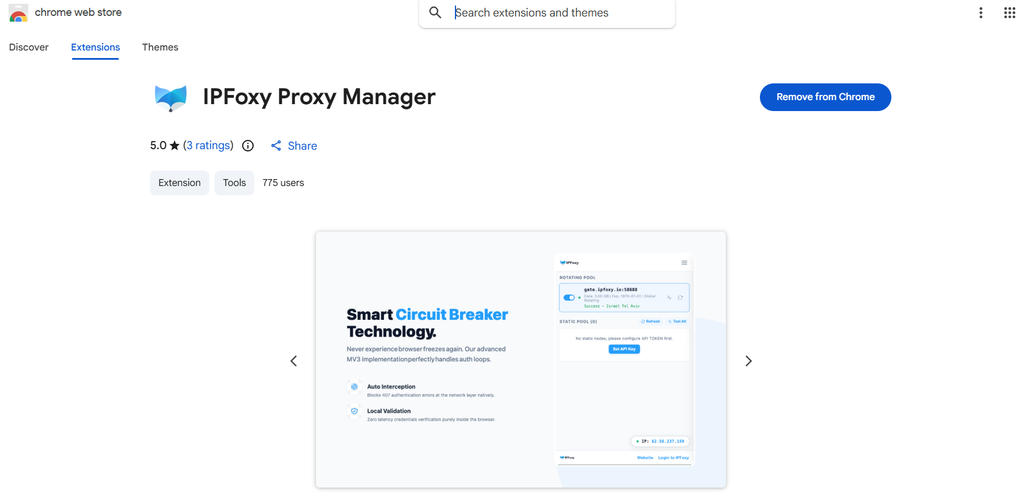
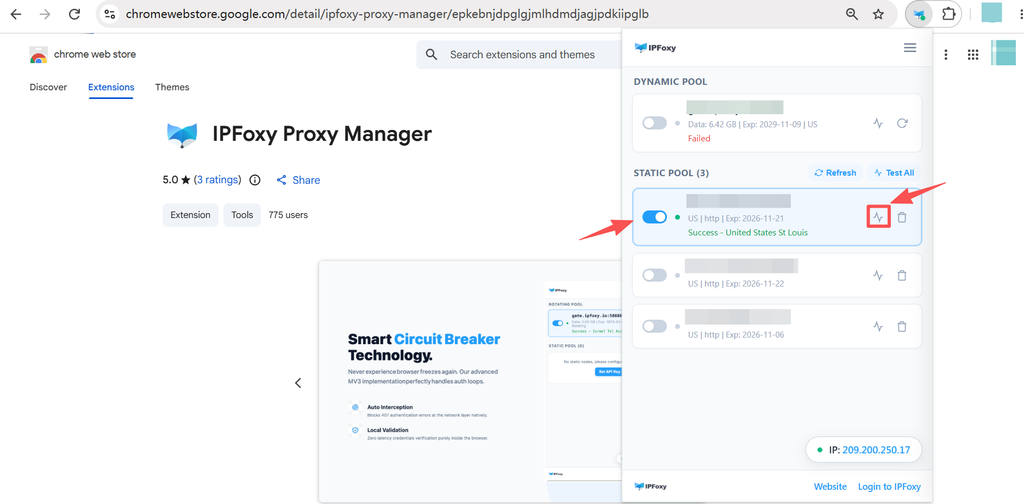
- In the IPFoxy dashboard, open the profile menu in the upper-right corner and select “View API Key.” Enter your User ID and API key in the extension, then save the settings.
- Return to the Chrome extension and sync your static proxy list. Enable the US residential IP, then run the connection test to confirm that the proxy is connected.
2. Open Claude in the Dedicated Browser Profile
Open the Claude website in the Chrome Profile you just configured. From this point until registration is complete, keep the same browser environment and network connection. Avoid switching to another browser profile or changing your IP midway through the process.
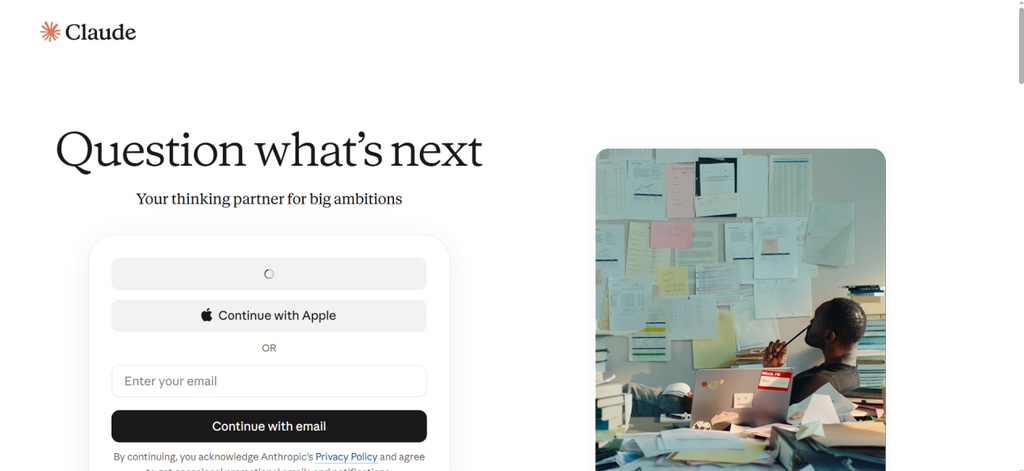
3. Select “Continue with Google”
On the Claude sign-in page, select “Continue with Google” to proceed with your Google account. This was the approach used in our walkthrough instead of entering an email address manually.
Based on our hands-on experience, if you already have a working Gmail account, signing in to Google in Chrome first and then authorizing access to Claude can make the process more straightforward. See our “2026 Gmail Registration Guide” for reference.
4. Authorize Sign-In with Your Google Account
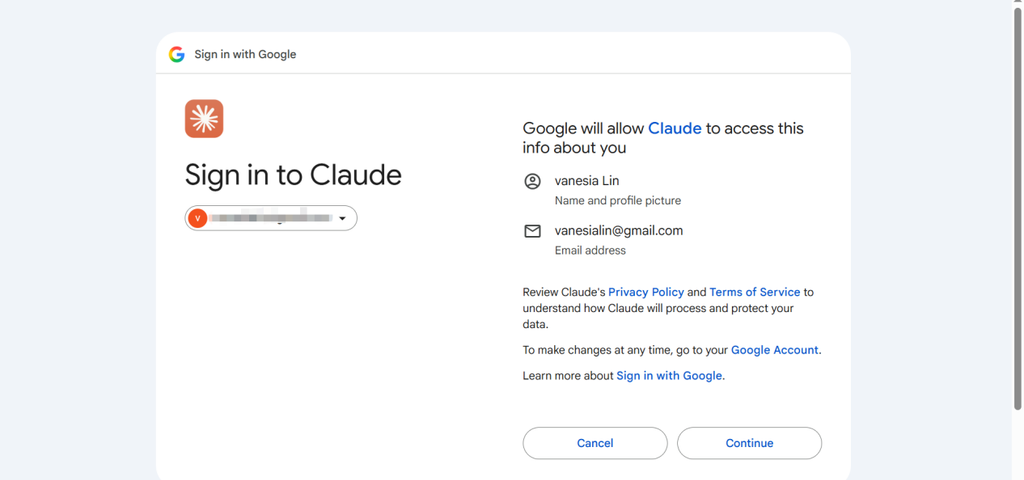
On the Google account selection page, follow the prompts to choose your account and grant authorization.
If Google asks you to verify a phone number, follow the instructions on Google’s page. This is separate from any phone verification Claude may require.
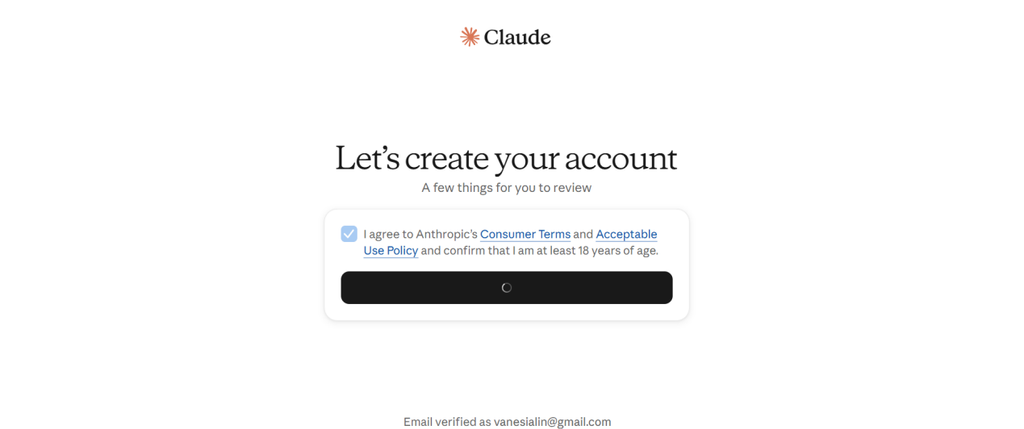
5. Continue to the Account Creation Page
After authorizing Google sign-in, you will be taken to Claude’s account creation or setup page. Follow the on-screen instructions to enter or confirm the required information, such as your account name and acceptance of the terms of service.
If you are asked to verify a phone number, refer to the phone verification section below. If Persona verification appears, see the KYC section later in this guide.
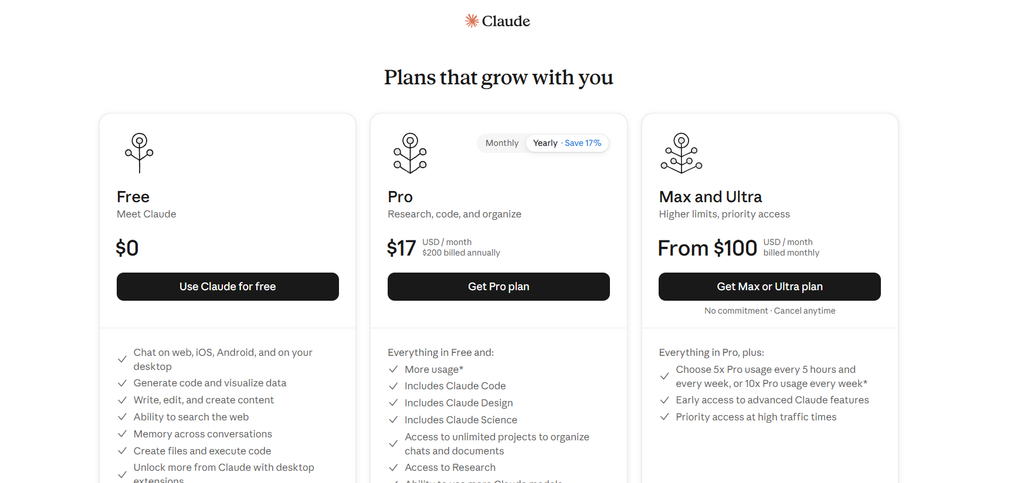
6. Choose a Subscription Plan
If you are prompted to choose a plan, we recommend starting with Free. Try the service first and make sure you can chat normally and remain signed in before deciding whether to upgrade.
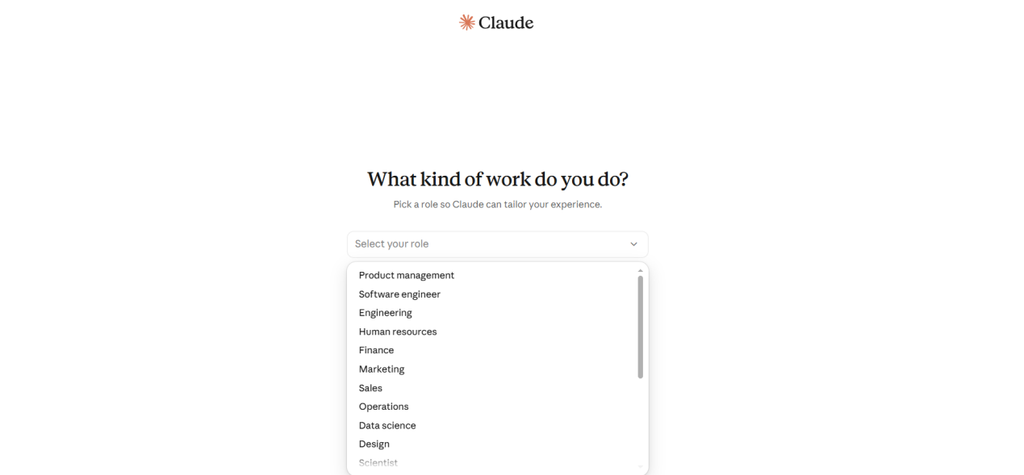
7. Complete the Initial Account Setup
Follow the on-screen prompts to complete the initial setup. This may include:
- Reviewing and accepting the terms of service;
- Setting your display name and other basic account details;
- Adding personalization details if you wish;
- Completing any remaining preference settings.
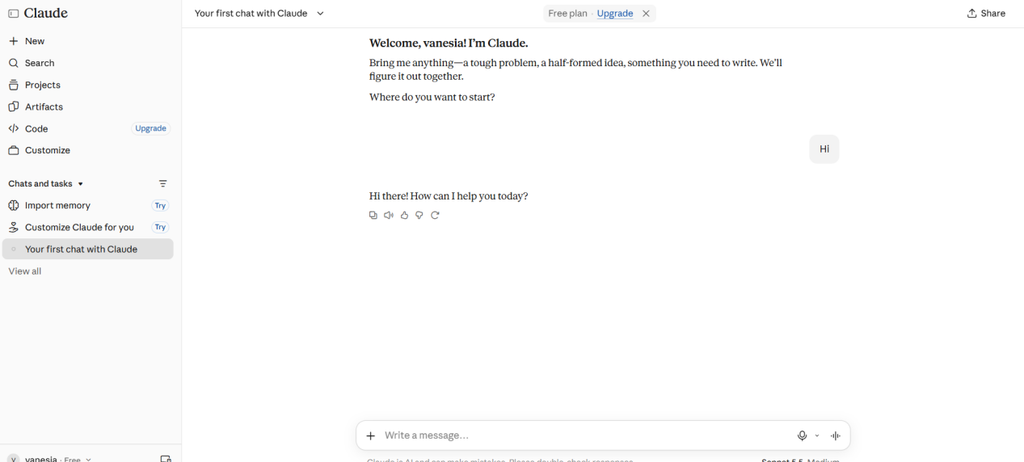
8. Open Claude and Get Started
Once setup is complete, you can open the Claude chat interface. Try sending a real work-related prompt to test the features. For subsequent sessions, continue using the same environment and make sure the relevant IP remains enabled in IPFoxy Proxy Manager.
9. Claude Plans and Payments
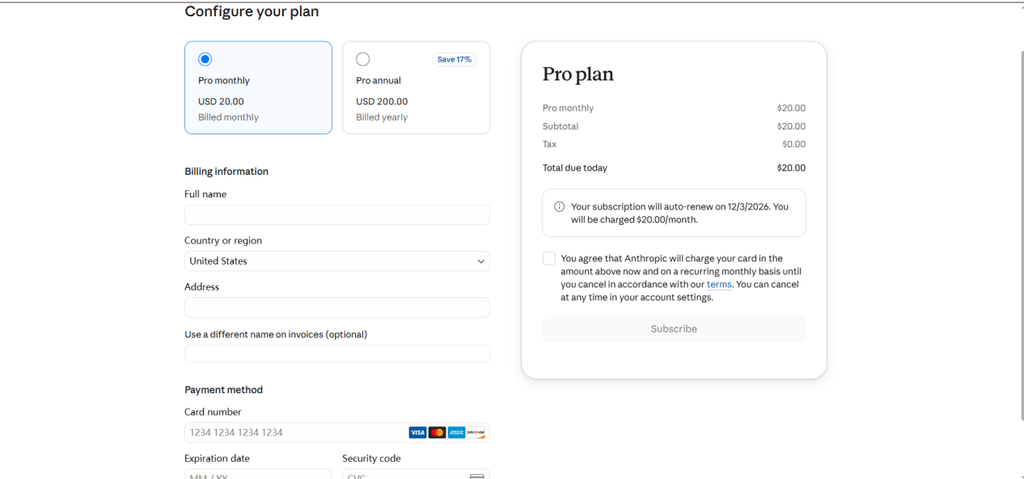
A sensible path is to start with the free plan, move to Pro if needed, and consider Max only if your workload requires it. Use the free plan for a few days to a week to understand your tasks and usage before paying. There is no need to purchase the highest-tier plan immediately after signing up in an attempt to “boost” your account standing.
Payment and subscription are also stages where additional checks may occur. Keep the following points in mind:
- Make sure your payment card, billing address, and sign-in location are consistent and accurately reflect your actual circumstances.
- Avoid untrustworthy payment methods. Flagged virtual cards, payments made by unknown third parties, and discrepancies between payment details and your actual location may all cause payment or account issues.
- Avoid changing payment methods frequently. After subscribing, keep your payment details consistent where possible. In particular, avoid unnecessary card changes, billing updates, or repeated account-setting changes during the first month.
If you already have a Claude account, you can also refer to IPFoxy’s “Claude Account Suspension Guide 2026: Risks & Troubleshooting” for additional tips on everyday sign-in and account use.
IV. Claude KYC Verification: Understanding the Two Common Checks
Claude users may encounter two main types of verification:
- SMS verification during sign-up;
- Persona identity verification (KYC),which may be requested for certain accounts or circumstances.
The information required for these two checks is different, as are the steps involved.
1. Phone Verification During Registration
Claude does not accept phone numbers from every country or region. Google Voice and other VoIP numbers, as well as some virtual numbers, may also be unsupported. If you use an unsupported number, you may see a message saying that the number cannot be used or that the verification code could not be sent.
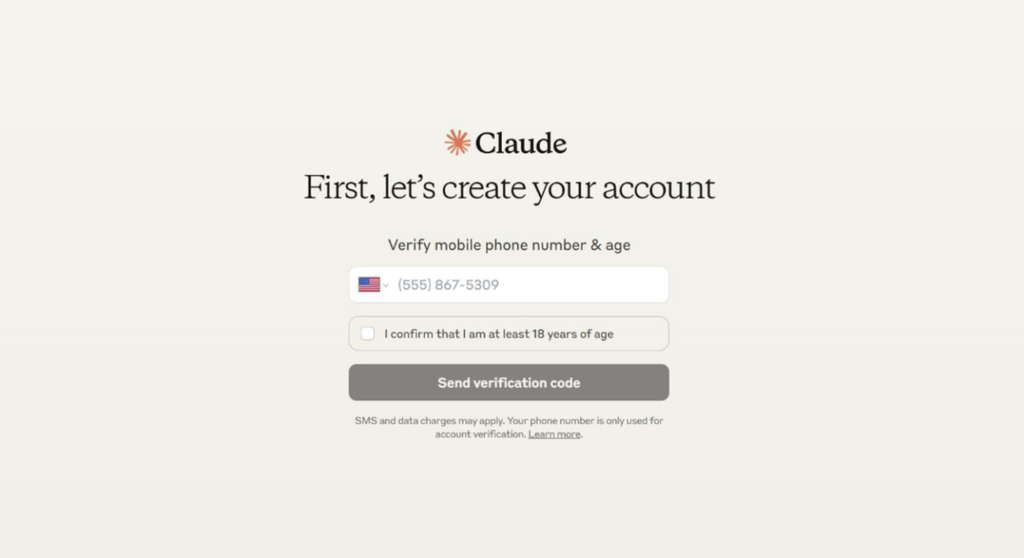
What to do:
- Use a physical mobile number from a supported region. If you are considering a third-party SMS service, check whether its number type meets Claude’s requirements, whether the number is shared, and whether it will remain available for future verification. A number you control long-term is preferable.
- Use a stable connection from a region where Claude is officially available, such as the United States, and prepare an email address such as Gmail or Outlook. If you use Google sign-in, complete your Google login and any required verification in Chrome beforehand.
2. Persona Identity Verification (KYC)
If an account activity or other circumstances prompt an additional check, Claude may display an identity verification request provided by the third-party service Persona. This may appear after registration and may restrict certain features until verification is completed.
In practice, the timing of a KYC request can vary. A verification request during registration or payment does not, by itself, establish that an account will be suspended. Follow the instructions shown in the official verification flow.
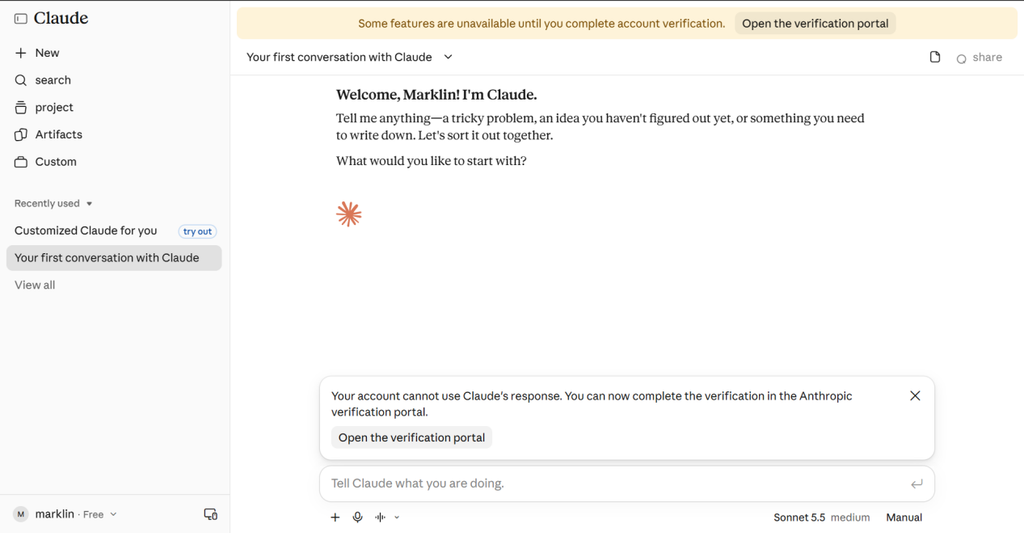
Verification steps and points to note:
- Document verification: You may be asked to upload an identity document. Use your own genuine, valid, government-issued document that meets the requirements shown on the verification page. Some document types or issuing regions may not be supported.
- Liveness check: Scan the QR code with your mobile phone to complete facial biometric verification using the camera. We recommend removing the SIM card from your mobile phone, disabling GPS location services, and ensuring that both your mobile phone and computer are connected to the same network with the same IP address.
- Environment checks: Persona detects WebRTC leaks of your real local IP address, mobile GPS location and SIM card details; we recommend disabling WebRTC to prevent your real IP address from being exposed.
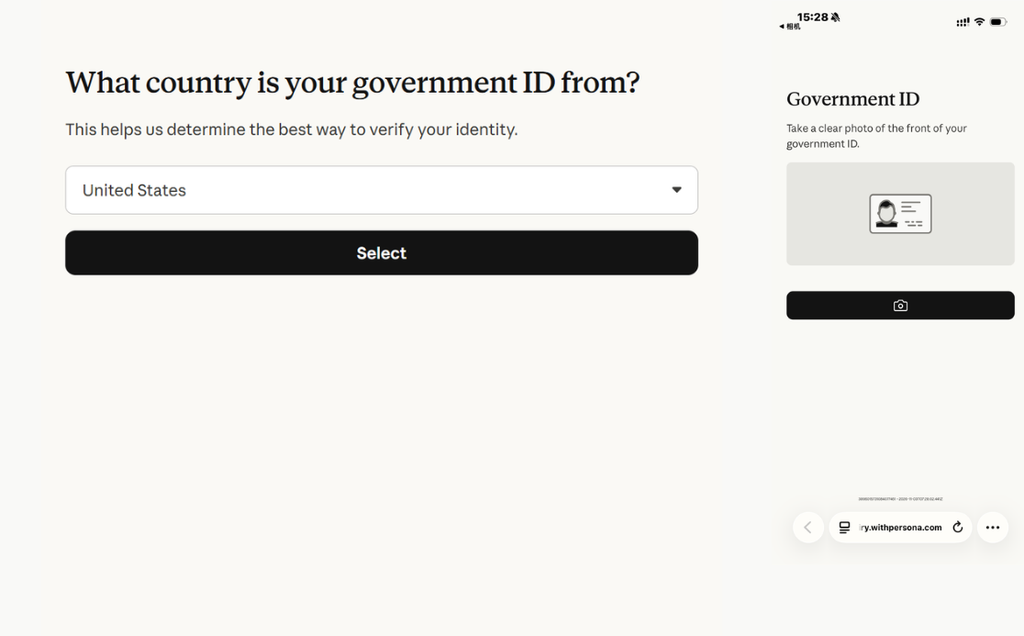
This verification process is extremely rigorous; if you encounter it immediately after registering, it is generally best to discard the non-compliant account environment and set up a new, functional one.
V. Frequently Asked Questions (FAQ)
1. Does signing in with Google eliminate phone verification and KYC?
No. In our test, no additional prompts appeared, but Google authorization does not replace any phone or identity verification that Claude may require.
2. Does a static US IP guarantee that my account will not be suspended?
No. A fixed IP can help maintain a consistent network connection and avoid unnecessary changes during registration and use. However, it cannot replace identity verification or guarantee that an account will not be restricted.
3. Can I still be asked to verify my account after subscribing to Max?
Yes. Max is a paid plan that primarily affects available features and usage limits. It does not replace account eligibility or identity verification, and it does not guarantee that an account will never be restricted.
VI. Conclusion
Before signing up for Claude, prepare a dedicated browser profile, a stable network connection, an email address you can access long-term, and a phone number from a supported region if one is required. Following the environment setup steps in this guide and using Google sign-in where available can help make the registration process more straightforward, although successful registration cannot be guaranteed.
If you already have a Claude account, try to keep your browser and network environment consistent and make sure your IPFoxy connection is working whenever you use it. For more tips on everyday account use and security, see “Claude Account Suspension Guide 2026.”