












In 2026, a Gmail address is practically a gateway to the internet. Whether you are signing up for popular AI tools like ChatGPT, Claude, and Gemini, managing social media accounts on TikTok, Facebook, and Instagram, or running Google Ads campaigns, a Gmail account is often essential. Yet many people run into an unexpected hurdle: after entering their basic details, Google asks them to scan a QR code or even send a text message from their phone before they can continue.
Google may present different verification steps depending on the circumstances of each registration. Understanding these scenarios is especially useful if you manage multiple Google accounts.
This guide walks through the Gmail sign-up process in 2026, including two common QR code verification flows and what to do in each case
I. Why Does Gmail Sign-Up Trigger QR Code or Phone Verification in 2026?
Google may require additional checks during account creation to limit spam and automated abuse. QR code and phone verification are among the ways it checks whether someone signing up is a real person. That is why you might be able to skip verification on your first attempt but encounter it when creating another account.
Three common Gmail verification scenarios in 2026
| Verification method | How it works |
| QR code (no outgoing text required) | Scan the code on your computer, follow the identity confirmation prompts on your phone, then return to the computer. |
| QR code (outgoing text required) | Scan the code, open your phone’s messaging app with a prefilled message and recipient, and send it to complete verification. |
| Phone number verification | Enter your phone number, receive a verification code from Google, and submit it. |
Google has not published the full criteria behind its Gmail registration checks. However, several factors are worth keeping in mind:
- Browser environment: Separate Chrome profiles keep cookies, login sessions, and browsing history apart, reducing the chance of mixing sessions across accounts.
- Network connection: Datacenter IPs, recognizable VPN connections, changing exit IPs, or unusual network settings may affect access to the sign-up page. IP reputation matters alongside location.
- Multiple accounts on one device: Repeatedly creating accounts from the same device or IP address may attract additional checks.
- Registration behavior: Rapid repeated submissions, unusually fast form completion, or highly repetitive interactions may also be relevant.
Before signing up, prepare a stable browser and network setup, and avoid changing your configuration in the middle of verification.
II. Before Signing Up: Create a Separate Chrome Profile and Configure Proxy
Start with a separate, stable browser and network environment. Google performs security checks during registration, and frequent changes to your network exit point may make the process less predictable or prompt additional verification.
If you use multiple Gmail accounts on one computer, Chrome’s built-in Profiles feature lets you separate browsing sessions. You can also configure a distinct network exit for each profile.
Here is how to set up a US static ISP proxy from IPFoxy in Chrome.
Step 1: Create a New Chrome Profile
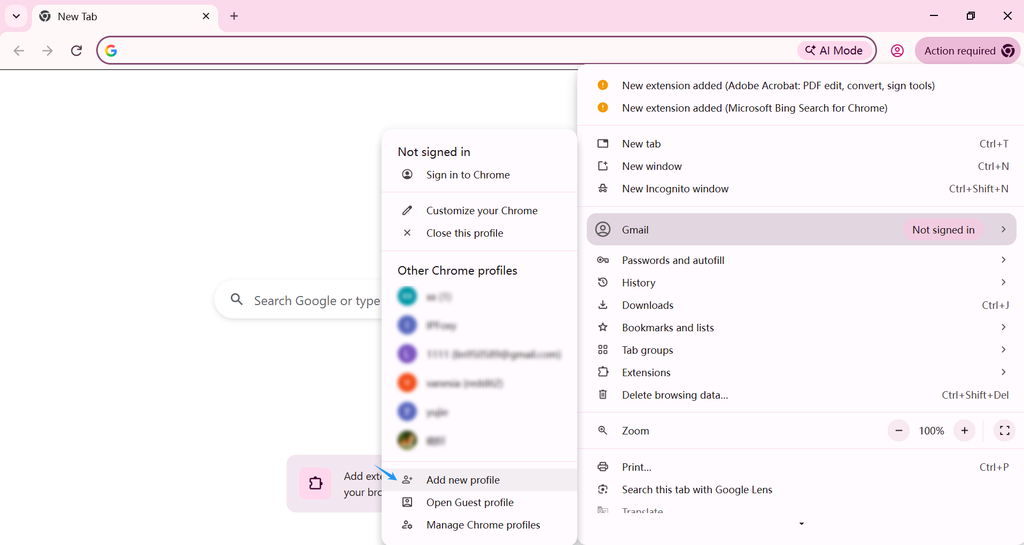
Open Google Chrome, click your profile picture in the upper-right corner, and select “Add Chrome profile.”
Chrome will open a new browser window. Assigning a different profile to each Gmail account can reduce the need to repeatedly sign in, sign out, or clear cookies. Keep in mind that Chrome profiles separate browser data and sessions; they do not fully isolate device fingerprints or the operating system.
Step 2: Install IPFoxy Proxy Manager
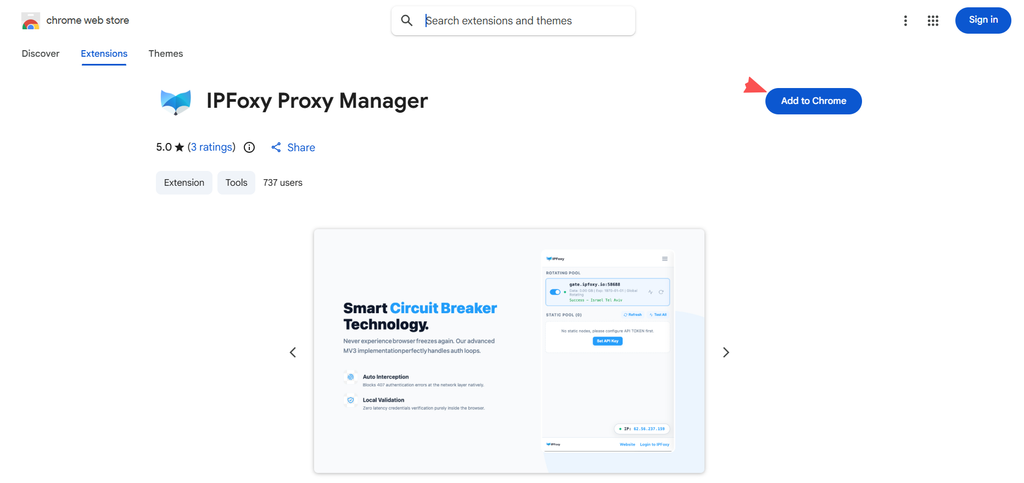
Chrome does not provide a built-in, per-profile proxy configuration interface, so you can use IPFoxy Proxy Manager to manage proxies directly in the browser without repeatedly changing system network settings.
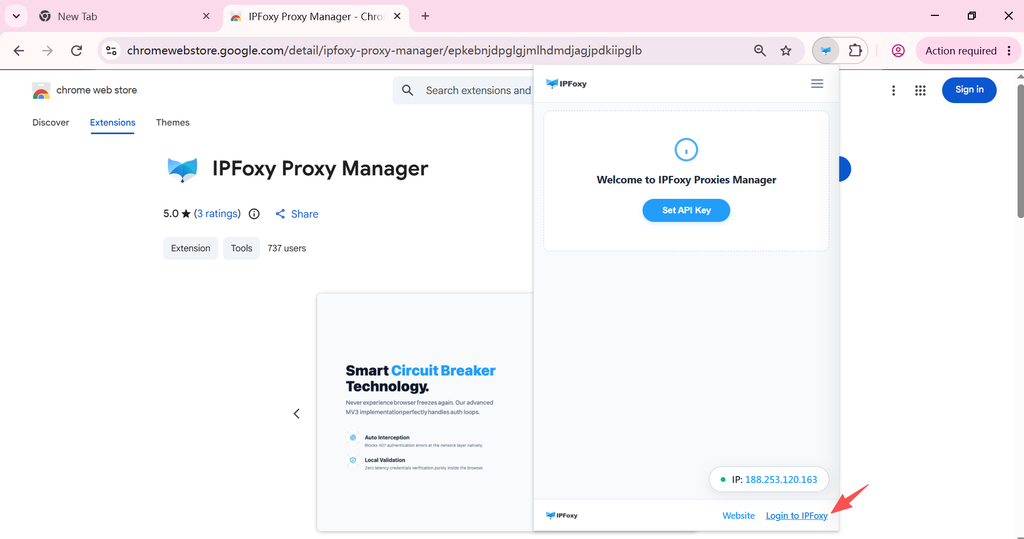
Install IPFoxy Proxy Manager in your new Chrome profile from the Chrome Web Store. Follow the installation prompts, then pin the extension to the toolbar for easier access to its connection status and settings.
Step 3: Configure an IPFoxy ISP Proxy
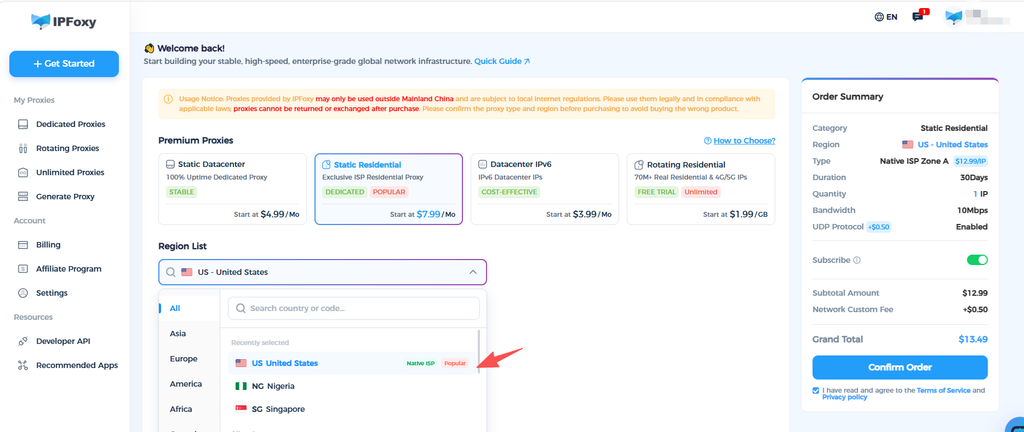
You can access the IPFoxy website through Proxy Manager, then choose a proxy type and target location that suit your needs.
Static ISP proxies provide a relatively consistent exit IP, making them useful for browser workflows that require a stable network identity. Compared with datacenter IPs, their ISP-associated characteristics may help reduce some environment-related verification prompts, although outcomes are never guaranteed.
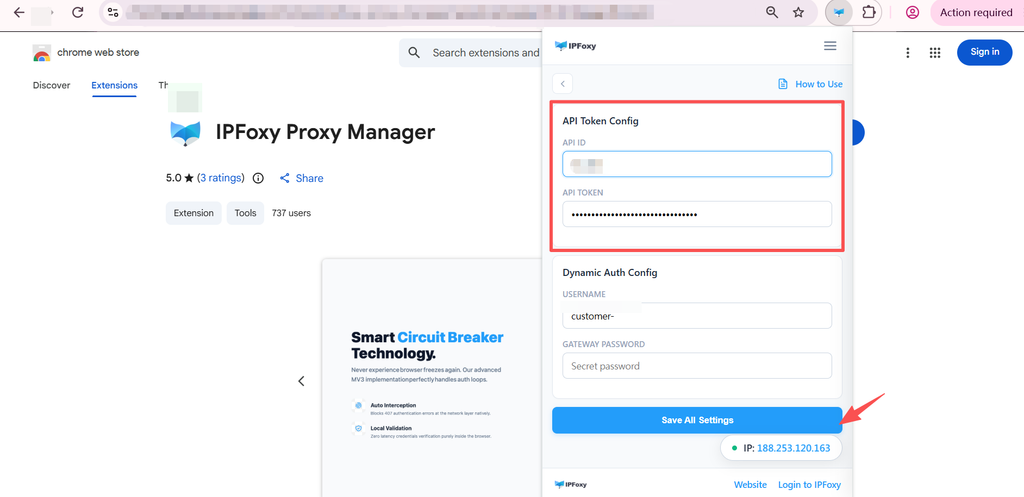
Next, open IPFoxy Proxy Manager, enter the API integration token for your IPFoxy account, and save it. Your account’s proxy information will sync to the extension automatically.
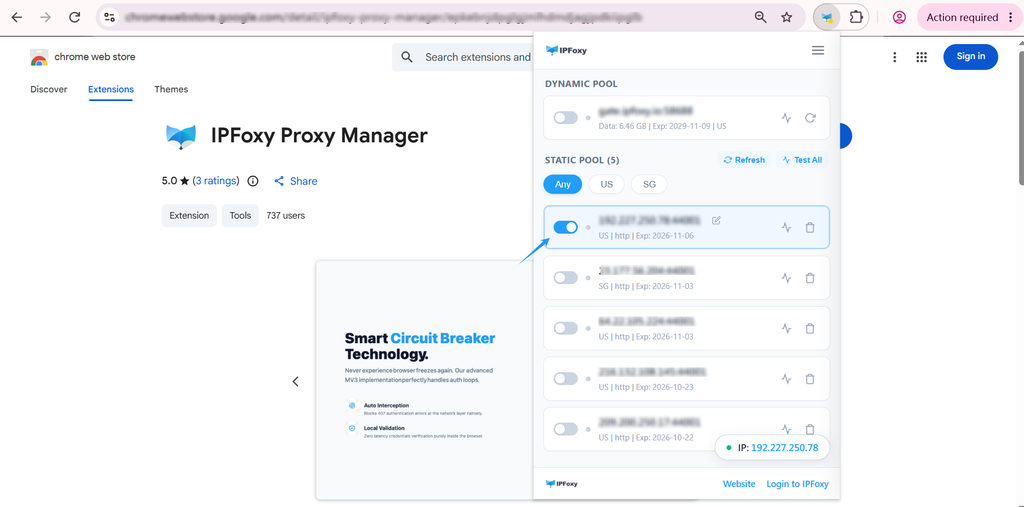
Enable the proxy connection to assign a network exit to that Chrome profile.
Step 4: Check Whether the Proxy Is Working
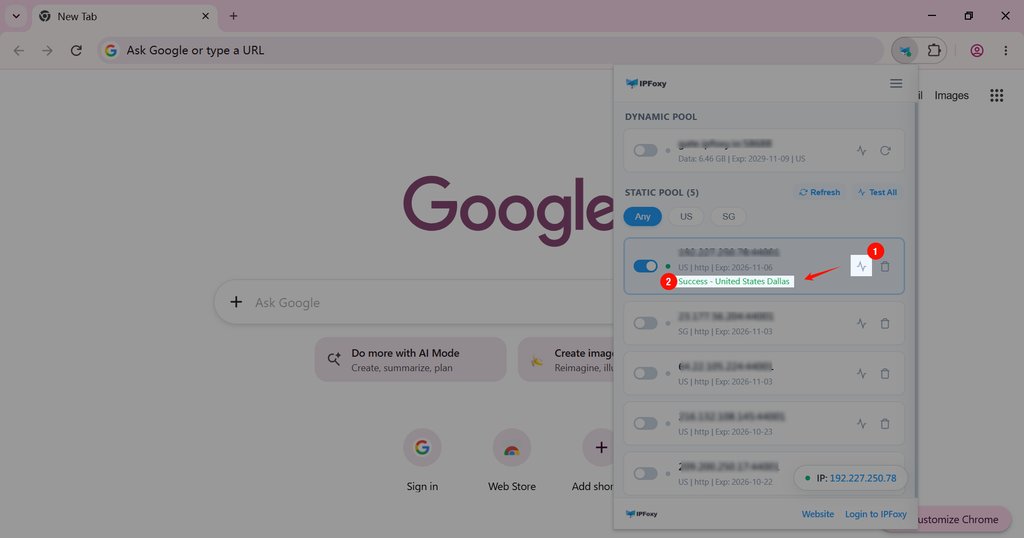
Before opening the Gmail sign-up page, confirm that your connection is working. Use the check button in IPFoxy Proxy Manager to verify connectivity and the reported location.
Once the proxy is connected, proceed to Gmail registration. Try to keep the network stable rather than switching proxies repeatedly during sign-up.
III. Gmail Sign-Up Tutorial for 2026: Phone and QR Code Verification
After setting up your Chrome profile and proxy, you can begin creating your Gmail account.
Step 1: Open Google Account Sign-Up
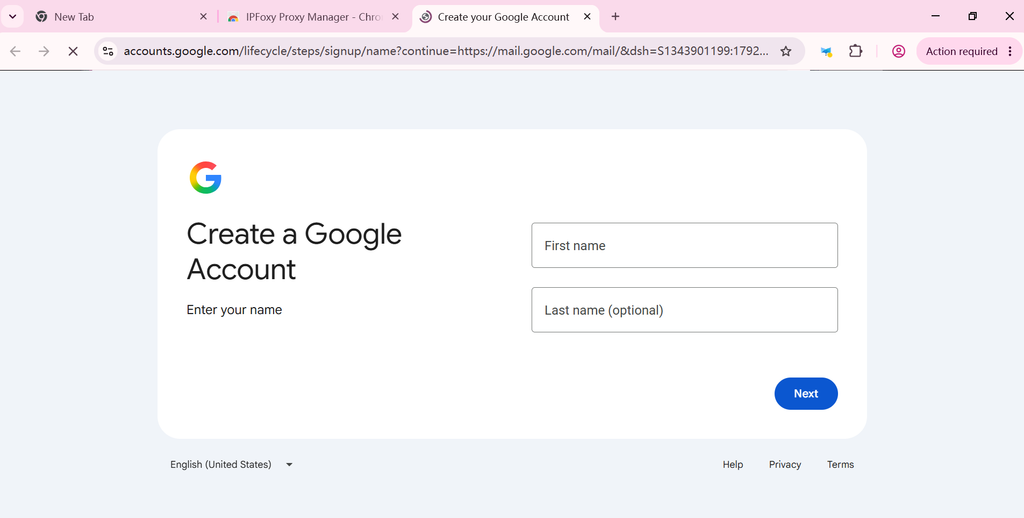
In the Chrome profile you just configured, visit the official Google account registration page . Select the intended account type, such as personal use, and enter your name, date of birth, and other requested information. Then choose your email address as prompted.
Continue through the on-screen steps. Some users will proceed directly to account setup, while others will first be asked to complete QR code or phone verification.
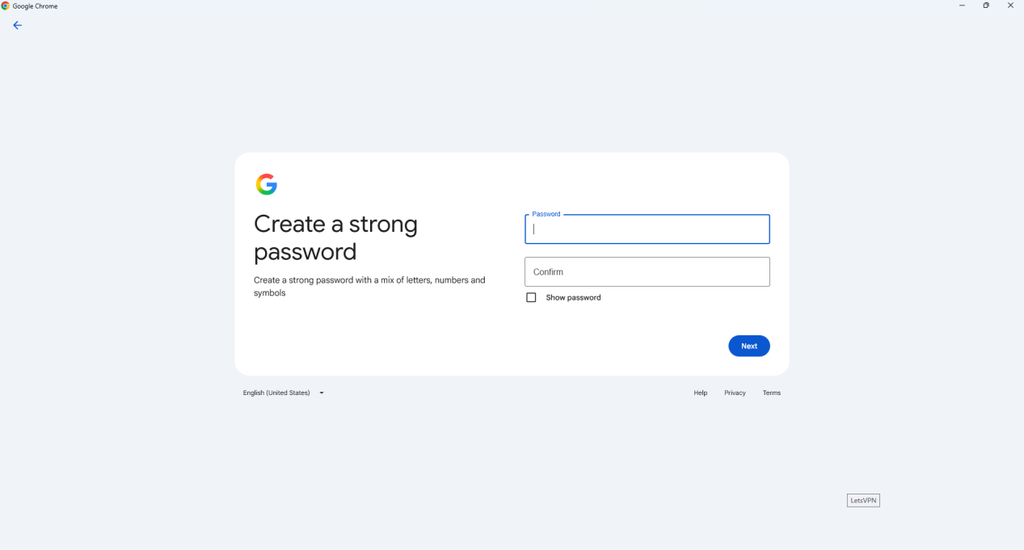
Step 2: Set a Password
If Google does not require additional verification, you may be taken straight to the password setup screen. Follow the prompts to complete registration. You may also be asked for a recovery email, which can sometimes be skipped.
Step 3: What If Google Asks You to Scan a QR Code?
QR code checks can appear during Gmail registration. Do not immediately close the page or restart the process. Keep your existing Chrome profile open, scan the code with your phone, and follow the instructions displayed. It may help to keep your phone and computer on consistent regional network settings. Two different flows are worth distinguishing.
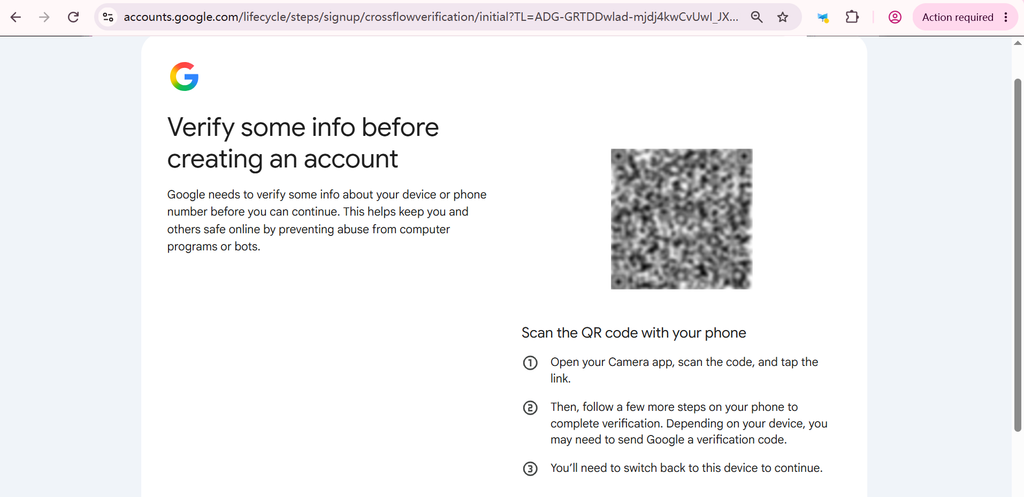
Scenario A: Scanning the Code Does Not Require an Outgoing Text Message
Sometimes the QR code opens a Google verification page on your phone and asks you to confirm your device or complete another identity check. Follow the instructions on your phone.
This flow may use a mobile device that is already signed in to a Google account to confirm that a legitimate user is present, rather than checking a SIM card through an outgoing message.
In some user tests, keeping the phone and computer on a consistent network exit appeared to help. You can configure the same IPFoxy proxy on both devices, but Google does not guarantee that this will change the verification method or make verification easier.
After scanning, a phone already signed in to Google services may display a confirmation prompt rather than opening the messaging app. If prompted, tap the confirmation button to finish the check without sending an SMS.
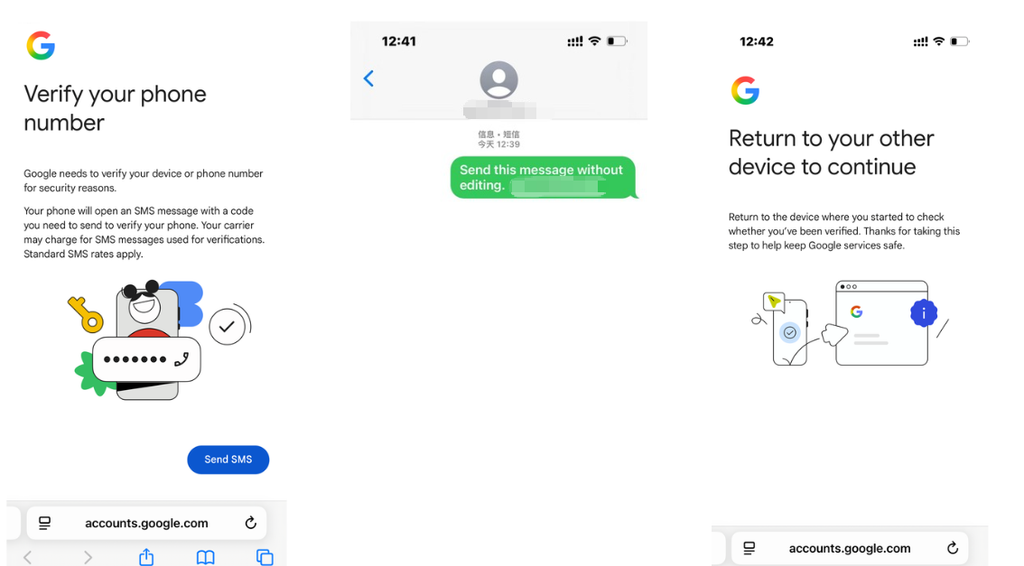
Scenario B: Scanning the Code Requires You to Send a Text Message
In another flow, scanning the QR code opens the phone’s messaging app with a recipient and message already filled in. This is sometimes called reverse SMS verification.
Follow these steps:
- Check that the SIM card’s country is compatible with the region used for the browser connection. The phone and browser do not necessarily need identical IP addresses.
- The destination number may vary by region. For example, a US-based flow might show a short code such as 96831, while a Hong Kong-based flow might show a number beginning with 852. If sending fails, review the on-screen instructions and your carrier’s SMS support.
- Keep the Gmail sign-up page open on your computer while waiting for verification.
- Once verification succeeds, continue with the instructions shown on your computer.
If the SIM card region and the browser’s network region differ, the process may fail. The article recommends restarting registration if the required SMS cannot be completed.
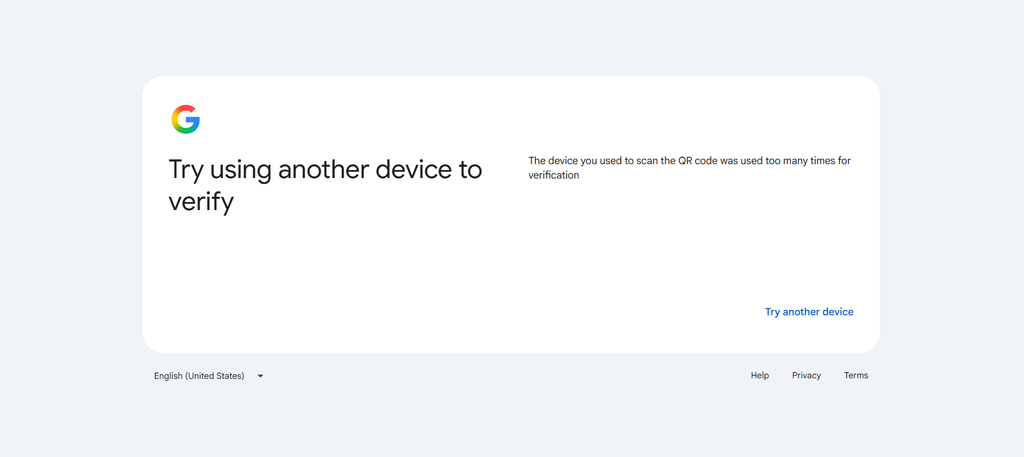
Some users report better results when scanning with the Google app. If verification fails, avoid rapidly repeating the same attempt; wait before trying again.
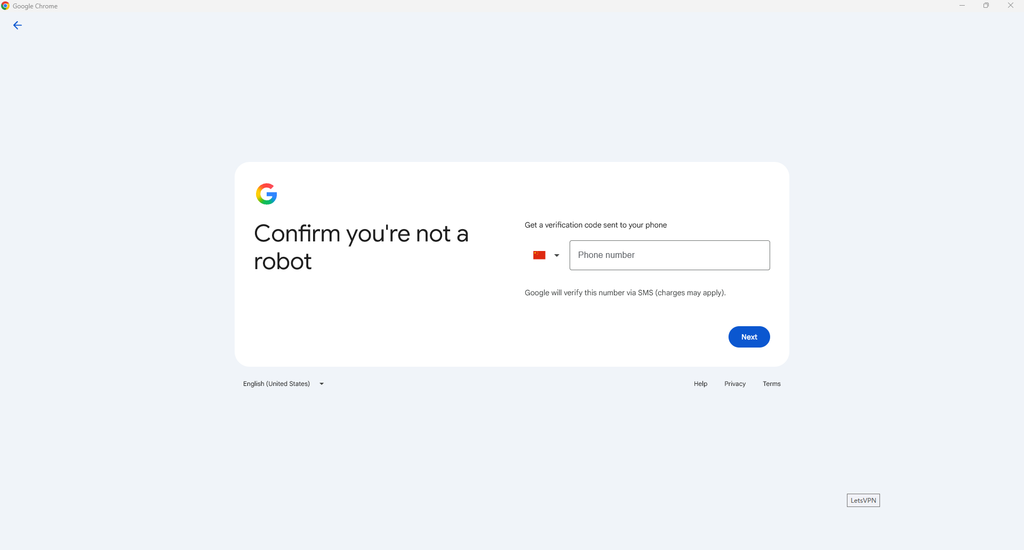
Step 4: What If Google Requests SMS Verification?
If Google asks for a phone number instead of showing a QR code, consider the following:
- Check the number and its format: Select the correct country code and enter the number without extra spaces or unusual characters. “This phone number cannot be used for verification” or “This phone number has been used too many times” may indicate a Google-imposed limit.
- Try the mobile app: If the browser flow fails, you can try signing up through the Gmail mobile app using a mobile data connection. Verification requirements may still vary.
- Review environment consistency: Check that your device language, time zone, and network region are configured consistently. If needed, restart in a fresh browser session.
- Look for a “Skip” option: Some flows allow you to continue without adding a phone number and use a recovery email instead. If no such option appears, follow Google’s required verification steps.
Step 5: Finish Registration and Set Up Account Security
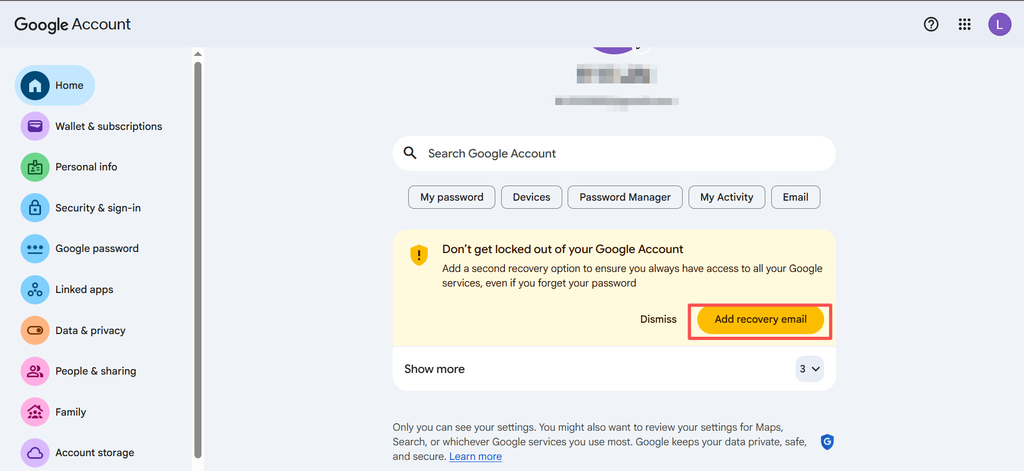
After verification, Google may ask you to review account information, accept its terms, or add recovery details.
Navigate to Personal info → Contact info → Recovery email and add an email address you control. This can make account recovery easier if you forget your password or need to verify your identity later.
IV. Common Gmail Registration Problems and Solutions
This is generally the reverse SMS verification flow. Requiring an outgoing message makes automated or mass registration more difficult because it depends on a working mobile SIM and carrier messaging service. If the message fails, check whether your mobile plan supports the destination number or international SMS, and review the instructions displayed by Google.
Google may allow the same number to verify multiple accounts, but it does not publish a single universal limit. If you see a message saying the number has been used too many times, it may have reached a verification limit. Deleting an older account does not necessarily reset that limit immediately.
Google uses different identity verification methods in different contexts. Some QR-based checks can be completed on a phone already signed in to Google, without sending an outgoing text message. However, this behavior is more commonly associated with existing-account sign-in or security checks. There is not enough evidence to conclude that a phone already signed in to Google will always bypass SMS during new Gmail registration.
Not always. Some users can finish creating an account without supplying a phone number, while others must verify. If Google offers a “Skip” option, you can use it; otherwise, complete the requested verification. A clean browser profile and a stable connection may help avoid configuration problems, but they do not guarantee that verification will be waived.
Yes. A residential IP does not guarantee that Google will skip verification. Google may consider device characteristics, account activity, registration behavior, and other factors beyond IP address alone.
If you manage several Gmail accounts, separate Chrome profiles can help keep cookies and login sessions apart. IPFoxy Proxy Manager can provide a stable residential proxy connection for each browser environment and reduce issues caused by frequent network changes.
V. Conclusion
QR code and phone verification are common parts of Gmail registration in 2026. If you use several Gmail accounts on one computer, separate Chrome profiles combined with stable IPFoxy residential proxy connections can help keep browser sessions and network configurations organized.
The workflow described above has worked well in the article’s user testing. Once registration is complete, you can continue using the corresponding Chrome profile for AI tools such as ChatGPT and Claude, or for social media and advertising platforms including Facebook, Instagram, and Reddit.
Remember to confirm that IPFoxy Proxy Manager is enabled and that the proxy connection is working whenever you return to the account. A consistent setup supports smoother account management, but cannot guarantee any particular verification outcome.