











When creating a Google account, what should you do if your phone number cannot be verified, you do not receive a verification code, or the page repeatedly says that your account cannot be created? Different error messages can have different causes, and repeatedly submitting information or switching networks may not solve the problem.
This article covers common Google account registration issues, explains their main causes, and provides practical solutions to help you identify the problem and find the right way to resolve it.
I. Common Reasons Why Google Account Registration Fails
Google account registration failures are usually caused by multiple factors rather than a single issue. Understanding the specific cause helps you troubleshoot more effectively and avoid triggering additional verification checks through repeated attempts.
1.Network and Proxy Environment Issues
When creating a Google account, an unstable network connection, frequent proxy node changes, or an IP address with a history of suspicious access may increase verification difficulty. This is particularly relevant when using shared proxies, where multiple users share the same IP address. Suspicious activity by other users may also affect the IP address’s overall reputation.
2.Phone Number Verification Failure
Phone number verification is a common obstacle during Google account registration. Using a mainland China phone number with the +86 country code may encounter restrictions in certain situations.
- The page says, “This phone number cannot be used for verification.” This may happen when the number has been used for verification too many times, triggering Google’s risk control measures.
- No SMS verification code arrives. This may be caused by carrier delays or problems receiving text messages.
Note that even if the phone number itself is valid, a high-risk outgoing IP address may still prevent the verification code from being delivered.
3.Browser Environment Issues
Using domestic browsers such as 360 Browser or QQ Browser, which may have built-in review or filtering mechanisms, or having browser cache and language settings that reveal your actual location, can interfere with the registration process.
For example, residual Chinese language preferences and historical cookies in Chrome that do not match the location of the current proxy IP may create inconsistencies in the browsing environment. Google may interpret these inconsistencies as signs of an unusual access environment.
II. How to Fix Google Account Registration Issues
Once you have identified the possible causes, troubleshoot them in the following order. Changing one factor at a time makes it easier to determine what is causing the problem.
1.Configure a Residential Proxy IP
First, check that your network connection is stable. Avoid frequently switching networks, proxy nodes, or outgoing IP addresses during registration. If you need a proxy to access Google services, consider using a dedicated, stable residential IP to reduce the uncertainty associated with shared IP addresses.
You can configure a dedicated residential proxy in Chrome to improve your proxy environment. Consider using a professional proxy provider such as IPFoxy Proxies, which offers genuine, clean, dedicated residential proxy resources. You can also use the Google proxy extension, IPFoxy Proxy Manager, to sync and access your proxy configurations in one click, helping maintain a more consistent and credible outgoing IP environment for your account.
Follow these steps to configure the proxy:
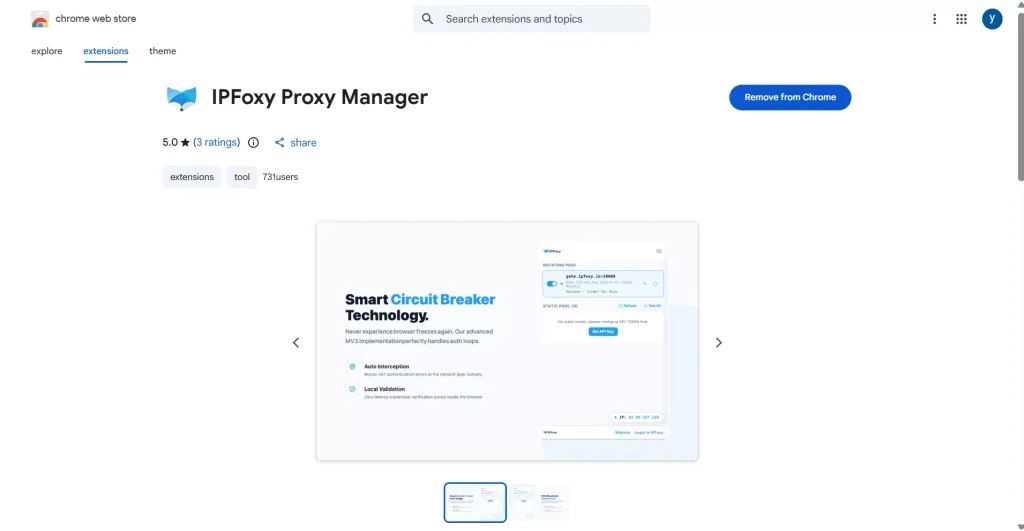
Step 1: Install the IPFoxy Proxy Manager extension from the Chrome Web Store. Enter your IPFoxy user ID and API key in the extension, then save your settings.
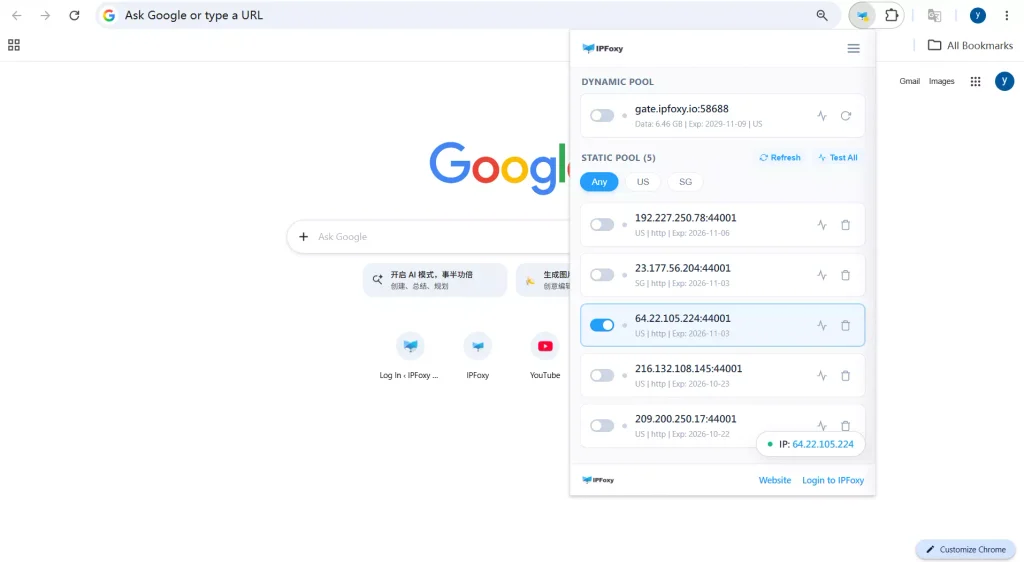
Step 2: Once the information has synced, IPFoxy Proxy Manager will automatically sync your proxy IPs. Select the residential IP you want to use and enable it. Once the connection is successful, the proxy will be active in your current browsing environment.
2.Adjust Your Browser Language Settings
If your browser language differs significantly from your actual usage environment, try adjusting the language settings to reduce unnecessary inconsistencies.
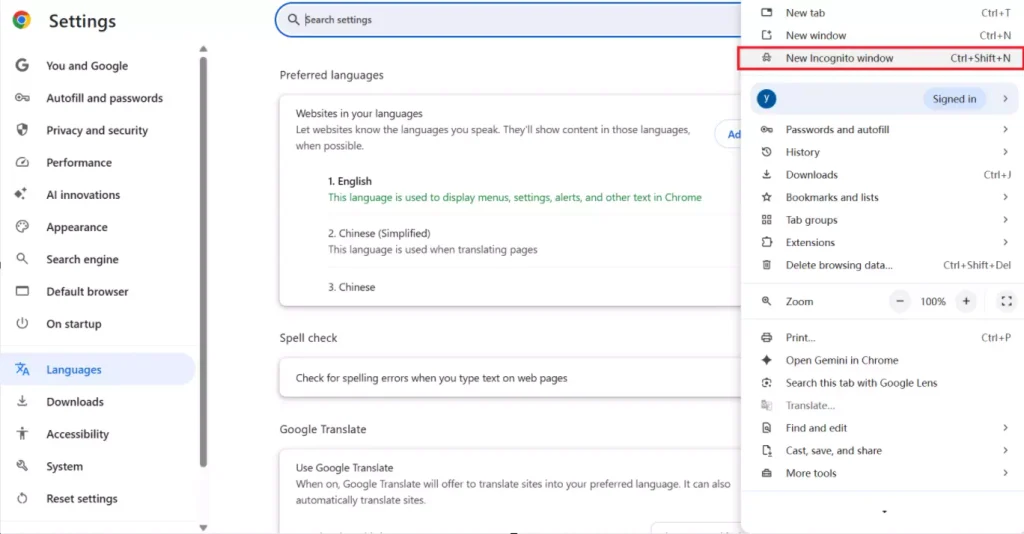
Recommended steps: Open Chrome and go to Settings → Languages. Add English and move it to an appropriate priority level. Restart the browser and try registering again.
3.Use Incognito Mode
Browser cache and cookies may interfere with the registration process. Incognito mode reduces the impact of existing cookies and some browsing data, allowing you to open the registration page in a session without your usual browsing history and cached data. This may make the session appear more like a fresh browsing environment and reduce the likelihood of triggering Google’s risk control measures.
Recommended steps: Open the menu in the top-right corner of Chrome, select “New Incognito Window,” and then visit the Google Account registration page to complete the process.
4.Try a Different Registration Method
Verification procedures vary across devices and registration methods. Registration through the desktop website may involve stricter risk controls, while mobile registration may be less restrictive. Some users report that the mobile registration process is simpler than the desktop version. If another Google account is already signed in on the phone, creating a new account may sometimes allow you to skip phone verification.
Recommended steps: Open the Gmail app on your phone or use Google’s official account registration page on your mobile device. Follow the on-screen instructions, and avoid repeatedly switching devices or submitting registration requests in quick succession.
III. Additional Tips for Registering a Google Account
Resolving registration issues is only the first step. To reduce the risk of future login problems and make account recovery easier, keep the following points in mind.
1.Wait Before Trying Again After Repeated Failures
If registration has failed several times in a row, avoid repeatedly submitting requests from the same device and IP address. Repeated attempts may reinforce risk signals. Stop trying and wait 24–48 hours before attempting registration again using a stable network and device.
During this period, avoid rapidly switching phone numbers, IP addresses, or devices to make repeated attempts, as this may increase verification difficulty.
2.Add a Recovery Email After Registration
After creating a Google account, consider linking a non-Google email address that you use regularly and can access reliably, such as QQ Mail, NetEase Mail, or Outlook.
If your account is flagged for a login from an unfamiliar location or becomes locked, a recovery email may provide a straightforward way to recover the account or resolve access restrictions.
3.Avoid Frequent Device and Network Changes Immediately After Registration
The first 3–7 days after account creation can be a sensitive period for a new account. Try to sign in and use the account on the same device and network node used during registration. Avoid frequently signing out, clearing browser data, or switching repeatedly between your phone and computer.
Frequent changes to the browsing environment may trigger additional verification checks and, in severe cases, lead to restrictions on the new account.
IV. FAQ
It is not recommended. During the initial monitoring period, a new account may be sensitive to changes in its access environment. Switching abruptly from a residential IP to a data center IP or frequently changing locations may trigger additional verification.
It is better to maintain a stable environment for a while before making adjustments based on your actual needs.
First, confirm that your phone number and country or region code are correct. Then check your phone signal and SMS reception. If Google offers alternative verification methods, such as voice verification, you can follow the on-screen instructions to try them. Available verification methods may vary by account and region.
Yes. Google allows users to create a Google account using an existing non-Gmail email address in certain registration flows, provided they verify the email as required.
Keep in mind that using an existing email address to create a Google account does not create a new Gmail address. For more information, refer to Google’s official account creation guide.
V. Conclusion
Common reasons for Google account registration failure include network and IP environment issues, phone number verification restrictions, and unsuitable browser settings or cached data. Configuring a clean residential proxy and maintaining a consistent outgoing IP environment, along with adjusting the browser language, using an Incognito window, and choosing an appropriate registration method, may help resolve many common verification issues.
After successfully registering, remember to add a recovery email and recovery phone number where available, and maintain normal account usage habits to help keep your account accessible and stable.