











Have you ever logged into LinkedIn only to be asked for repeated verification—or suddenly restricted from adding connections or sending messages? In severe cases, you may even be required to upload identity documents.
For users who rely on LinkedIn to build connections or generate leads, an “account restriction” can feel like a complete business shutdown.
In reality, LinkedIn’s risk control system has become highly intelligent in 2026. Once it detects abnormal behavior or environmental risks, restrictions are triggered immediately. This article breaks down the underlying logic, explains the causes of restrictions, and provides a practical SOP for recovery and prevention.
I. Common Types of LinkedIn Account Restrictions & Root Causes
To resolve a LinkedIn restriction, you first need to identify which “red line” was crossed. Based on LinkedIn’s risk control system, restrictions generally fall into two categories:
1. Temporary Restrictions
This is an initial system interception. Common signs include frequent CAPTCHA prompts or messages like “You’re doing that too fast.”
Causes:
- Frequent device/environment changes: Switching devices or logging in from different cities or countries within a short time may be flagged as account theft. Data center proxy IPs are also easily blacklisted.
- Excessive activity frequency: Rapidly visiting profiles, sending connection requests, or messaging in bulk may trigger bot detection.
- Plugin conflicts or unofficial API usage: Unauthorized automation tools or extensions can trigger frontend risk detection.
This type of restriction is not a permanent ban. The system flags your account as risky and applies temporary security limits.
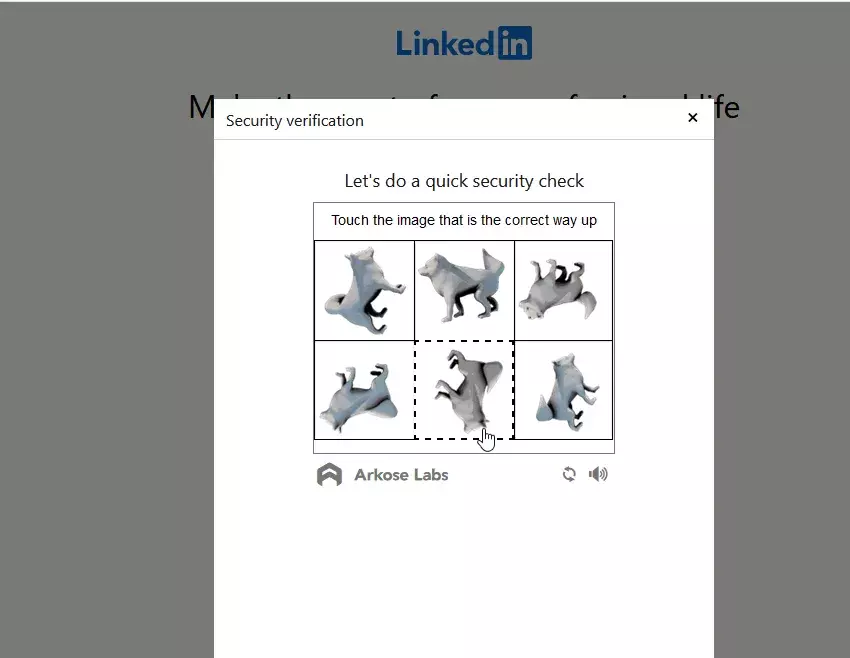
2. Identity Verification Triggered
This is a more severe restriction, indicating your account trust score has dropped below the threshold.
Causes:
- Questionable identity authenticity: AI-generated avatars, incomplete profiles, or misleading job information
- High report rate: Being marked as “I don’t know this person” by multiple users
- Device association risk: Logging in on devices or browser environments previously linked to banned accounts (Canvas fingerprint tracking)
- Geographic inconsistency: Large mismatch between registration location and login location
- Account sharing: LinkedIn officially allows only one account per person
II. LinkedIn Account Recovery SOP
1. Environment Isolation & Cleanup
Before submitting any appeal, eliminate all technical risk factors:
- Stop all automation tools: Disable and uninstall all third-party LinkedIn plugins
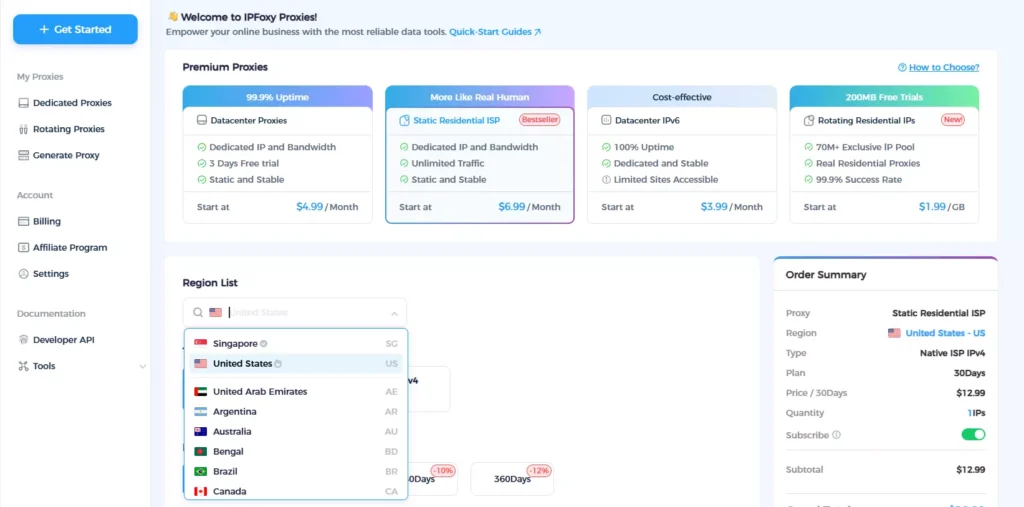
- Use a stable and clean proxy: Avoid VPNs or shared nodes. A dedicated static residential proxy is recommended for a consistent and clean network environment
For example, IPFoxy provides dedicated static residential proxy solutions, offering independent IP environments per account. With real residential IPs and up to 99% purity, it helps ensure your IP location matches your account’s usual activity region, reducing risk triggers.
- Clean browser fingerprints: Clear cache, cookies, and HSTS records. For multi-account setups, use an Anti-detect browser with a fresh environment combined with a dedicated static residential proxy to achieve “one account, one IP, one environment” isolation
2. Risk Level Assessment
Follow system prompts to determine restriction severity:
- Low risk: Email/SMS verification only
- Medium risk: Forced password reset or repeated CAPTCHA; wait 24 hours after changes
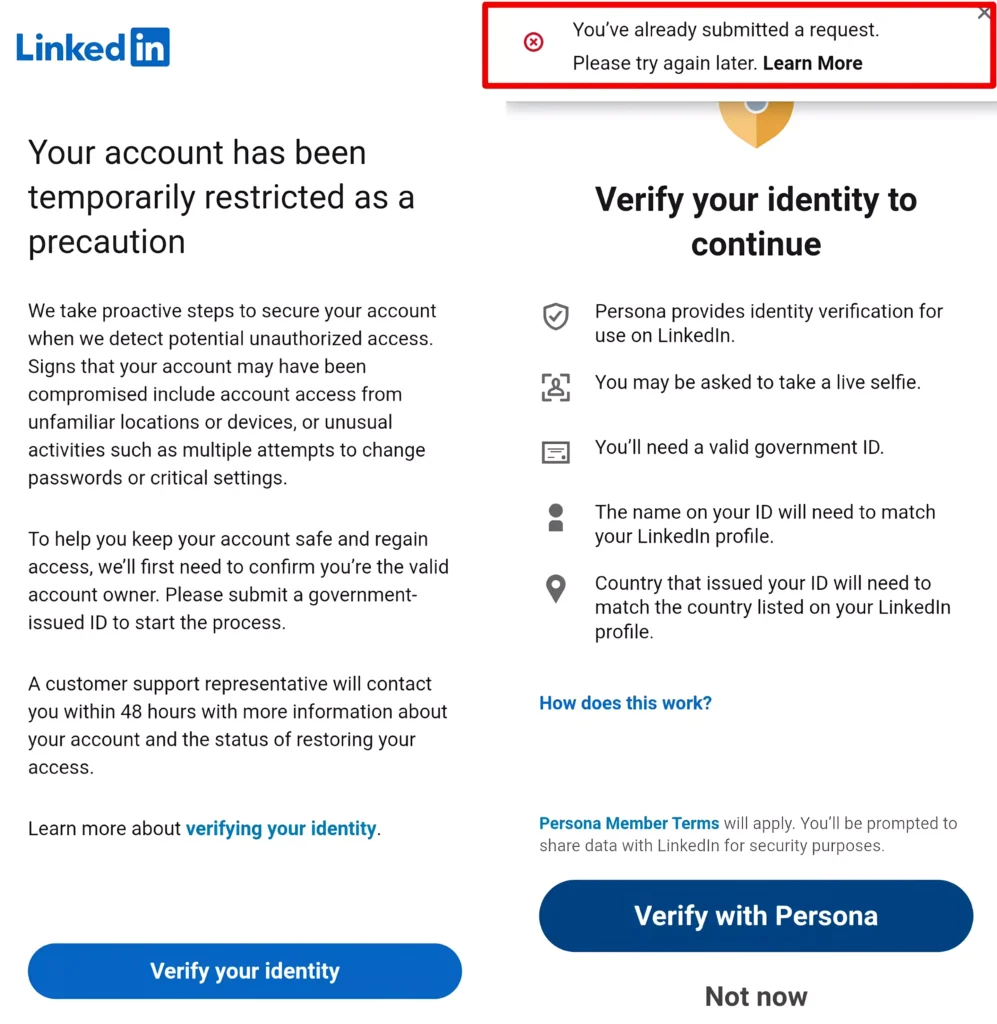
- High risk: Identity verification required (most serious case)
3. Identity Verification Process
If document upload is required, follow these best practices:
- Device: Use a clean phone that rarely logs into LinkedIn and does not have the app installed
- Network: Use mobile data and log in via the phone’s default browser
- Background: Ensure good lighting and a plain background; capture all four corners of the document; no editing or screenshots
- Consistency: The name on your ID/passport must match your LinkedIn account name. Facial recognition must be completed by the account owner
- After success: If “Persona verification passed” appears, wait 24 hours before logging in on desktop
If verification fails:
| Error Message | Possible Cause | Solution |
|---|---|---|
| Unable to verify photo | Mismatch between face and ID | Use a more recent ID or passport |
| Unable to verify ID | Missing edges, glare, or blur | Retry after 24 hours with better lighting |
| Repeated failures | Triggered secondary risk control | First failure: retry after 24h; twice: wait 1 week |
4. Appeal Submission
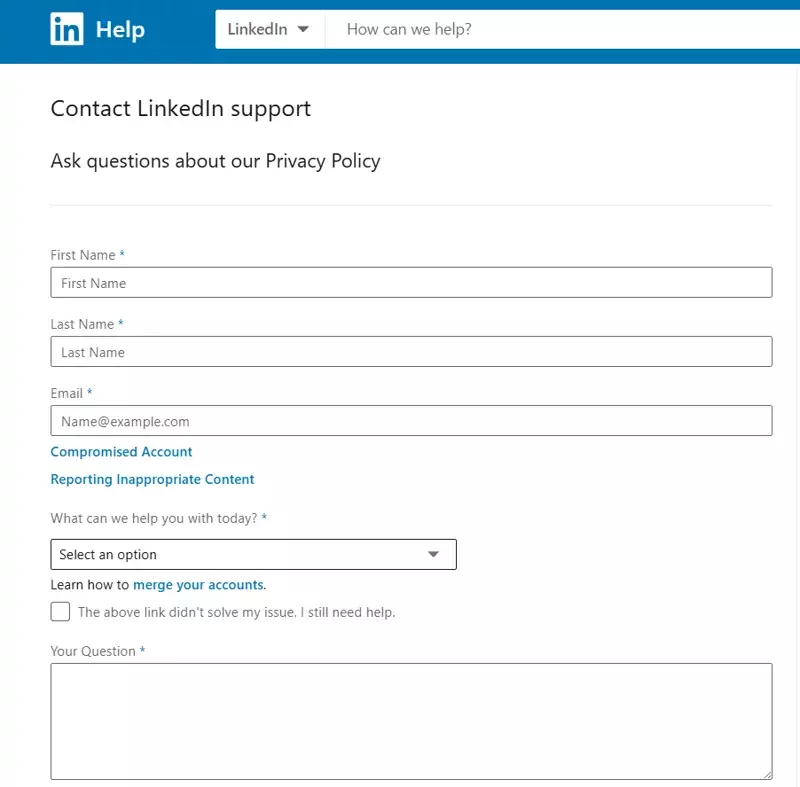
If your account is still restricted after verification, submit a ticket via LinkedIn Help Center or email:
Sample Appeal Email:
I am writing to formally appeal the restriction on my LinkedIn account ([Your Email]). As a professional in [Your Industry], LinkedIn is my primary platform for industry insights and professional networking.
I suspect the restriction might have been triggered by [Reason: e.g., a recent business trip using different networks / testing a new browser configuration]. I have already cleared all third-party extensions and secured my login environment.
I am committed to upholding LinkedIn’s Professional Community Policies. I kindly request a manual review of my case to restore my professional identity.
Regards,
[Your Full Name]
Finally, wait patiently for the official review and response.
III. LinkedIn Account Safety Tips: How to Avoid Future Restrictions
1. Enable Two-Factor Authentication (2FA)
Accounts with 2FA enabled are more likely to go through verification instead of being directly restricted.
2. Avoid Bulk Messaging
Follow the 1:3:10 rule:
For every 1 message sent, perform 3 likes/comments and 10 profile views. This makes your behavior resemble a real user rather than a marketing bot.
3. Regularly Clean Your Pending Invitations
Check weekly and keep pending invitations below 200 to maintain a healthy account trust score.
IV. FAQ
Premium increases search limits and InMail access, not risk control immunity. Unstable proxy or violations will still trigger restrictions.
There is some risk. You can explain it as your “professional English name” in the appeal and ensure surname consistency.
Common reasons:
Using scanned or edited documents
Glare blocking key information
Name mismatch between ID and profile
Summary
LinkedIn account restrictions are not random—they are direct responses to abnormal behavior and environmental risks. By following the correct SOP for environment cleanup, identity verification, and appeals, most accounts can be restored.
More importantly, long-term success on LinkedIn depends on a core principle: real user behavior + stable environment. Only by aligning with the platform’s risk control system can you avoid repeated restrictions and achieve sustainable networking and business growth.