












Many developers encounter a confusing issue when using Google AI Studio for the first time: the website opens normally, but they cannot create an API Key or call AI tools.
Some people assume their account has been flagged, but in reality the issue is often related to regional policies, network environment, and platform risk control mechanisms. This article explains the real reasons behind Google AI Studio regional restrictions and provides several practical solutions to help developers successfully create and use the Gemini API.
I. Why Does “Google AI Studio Is Not Available in Your Region” Appear?
1.Regional policy restrictions
Google AI Studio currently provides services in more than 200 countries and regions worldwide. However, it is not officially supported in certain regions, including mainland China, Hong Kong, and Russia. Users in these areas may still access the official website, but they often encounter restrictions when trying to create an API Key or call the API.
At present, the service is available in regions such as Taiwan, Japan, the United States, and many parts of Europe. The full list of supported regions can be found on the official Google AI Studio website.
2.Network-level restrictions
2.1GFW restrictions
GFW (Great Firewall) refers to the internet filtering system in mainland China that restricts access to some external websites. When accessing Google AI Studio from mainland China, developers may encounter issues such as:
- Blank pages
- Infinite loading or spinning pages
- 403 error messages
These problems often occur because requests sent to Google servers are blocked or interrupted.
2.2High-latency public proxies
In addition to network blocking, many users rely on public proxies, which can also cause problems.
Most free proxies or datacenter proxies use shared nodes with limited bandwidth, high latency, and significant packet loss. When accessing AI Studio, the browser must establish a secure TLS connection with Google servers, which is very sensitive to network quality.
If the proxy connection is unstable or has high latency, TLS handshake failures or connection interruptions may occur, preventing proper access to Google AI Studio.
3.Google risk control mechanisms
Google’s multi-layer risk control system analyzes several factors simultaneously. The IP used during Google account registration, the IP used when first accessing AI Studio, and the IP sending the current request usually need to match a region where the service is supported.
At the same time, Google also analyzes browser cookies and local storage to identify historical login records and the consistency of the login environment.
Therefore, the IP address, account information, and browser environment should appear geographically consistent to maintain stable access to Google AI Studio. If your account region does not match the IP region, you can follow these reference steps.
Steps to modify Google account region
Step 1: Visit Google’s country association request form and submit a request to modify your address information.
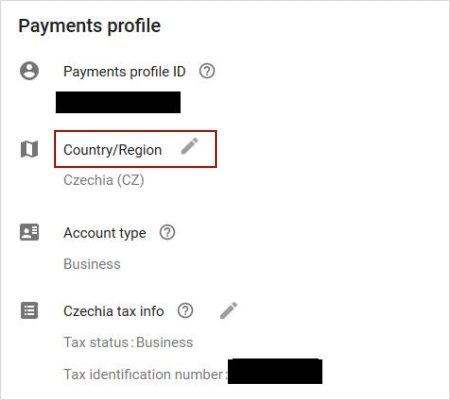
Step 2: In the request explanation, describe your actual location and set the region to a supported country.
Step 3: Clear browser cookies and log in again.
It should be noted that this method is mainly suitable for basic web usage. It may not fully solve issues for developers who need API access.
4.Account age verification restrictions
This factor is often overlooked but relatively easy to fix. Google requires users to meet the following conditions:
- Be at least 18 years old
- Complete identity or age verification
After updating your age in the Google account settings and passing verification, you can use the service. If your account age was set incorrectly, you can follow these steps.
Step 1: Search for age verification on Google, open the Google Account Help Center, and locate the “verify your age” section.
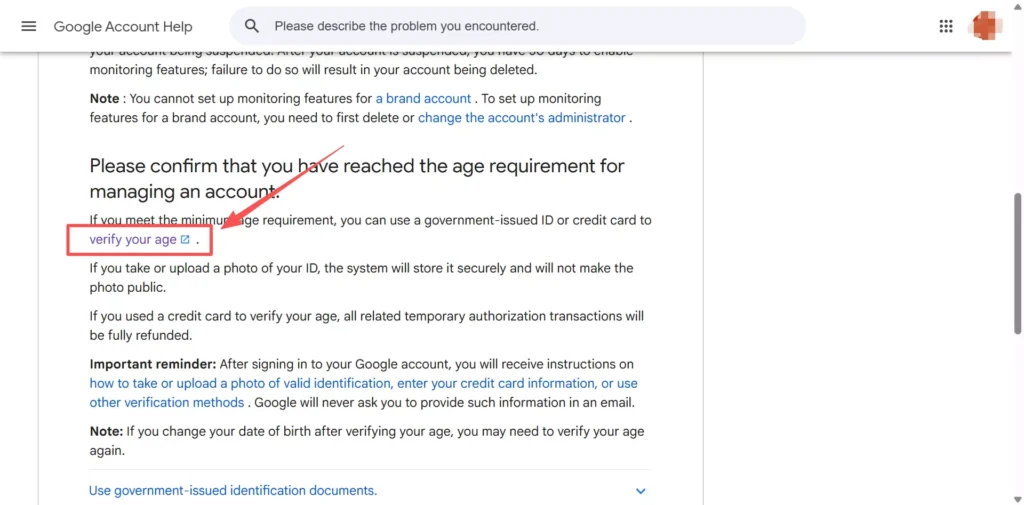
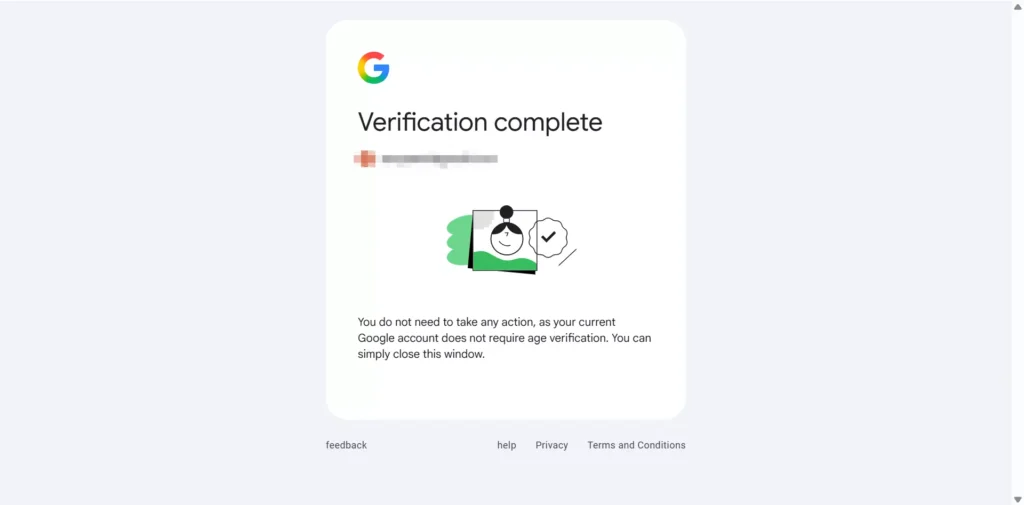
Step 2: Select an age above 18, upload a photo, and complete verification.
II. How to Fully Resolve Google AI Studio Regional Restrictions
1.Resolve Google network risk control
To completely resolve network-related restrictions, your access environment should appear similar to that of a real user in a supported region. For developers and enterprise users who rely on AI Studio regularly, a reliable and clean network environment is important for stable usage.
IPFoxy proxy services can help reduce Google risk control issues by providing high-quality IP environments.
IPFoxy offers multiple proxy types, including residential proxy, rotating residential proxy, and mobile proxies designed for different risk control scenarios. These proxies can typically be configured in an Anti-detect browser, iOS devices, or browser environments.
The following example demonstrates how to configure a proxy in the Chrome browser.
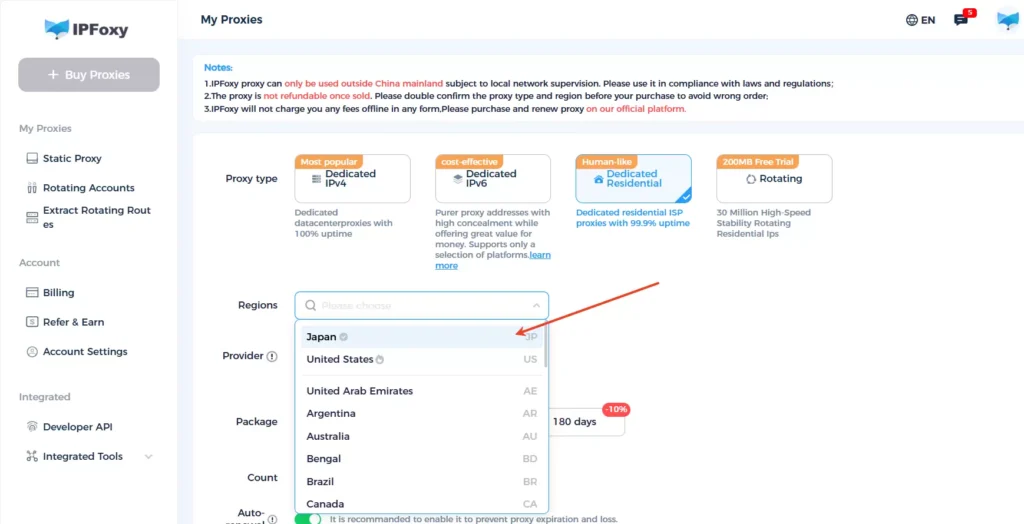
Step 1: Obtain proxy information
Select the proxy type in IPFoxy. In scenarios that require long-term stability and high authenticity, residential proxy resources are commonly used. After purchasing, obtain the configuration information such as port, username, and password.
Step 2: Configure the browser environment
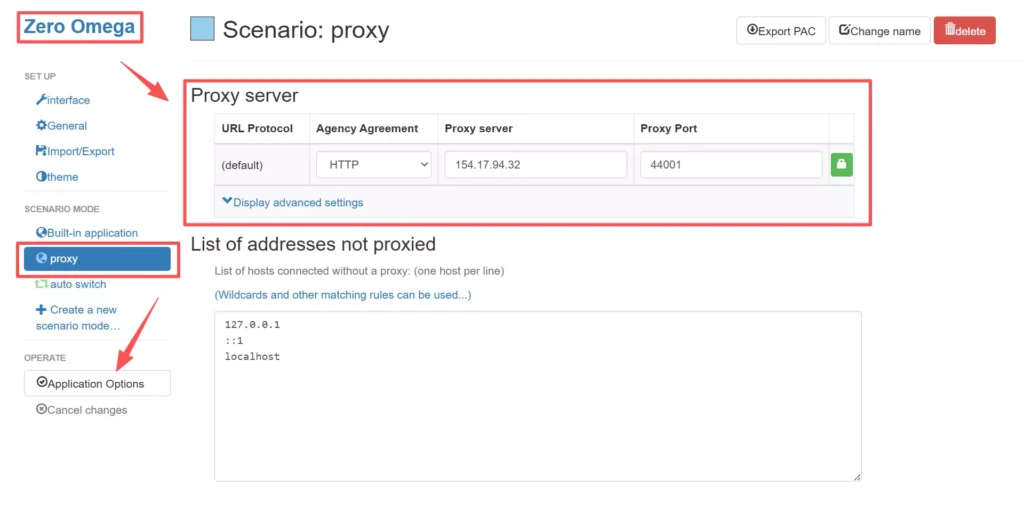
Chrome requires a browser extension to manage proxy settings, such as ZeroOmega. After installing the extension, enter the proxy configuration information and save the settings. Then visit AI Studio in this environment and click “Get API Key” to create a Gemini API project.
2.Use an API relay service
Users can also use API relay services to call the Gemini model. The process can be understood as:
User program → relay server → Google API
Because relay servers are usually deployed in supported regions such as the United States, Japan, or Europe, Google will detect the request as originating from a permitted region, which avoids direct regional restrictions.
3.Build a custom API using Cloudflare Workers
For users with stronger technical skills, it is possible to build a custom API proxy using Cloudflare Workers. By writing a simple forwarding script on Workers, Gemini API requests can be forwarded to servers located in supported regions, producing a similar effect to relay services.
The advantage of this solution is its very low cost and high flexibility. Developers can customize request logic, such as caching, logging, or rate limiting.
However, this approach requires basic technical knowledge, typically including JavaScript or proxy networking concepts, and requires a personal domain for deployment.
III. Common Google AI Studio FAQs
This message usually appears due to regional policy restrictions. Google AI Studio is not available in every country or region. When the system detects that the account region or IP location belongs to a restricted area, the service may be marked as unavailable.
This situation usually occurs when Google’s risk control system detects inconsistencies in the access environment. If the account registration region, current IP address, and browser environment do not match, API Key creation may fail or return a 403 error.
Google AI Studio is a visual development platform used for testing prompts, debugging models, and generating API keys. The Gemini API is the interface developers use to call the model’s capabilities. Typically, developers first obtain an API Key from AI Studio and then use that key to call the Gemini API through their applications.
Conclusion
This article explains the common reasons behind the “service unavailable in your region” message in Google AI Studio, including regional policy restrictions, network access issues, Google risk control mechanisms, and account age verification requirements.
It also introduces several practical solutions, such as adjusting account region settings, optimizing the network environment, using API relay services, or building a custom API proxy. These approaches can help developers access the Gemini model more reliably and complete API integration and development testing smoothly.