












YouTube is one of the world’s most popular video platforms, but many users often encounter the frustrating issue of endless buffering—where the progress bar keeps spinning, the video won’t load, or even displays a “connection failed” message. Why does YouTube keep buffering? In this article, we’ll dive into the technical aspects of video streaming on YouTube and provide a range of practical solutions to help you say goodbye to buffering and enjoy smooth playback.
I. Why Does YouTube Keep Buffering?
Even with a full WiFi signal and normal internet speed, YouTube can still experience buffering. To resolve the issue, we need to understand the four stages of YouTube video playback:
- Request Stage: When you click play, the browser requests video data from YouTube’s servers.
- Transmission Stage: Data packets travel across the network from Google’s CDN nodes to your device.
- Buffering Stage: The player preloads some data to ensure smooth playback.
- Decoding Stage: The CPU or GPU decodes the data into a video image.
Buffering occurs when one of these stages gets stuck, preventing the video from entering the “buffer → play” cycle.

II. Step-by-Step Troubleshooting for YouTube Buffering
To solve buffering issues, it’s recommended to check and optimize the following three layers: software, network, and device.
1. Software Layer Troubleshooting
1.1 Browser Cache Overload
- Cause: Excessive cached data slows down loading times.
- Solution: Go to Chrome Settings > Privacy and Security > Clear Browsing Data (check “Cached images and files”).
1.2 Extension Interference
- Cause: Ad-blocking extensions may block YouTube scripts.
- Solution: Test in Incognito mode, and if the video plays smoothly, disable extensions one by one to find the culprit.
1.3 Outdated Browser Version
- Cause: Older versions of browsers may not support newer video encoding formats.
- Solution: Check for updates in Chrome (Menu > Help > About Google Chrome).
1.4 App Cache Build-up (Mobile Users)
Solution: Go to Settings > Apps > YouTube > Clear Cache (not clear data).
1.5 Hardware Acceleration Conflicts
- Cause: Some GPU drivers are incompatible with browser hardware acceleration.
- Solution: Go to Chrome Settings > System > Disable “Use hardware acceleration when available.”
2. Network Layer Troubleshooting
2.1 Slow DNS Resolution
- Cause: ISP DNS is often slow, unstable, or even corrupted.Solution: Use public DNS services such as Cloudflare (1.1.1.1) or Google (8.8.8.8).
import socket

domains = ["youtube.com", "google.com", "github.com"]

print("DNS Resolution Status Check")
print("-" * 40)

for domain in domains:
    try:
        ip = socket.gethostbyname(domain)
        print(f"[Success] {domain:15} -> {ip}")
    except socket.gaierror:
        print(f"[Failed] {domain:15} -> Resolution failed")
2.2 High Latency and Packet Loss
- Cause: High latency (>200ms) and packet loss (>3%) can cause buffering.
- Solution: Run a traceroute (tracert youtube.com on Windows, traceroute youtube.com on Mac/Linux) to identify problem nodes.
2.3 IP Restrictions
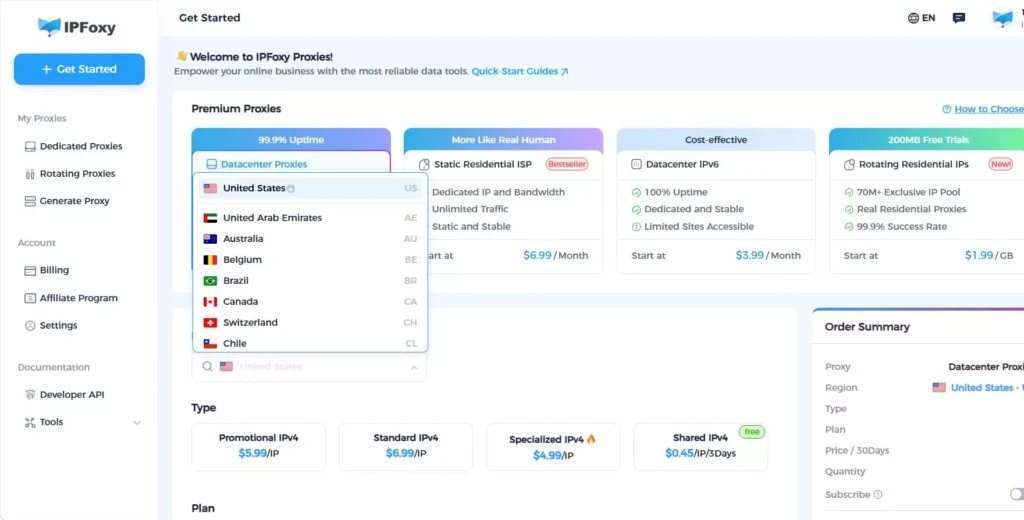
IP addresses marked as “data center,” public VPNs used by multiple users, or frequent IP changes can trigger YouTube’s anti-bot measures, resulting in throttling and loading issues. It’s essential to check if the IP is authentic, stable, and not flagged by YouTube’s risk control system. For a smoother experience, use a real home broadband IP address that matches the behavior of typical users to avoid being identified as “abnormal traffic.” In some cases, static residential proxy services, like IPFoxy’s dedicated static residential proxies, offer benefits such as:
- Clean IPs tied to real home broadband, increasing registration/login success rates
- More natural user behavior, reducing the chance of geo-restriction issues
- Improved connection stability, decreasing “no network” errors
A real login environment reduces the risk of detection as a virtual account, minimizing YouTube loading issues.
2.4 Router Issues
Solution: Restart your router, enable QoS to prioritize video traffic, and switch WiFi channels to avoid interference.
3. Device Layer Troubleshooting
Outdated GPU Drivers
- Cause: Old GPU drivers slow down video decoding.
- Solution: Update drivers on the official NVIDIA/AMD/Intel websites.
High CPU/Memory Usage
- Cause: Background programs consume resources, causing playback issues.
- Solution: Close unnecessary processes in Task Manager.
Incorrect System Time
- Cause: Inaccurate system time can break HTTPS connections.
- Solution: Correct the system time.
III. FAQ
A1: Not necessarily. Slow DNS resolution, poor decoding, and browser extensions can also cause buffering.
A2: No. Incognito mode disables cached data, which may actually make playback slower on the first load. It’s mainly for isolating extension issues.
A3: Regular VPNs often use data center IPs, which can be detected and throttled by YouTube. Static residential proxies use real home broadband IPs, making the connection more stable and harder to flag as suspicious.
IV. Conclusion
By following the steps outlined in this article, you should be able to pinpoint the common causes of YouTube buffering and take action to fix them. If the problem persists, or if you’re in a challenging network environment, using a dedicated static residential proxy service could offer you a more stable connection. Say goodbye to buffering and enjoy seamless YouTube playback for the best streaming experience.