











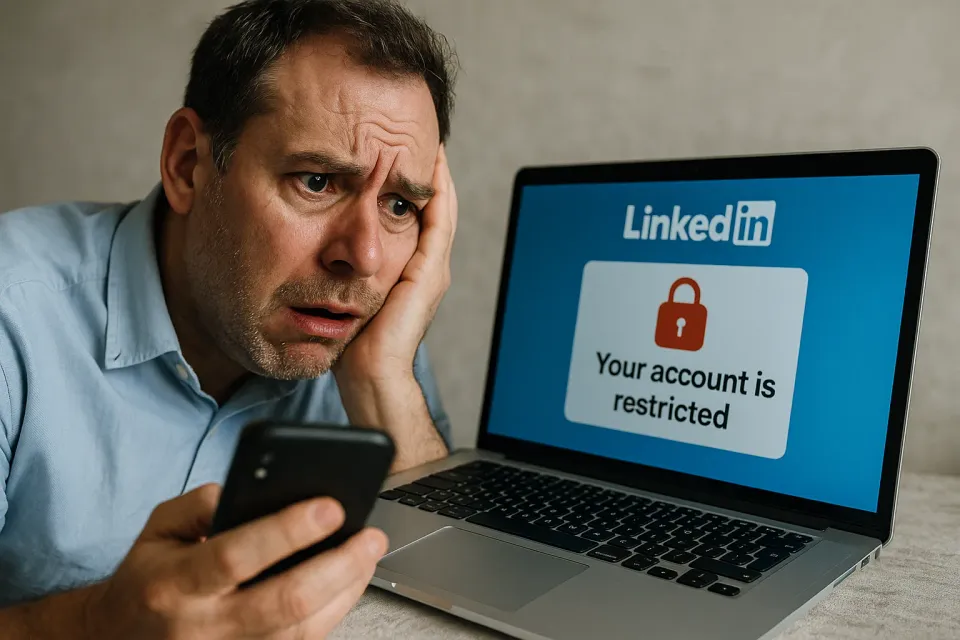
You are actively expanding your network and reaching out to new clients when suddenly you discover that you can no longer log in to your LinkedIn account, or certain features are restricted. Panic sets in—“Has my LinkedIn account been thrown into the penalty box?!”
Don’t worry. This is a common challenge for almost all heavy LinkedIn users, especially people working in trade, international business development or marketing.
If you’re collecting data from LinkedIn, using the wrong tools can quickly put your accounts at risk. That’s why many teams rely on LinkFinder AI, a safe LinkedIn data scraper designed to extract publicly available data from LinkedIn without logging into your personal account. By operating through its own infrastructure, LinkFinder AI allows you to find company and profile data at scale—without worrying about bans, rate limits, or account restrictions—making it a reliable choice for lead generation, research, and growth workflows.
Today, let’s take a deep look at what to do when your LinkedIn account is restricted and how to prevent this from happening again.
I. First, identify which type of “penalty box” you are in
LinkedIn has different levels of restrictions, each with its own symptoms and severity.
Minor limitations: Some functions are restricted.
Symptoms: Unable to add new friends, unable to send messages, and being asked to enter the other party’s email address for verification when inviting links.
Note: You will usually receive an official notification from LinkedIn informing you that certain actions have violated the User Agreement.
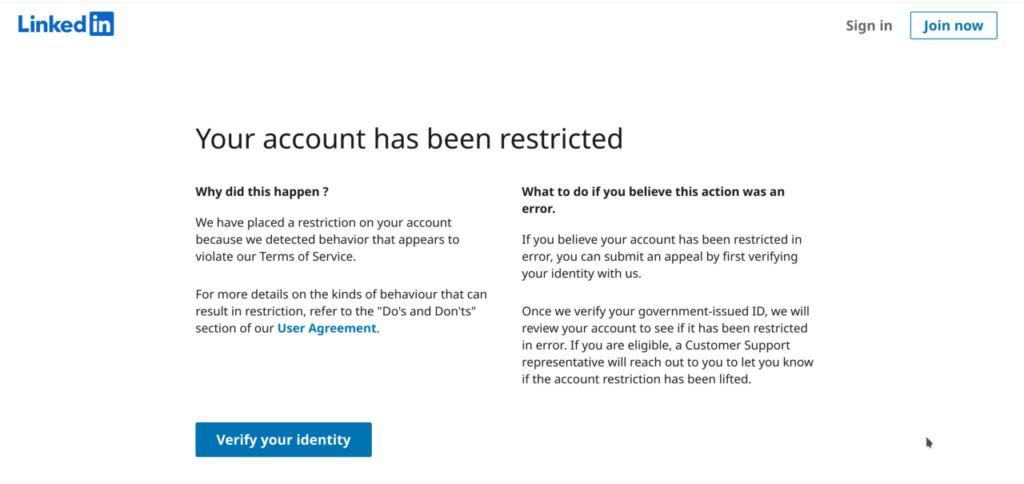
Severe restrictions: The account is completely frozen or banned.
Symptoms: Unable to log in, with the message “Your account is restricted” or directly banned.
Note: This is the most serious situation, usually due to multiple reports or violations of more serious rules.
II.Checklist of Possible Causes
LinkedIn does not restrict accounts without cause. Consider whether you engaged in any high-risk behaviors:
1. New accounts operating too aggressively
If you rapidly add contacts, send messages, or change profile details immediately after registration, the system may treat you as an automated marketer and trigger verification.
2. Inconsistent login environment
Frequent switching between IPs or locations—for example, logging in from one region yesterday and a different continent today—will trigger risk controls. Logging in from a new, unfamiliar device can cause the same issue.
LinkedIn evaluates multiple factors such as IP type, location consistency, ISP characteristics, browser fingerprint (Canvas, WebGL, fonts, timezone, hardware data), and device parameters (resolution, OS version, GPU and CPU profiles). Abrupt changes may lead the system to assume you are not the same person.
3. Multiple accounts in the same environment
Using several accounts on the same browser exposes all accounts to correlation.
LinkedIn records cookie structures, browsing patterns, and device fingerprints. If one account is flagged, all related accounts may be affected.
Using low-quality proxies or shared environments increases the risk of being labeled as an account-farming operation.
4. Automated behavior patterns
Using automation tools or mass-action scripts may be detected through unnatural mouse movement, typing behavior, scrolling speed, repetitive timestamps, or highly similar contact-adding patterns.
5. Account content issues
Incomplete profiles, policy-violating content, spam, false information, or high rejection/report rates may also trigger restrictions.
Non-authentic profile photos or incomplete details further increase the risk.
II. A complete recovery process
The following steps align with LinkedIn’s internal risk-control logic.
1. Stop all login attempts
Every failed attempt increases system suspicion. Pause usage for 12–24 hours to allow the session cache to reset.
2. Return to your historically consistent environment
Use the country, city, network, and device previously associated with the account whenever possible.
If you handle many accounts and cannot match environments anymore, you may already face large-scale correlation risk.
3. Create isolated identity environments for each account
Each account should have:
– Dedicated fingerprint and cookies through an Anti-detect browser to avoid cross-contamination
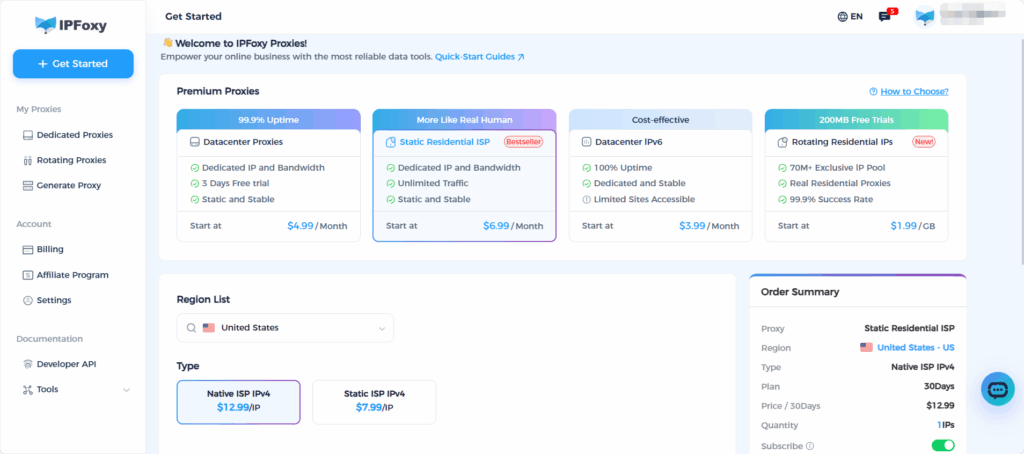
– A dedicated static residential proxy that is stable, exclusive, and not shared
This setup—such as combining IPFoxy’s dedicated static residential proxy with an Anti-detect browser—greatly reduces restriction risks.
4. Log in like a real person and gradually resume activity
Day 1: Log in, stay for a few minutes, browse content
Day 2: Continue browsing, adjust small profile details
Day 3: Slowly add 5–10 contacts
Days 4–7: Resume light operations
After one week: Return to normal activity levels
5. Submit manual verification if required
If the account is fully restricted, follow LinkedIn’s verification process:
Submit a work email, bind a phone number, provide identification if needed, and explain reasons such as travel or device changes.
Summary
When your LinkedIn account enters the penalty box, the proper steps are self-check, genuine appeal, and patient waiting. Hopefully your account will soon recover so you can continue progressing confidently in your career and business.