












The power of Sora 2 lies in its evolution from video generation to controllable, high-detail, movie-like content creation—provided your access environment is stable and your prompts are clear. Many users struggle with Sora 2 not because the model is inadequate, but due to unstable access and vague prompts that lead to distorted results.
This guide compiles a full-process practical manual covering stable access configurations and prompt writing techniques. It teaches you how to make Sora 2 generate the exact visuals you want consistently, smoothly, and at high quality. Master these two core parts to access Sora 2 stably, avoid pitfalls, and minimize trial and error—learn Sora 2 thoroughly with one article.
I. Methods for Stable Access Settings
Sora 2 is an intensive, multi-dimensional video generation system. Accessing its services can be affected by multiple factors including region, network exit, latency, system configuration, and protocol matching.
Especially in restricted network environments, setting up a reliable proxy and optimizing the access environment are prerequisites for most successful high-quality outputs. Below is a practical “stable access + environment optimization” process to ensure smooth Sora 2 usage.
1. Use High-Quality Proxy Services for Uninterrupted Access
To keep Sora 2 running stably, the first step is to secure a stable and clean IP. Sora 2 judges access regions based on your exit IP—unstable IPs may trigger regional restrictions or access failures. Frequent region switches or unclean IPs can even disrupt your account’s access route, affecting generation results.
In practice, residential proxies are most suitable for Sora 2 for the following reasons:
- Static residential IPs with low-latency nodes are highly stable and rarely flagged as abnormal traffic.
- Residential IPs belong to real home network exit types, appearing more natural than data center IPs and reducing the risk of risk control.
- They maintain consistent regions, low latency, and smooth access while using Sora 2.
When choosing a proxy service, stability, cleanliness, and long-term usable nodes matter more than low cost—this is why many users opt for professional proxy services.
- Provides real residential IPs with clean proxies and low risk control, avoiding access failures from shared IPs or abnormal account identification.
- Covers multiple countries, allowing free switching to regions suitable for Sora 2.
- Offers fast speed and low latency, perfect for high-load tasks like video generation.
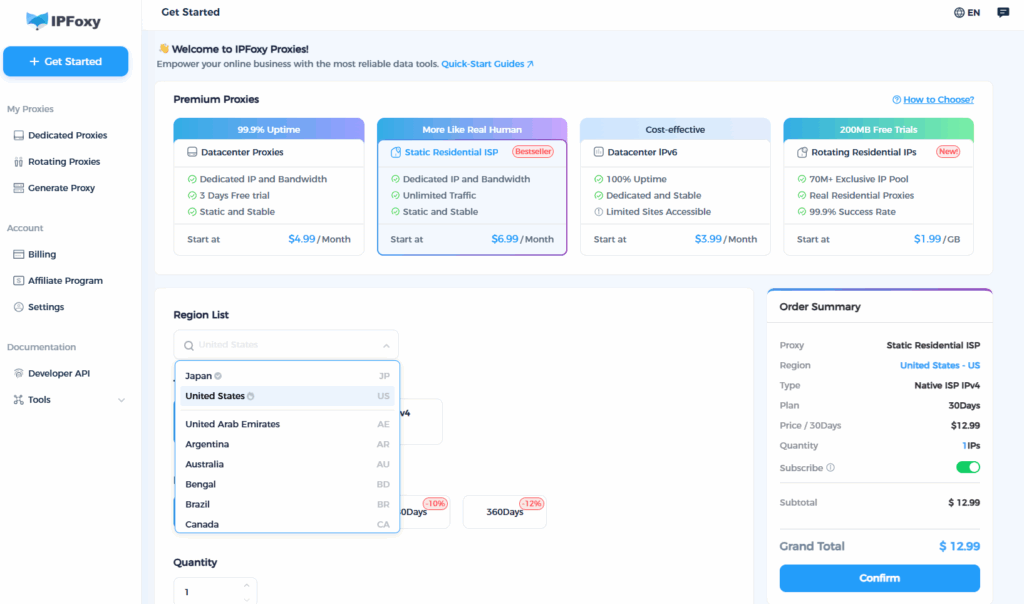
Using IPFoxy significantly reduces access abnormalities, loading lags, and action interruptions, laying a stable foundation for high-quality Sora 2 video generation.
Configuration process:
- Register an account on IPFoxy and purchase suitable nodes, recommended residential IP proxy services.
- Obtain proxy information: Host, Port, Username/Password (if applicable), Protocol (HTTP/SOCKS5), etc.
- Set up the proxy in your browser or system, or switch exit IPs via proxy management software.
2. System and Browser Configuration Details
To enhance Sora 2 access stability, optimize your access environment as follows:
For computer-based Sora 2 usage (web version or client), configure the proxy in system network settings:
- Windows: Control Panel → Network and Internet → Internet Options → Connections → LAN Settings → Check “Use a proxy server for your LAN” and enter the proxy Host and Port.
- macOS: System Settings → Network → Select current network → “Details” → Proxies → Check HTTP or SOCKS5 and enter proxy information.
- Browser/Tool level: Use plugins like FoxyProxy or ZeroOmega to manage proxy switching and flexibly use different nodes.
It’s advisable to use a dedicated proxy environment exclusively for Sora 2 and related creative tasks to avoid proxy resource conflicts from mixing multiple tools.
3. Account and Access Recommendations
Log in with an account matching the proxy node’s country or use a compatible environment to improve success rates and reduce regional restrictions or abnormal access flags.
During peak access times or high node loads, switch to an alternative proxy node to maintain a stable connection.
II. Prompt Writing Techniques
1. Clarify Subject + Scene + Action + Shot
A high-quality prompt typically includes four core elements: who the subject is, where they are, what they’re doing, and how to shoot it. For example:
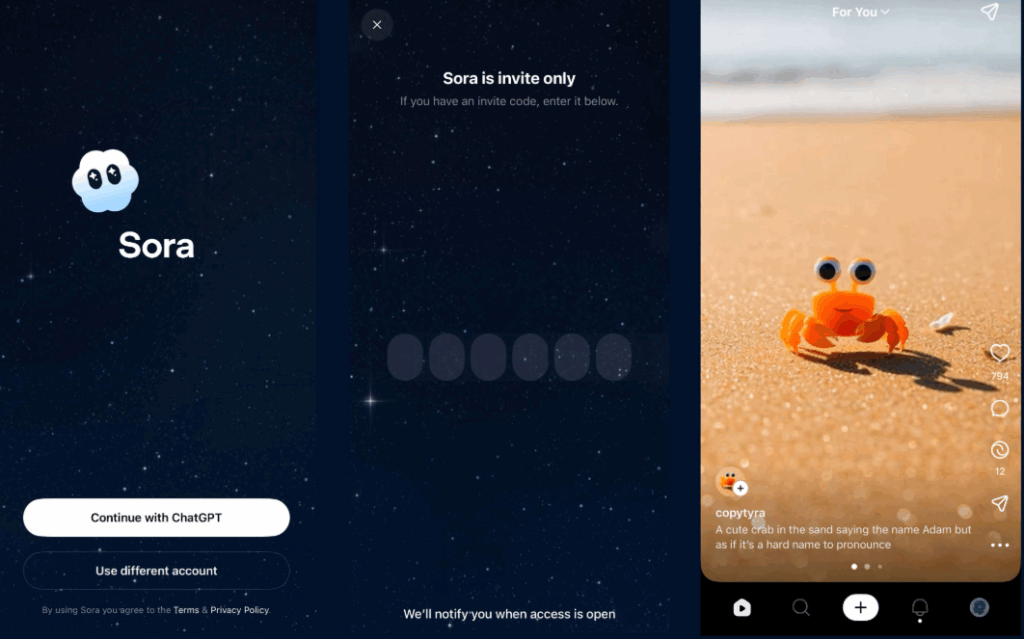
“A quiet forest cabin at dusk, with orange sunset filtering through trees. The camera pushes in from a distance to the roof, which emits light smoke, and warm light shines through the windows.”
Break down your prompt into these dimensions:
- Subject (character/object)
- Background/location/environment
- Time/weather/lighting
- Shot/composition/action (e.g., push in, pull back, aerial view, side slide)
- Style/tone (e.g., cinematic, anime-style, realistic)
2. Sectional Format and Rhythm Control
For complex requirements or longer durations, split the prompt into segments by “shot clips.” For example:
- 0–3 seconds: Camera pulls from wide shot to subject.
- 3–6 seconds: Subject performs an action (e.g., opening a door, looking up at the sky).
- 6–10 seconds: Camera cuts to close-up of environmental details (e.g., falling leaves).
This “timeline prompt” strategy helps Sora 2 execute more accurately.
Practical tips:
- Specify time nodes/shot changes in the prompt, such as “Camera cuts to close-up at 4 seconds.”
- Keep each shot request concise—avoid overloading with too many actions at once, which may cause the model to “task overlap” and lose control.
3. Photography Terms + Detailed Descriptions for Enhanced Quality
To generate cinematic or high-quality videos, adding photography terms, light and shadow descriptions, and composition language to prompts significantly improves results. Common techniques:
- Depth of field (e.g., “Sharp foreground, blurred background”)
- Camera movement (e.g., “Low-angle aerial shot,” “Horizontal slider”)
- Tone and atmosphere (e.g., “Warm yellow primary tone, cool blue-gray background”)
- Light and shadow changes (e.g., “Golden sunset light dappling through leaves” or “Backlit character silhouette”)
Practical tips:
- First define style keywords, such as “realistic cinematic style,” “animated feel,” or “cyberpunk neon.”
- Then add “shot + movement + emotion” descriptions, e.g., “Slow push-in with slight camera shake to convey the character’s inner hesitation.”
- Finally include “environment + lighting,” e.g., “Foggy warm light,” “Cold nighttime street,” or “Rain-soaked reflective surface.”
Template structure:
Subject + Time/Location + Environmental Details + Action/Shot + Style/Tone + Special Instructions
4. Common Mistakes and How to Avoid Them
- Vague prompts: For example, “A person walking in a park” is too broad and leads to imprecise results. Instead, add details: “Morning fog in the park, backlit, camera moves from wide shot to close-up of a smile.”
- Overloading with actions: The model may make mistakes or become confused. Split into separate shots.
- Ignoring light, shadow, and shot language: Many users only describe scenes and subjects, neglecting “shooting methods” and “lighting effects,” resulting in flat visuals.
- Neglecting protocol/access restrictions: While this falls under access settings, you can specify “4K resolution, no watermark, 30fps” in prompts if supported by the platform.
Summary
Sora 2’s capabilities far exceed the previous generation—its image understanding, shot stability, and dynamic realism demand higher-quality access environments and prompts. To truly master Sora 2, first ensure it performs optimally in a stable environment, and second, learn to write precise, high-information-density prompts. With these two skills, you can access Sora 2 smoothly and consistently produce the high-quality video content you desire.