












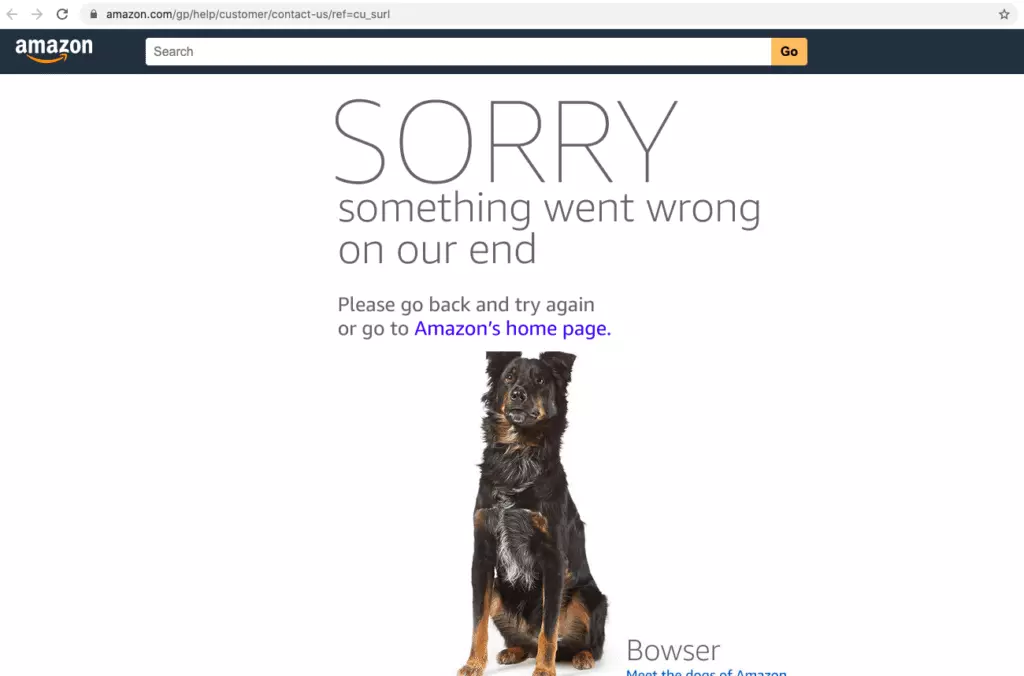
When accessing Amazon, users may encounter a page that suddenly fails to load and displays “Sorry, something went wrong on our end.” The page may also show Amazon’s iconic dog illustration, a phenomenon commonly referred to as the “dog page.”
This page usually indicates that the current request could not be loaded or processed successfully. An occasional error may be caused by temporary server issues, but if it keeps recurring, the problem may be related to the access environment, browser state, or request behavior.
This article explains the common causes and provides corresponding troubleshooting steps to help you restore normal access as quickly as possible.
I. What Does Amazon’s “Something Went Wrong on Our End” Error Mean?
When Amazon displays “Sorry, something went wrong on our end,” it usually means that the current page request could not be completed successfully, preventing Amazon from loading the target page or performing the requested action.
Because the page often includes a dog illustration, it is commonly referred to as the “Amazon dog page” or the “dog page.”
This message does not indicate one specific failure. Instead, it is a general notice displayed when Amazon cannot return the expected content. Therefore, when this page appears, identify the underlying cause before choosing a solution.
II. Why Does Amazon Display “Something Went Wrong on Our End”?
Amazon page errors can involve several factors, including servers, networks, browsers, and access behavior. Understanding how these causes manifest can help narrow down the problem.
- Amazon server issues: Temporary failures may prevent some pages from loading when Amazon updates its systems, performs backend maintenance, or experiences problems with its product catalog or page services.
- Network and IP environment issues: An unstable network connection, an unreliable proxy connection, or a mismatch between the IP address’s region and the target Amazon site may cause requests to be flagged as coming from an unusual source. If your access environment uses a heavily shared IP address or one with a poor reputation, the likelihood of encountering an error page may increase significantly.
- Browser cache and cookie conflicts: Outdated cached data, expired login sessions, or problematic cookies may conflict with the current Amazon page, causing loading failures, invalid login sessions, or repeated redirects.
- Too many requests in a short period: Frequent manual refreshes or automated scripts making requests at a high frequency can increase the risk of rate limiting or error pages when too many requests originate from the same IP address within a short period.
- Invalid or incorrect URLs: Incomplete product links, incorrect ASINs, abnormal URL parameters, or changes to the target page may lead to an error page.
III. How to Troubleshoot and Fix Amazon’s “Something Went Wrong on Our End” Error
After identifying the possible causes, troubleshoot them one by one in the following order. It is best to change only one factor at a time before revisiting the page, making it easier to identify the actual source of the problem.
1. Check Whether Amazon’s Servers Are Working Normally
First, determine whether the issue is a temporary platform-side problem. Check Amazon’s official service status announcements or visit seller forums to see whether other users have reported the same error during the same period.
If a widespread service disruption is confirmed, repeatedly trying the same action is unlikely to help. Wait a while and try again.
2. Check Your Network and Optimize Your IP Environment
If Amazon’s servers are working normally but the page still will not open, refresh the page and check whether your network connection is interrupted or experiencing excessive latency.
Amazon’s risk control systems are sensitive to access IP addresses. Using heavily shared proxy nodes or frequently switching IP addresses may be flagged as unusual activity and trigger risk controls. For regular use, it is best to maintain a stable, clean, dedicated residential IP address. Professional proxy providers such as IPFoxy Proxies offer real, clean, dedicated residential proxy IPs.
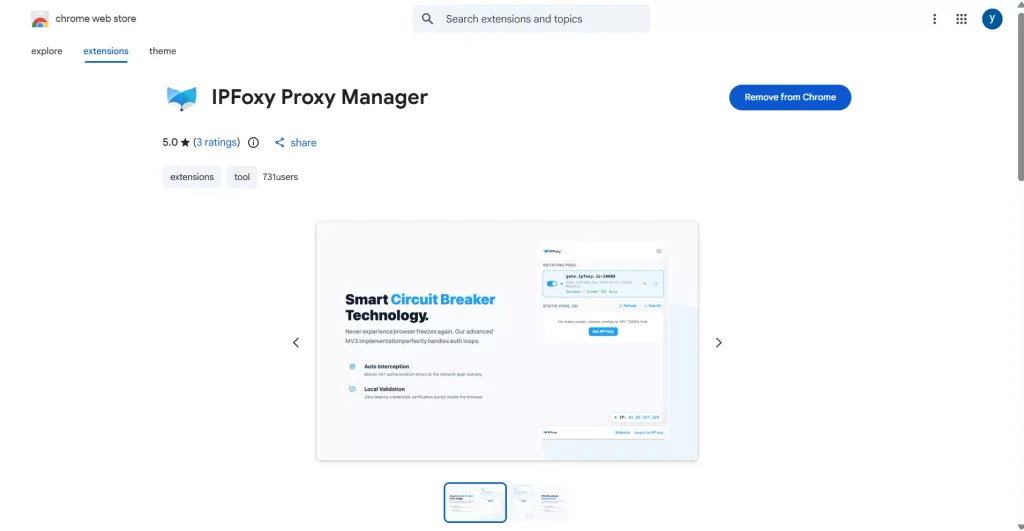
Proxy IPs can be used with multi-account isolation tools such as anti-detect browsers. Alternatively, you can create a separate Chrome profile and configure your IP using the IPFoxy Proxy Manager Chrome extension to help maintain a stable environment for everyday Amazon access.
Follow these steps to configure the proxy:
Step 1: Chrome does not have built-in proxy configuration for this setup, so install the IPFoxy Proxy Manager extension from the Chrome Web Store. Enter your IPFoxy user ID and API key in the extension, then save the settings.
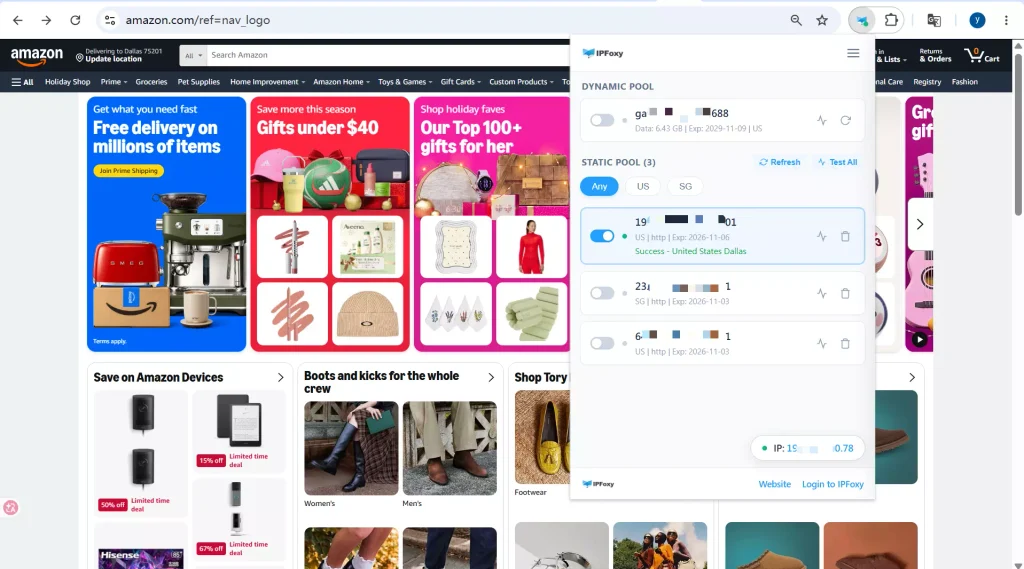
Step 2: Once IPFoxy Proxy Manager synchronizes your proxy IPs automatically, find and enable the residential IP you want to use. When the connection is successful, the proxy environment is active.
3. Clear Your Browser Cache and Cookies
If there are no obvious network or IP issues, check your browser state next. Clear the cache, cookies, and browsing history associated with Amazon, or try accessing the site in another browser.
A quicker way to test this is to open an incognito window. If the page loads normally in incognito mode, the problem is more likely related to cached data, the existing session, or browser extensions rather than the network itself.
4. Check the Page URL
Check whether the current URL is complete and valid. If the dog page appears only on a specific product detail page or link while other pages work normally, the URL may be the problem.
You can investigate the following points:
- Check whether the link is complete: Make sure the copied URL does not contain missing characters, spaces, or extra symbols. Pay particular attention to whether the product ASIN is correct.
- Confirm the Amazon site: Check whether the link belongs to the correct Amazon marketplace.
- Reopen the page through Amazon’s search: Enter the product name, brand, or ASIN in Amazon’s search bar and open the corresponding product detail page again. This helps avoid using outdated or unreliable links.
5. Check Request Frequency and Access Behavior
If the previous steps do not resolve the issue, review your recent browsing activity. Frequent refreshes, repeatedly submitting the same action, or automated tools making too many concurrent requests may trigger temporary request limits.
Reduce the frequency of your actions, increase the intervals between requests, and avoid repeatedly retrying immediately after an error. This can give the access environment time to recover.
IV. How to Reduce the Frequency of Amazon “Something Went Wrong on Our End” Errors
After troubleshooting the error, it is equally important to prevent similar access problems from recurring during future use.
1. Record Each Error to Make Future Troubleshooting Easier
Briefly record when the error occurred, what action you were performing, which network you were using, and whether the issue also appeared in incognito mode.
After recording several incidents, you may be able to determine whether the problem is an occasional platform failure or a recurring weakness in your own environment.
2. Clear Cookies and Cache Regularly
Browsers accumulate cached files and website data over time. For accounts that require frequent access to Amazon’s seller dashboard, regularly clearing browser data can help reduce the buildup of session conflicts.
3. Maintain a Stable Access Environment
When accessing Amazon regularly, it is best to consistently use the same clean, dedicated residential IP address. Avoid frequently switching regions or proxy nodes between registration, login, and routine operations. Maintaining a stable access environment can help reduce environment-related risk-control triggers.
4. Use an Anti-Detect Browser for Multi-Account Operations
If you manage multiple Amazon accounts, switching IP addresses alone is not enough to isolate account association risks. Each account should use a separate anti-detect browser environment to isolate parameters such as cookies, Canvas fingerprints, and time zones, helping prevent accounts from being associated due to overlapping environments.
5. Contact Amazon Support if the Error Persists
If the error continues after you have completed the troubleshooting steps, contact Amazon’s official support team for assistance. Provide the error page, the steps that triggered the issue, the relevant ASIN, and the troubleshooting actions you have already tried. This information can significantly improve the efficiency of problem diagnosis.
V. FAQ
Yes. This error is not limited to the seller dashboard. Buyers may also encounter it when opening product detail pages, adding items to their carts, or checking out due to invalid links, regional restrictions, or network environment issues.
No. Residential proxies address the credibility of the access source, but temporary Amazon server failures, incorrect links, or excessive request frequency can still trigger error pages. Residential proxies can reduce the likelihood of environment-related causes, but they cannot eliminate every possible error.
Usually, yes. Clearing Amazon-related cookies will log you out of most sessions. Simply log in again afterward. Before clearing the data, make sure you know your account password and have access to your two-step verification method.
VI. Conclusion
When Amazon displays “Sorry, something went wrong on our end” or the dog page, it does not necessarily mean that your account or product is experiencing a problem. Common causes include Amazon server failures, unstable network or IP environments, browser cache and cookie conflicts, excessive request frequency, and incorrect URLs.
When this happens, first check whether Amazon’s services are working normally. Then troubleshoot the network, browser, page URL, and access behavior one by one. For sellers who use Amazon regularly, maintaining a stable network environment, managing browser and account settings carefully, and recording error details promptly can help reduce recurring errors and keep daily operations running smoothly.

