












After enabling 2FA (Two-Factor Authentication) on major platforms, users often run into issues such as missing verification codes, authentication failures, or repeated verification prompts when switching devices. The root cause is not always the code itself; it often involves the authentication method, account details, device status, and login environment. This article breaks down the practical solutions for 2FA verification across three core areas: verification mechanisms, strategies to boost pass rates, and troubleshooting common issues.
I. What Matters Most in Platform 2FA Verification?
The Core Logic of 2FA
2FA adds a second layer of identity verification beyond your account password. Depending on your security settings, platforms require verification through SMS, voice calls, authenticator apps, login prompts, Passkeys, or security keys.
The first layer verifies whether your password is correct, while the second layer confirms whether you own or control the bound verification method. Therefore, 2FA success depends not only on the code, but also on your pre-configured verification methods and current login status.
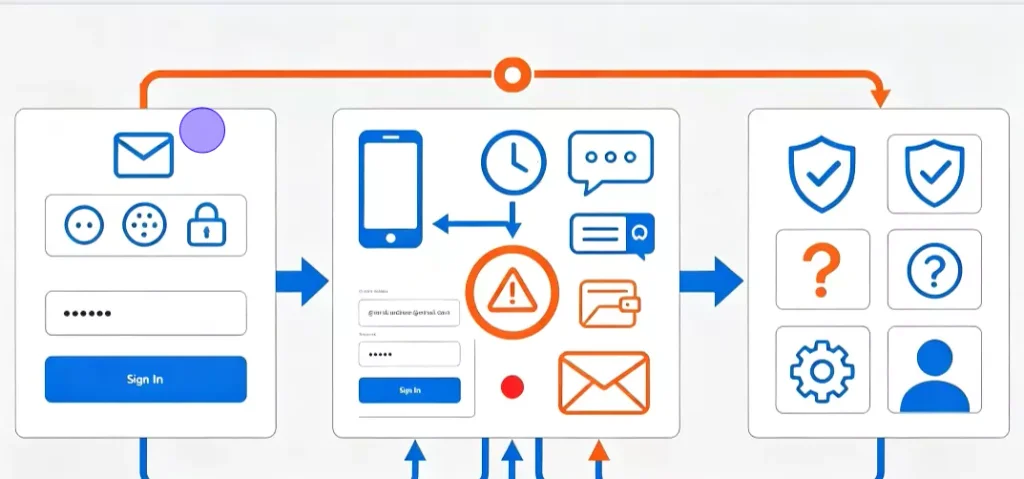
Critical Factors for 2FA Verification
Smooth 2FA execution relies primarily on your verification method, device status, and login environment. Although detection mechanisms vary across platforms, systems generally combine these data points to determine whether a login attempt is trustworthy:
- Verification Method: SMS or voice calls require a phone line capable of receiving messages; virtual numbers depend on platform policy support; authenticator apps must be linked beforehand and kept active.
- Device Status: Platforms assess session familiarity based on active device and browser profiles. Using a brand-new device, or frequently switching devices and browsers within a short period, can trigger additional verification.
- Login Environment: Certain platforms evaluate login location, IP network egress, and historical session logs. Rapid shifts in network egress, significant deviations from historical locations, or flagged IP addresses can prompt extra identity checks.
2FA Methods and Key Verification Points Across Platforms
Supported 2FA methods and security protocols differ by platform:
| Platform | Common 2FA Methods | Key Verification Focus | Notable Features |
| Google Prompts, SMS, Authenticator, Passkey, Security Key | Account security, trusted devices | Pre-configure backup verification codes and methods | |
| Phone number verification, Two-Step Verification | Phone number ownership, account security | Distinct setup for registration vs. two-step verification | |
| Amazon | SMS, Voice, Authenticator | Login and device security | Extra verification often triggered after changing devices |
| Shopify | SMS, Authenticator, Security Key | Store account security | Pre-configure backup verification options |
| Google Ads | Google Account 2FA, etc. | Google account security | Troubleshoot via primary Google account security settings |
| PayPal | SMS, Authenticator, etc. | Account and payment security | Relies strictly on currently active, available methods |
II. How to Increase 2FA Verification Pass Rates
Maintain Stable Device and Network Environments
Network environment and device status are critical variables in 2FA outcomes. For long-term operations, keep a consistent device and browser setup, minimizing frequent switching or clearing of login states. On the network side, maintain a stable egress point and avoid low-quality shared routing or switching locations rapidly.
To maintain a reliable network egress during 2FA checks, use proxy IPs for network optimization. For example, deploying dedicated static residential proxies from IPFoxy provides a fixed egress for a specific account while allowing precise geographic targeting based on business needs. These proxies can also be configured within multi-account isolation tools like cloud phones or Anti-detect browsers. Paired with fixed device setups, this reduces environmental discrepancies caused by changing network egresses.
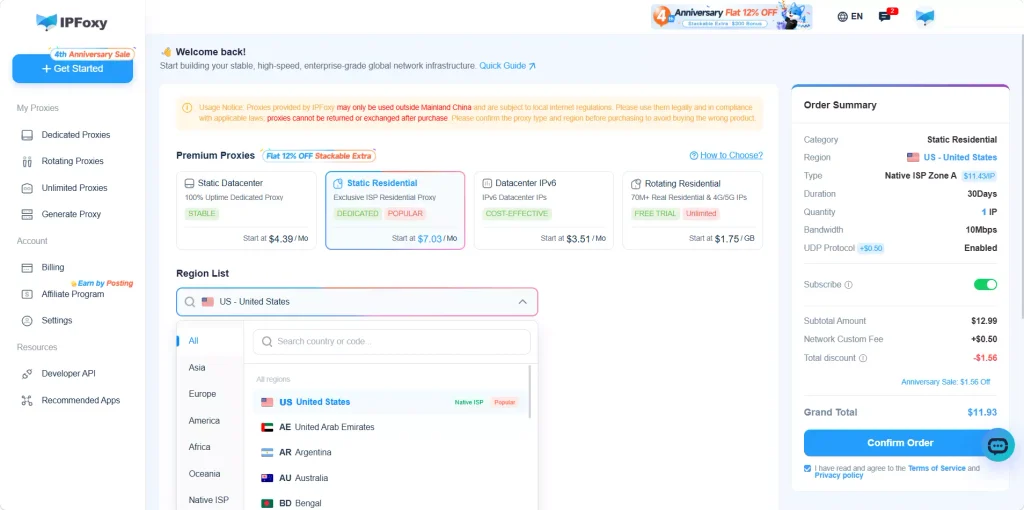
Note: Proxies serve to stabilize your login environment; they do not replace phone numbers, identity credentials, or other security checks required by the platform.
Complete Security Settings in Advance
While your account is accessible, fully configure all available backup authentication options rather than waiting until a device is lost or codes fail to arrive:
- Verify that your phone number and email are correctly linked and able to receive notifications.
- Ensure your authenticator app generates valid codes reliably.
- Store provided backup recovery codes securely, separate from your main login device.
Take advantage of platform-supported alternative verification methods or account recovery flows so you can proceed if your primary option becomes unavailable.
Inspect Verification Conditions Before Requesting
Prior to initiating 2FA:
Check that your phone number and country/region codes are entered accurately, and ensure your physical SIM card can accept SMS or voice calls.
If using an authenticator app, ensure your device clock is set to automatic time synchronization.
Confirm you are logging in from the correct account and device, avoiding simultaneous verification requests across multiple browsers. Ensure bound devices are active and reachable when prompted.
Prioritize Bound and Proven Verification Methods
If a platform offers multiple options—SMS, authenticator app, login prompts, Passkeys, or recovery codes—select the method you have previously bound and verified as working.
If you regularly rely on an authenticator app, do not switch to a new phone number or device mid-process. The more stable your chosen method, the fewer variables introduced, making any errors far easier to diagnose.
Avoid Rapid, Repeated Verification Requests
If a code is delayed, refrain from clicking “Resend” repeatedly. Multiple requests in a short timeframe can generate competing codes or trigger temporary rate limits on your account. The safest approach is to wait out the onscreen countdown before requesting a new code, keeping only one active verification session open at a time.
III. Common 2FA Code Issues and Solutions
Verification Code Not Received
If an expected code fails to arrive, identify whether the issue lies with SMS delivery, phone service, or the authenticator app itself before requesting a new one:
- Test if your mobile phone receives standard SMS or calls from other senders.
- Check for active SMS blocking filters, spam rules, or carrier restrictions.
- Confirm that your current number is still supported for authentication by the platform.
Switch to an alternative entry point if available—for example, use Google Prompts, backup codes, or secondary methods linked to your account.
Code Entered is Correct, but Verification Fails
If you receive a code but the system returns an error:
- Verify whether the code has expired; if time has elapsed, request a fresh code.
- For authenticator apps, verify that the generated code corresponds to the correct account profile.
- Avoid repeated incorrect submissions. Follow platform prompts to switch to a secondary method or start account recovery.
Unable to Complete 2FA After Changing Devices or Phone Numbers
When updating your mobile number, the system may still rely on your old phone number as its active 2FA target. In this case, an incoming SMS on a new line will not validate the old setup automatically:
- If you still have account access, update your linked phone number under security settings immediately and re-bind your authentication tools.
- If locked out, use the platform’s backup verification or account recovery options to establish ownership before updating your security profile.
Repeated or Continuous 2FA Prompts
If you successfully pass 2FA but the platform continuously re-prompts for authentication upon login, check whether your account is flagged for re-verification or recovery.
Platforms may require ongoing identity checks following sensitive account edits, recovery steps, or flagged login behavior. Complete all remaining onscreen verification steps sequentially rather than repeatedly entering the same code. You can also inspect account security notifications for uncompleted security checks or pending recovery workflows.
IV. FAQ
Verify your phone number, country code, mobile service, and network connection first. Try secondary verification options offered on screen rather than sending consecutive code requests.
Google Voice may not deliver codes reliably across all platforms. Google explicitly cautions that relying on virtual numbers like Google Voice for authentication can result in lockouts. A physical mobile number or secondary verification method is recommended.
A proxy is not a direct input for 2FA, but sudden shifts in login location can trigger safety filters and prompt extra checks. Using stable network egresses, such as dedicated static residential proxies, helps minimize unnecessary security flags caused by frequent location shifts.
V. Summary
Missing 2FA codes are not always caused by SMS delivery faults—phone configurations, chosen authentication methods, device status, and network environments all play a role. When troubleshooting, systematically inspect your phone connection, verification setup, device profile, network route, and account state. Configuring backup options and preserving recovery codes ahead of time remains the most effective way to prevent authentication lockouts.