











Your WiFi shows full bars, but TikTok only loads a blank white screen. No matter how many times you refresh, the video feed won’t appear. You exit the app, confused and frustrated, only to find Instagram and YouTube working perfectly. Don’t worry—this isn’t just bad luck. This “selective disconnection” is actually a warning signal from TikTok’s sophisticated risk control system. To solve it, you need to perform a systematic, layered check of your device environment.
I. Why TikTok Shows “No Network Connection”
The “No Network Connection” error on TikTok is rarely a simple network issue. It is often an active block imposed by the platform’s risk control system, which evaluates your device environment, network identity, and usage patterns. The main reasons are:
1.Inconsistent Device Environment
Your phone sends conflicting “soft” identity data to TikTok, leading to detection as a spoofed environment.
Non-Unified System Settings:Device language, time zone, and region do not match your target country.
- Non-Unified System Settings:Device language, time zone, and region do not match your target country.
- Exposed Hardware Info:An unremoved local SIM card is a direct source of conflicting geographic data.
- System Limitations:Power-saving modes can restrict background network activity, breaking connections.

2.Untrusted Network Identity
- Poor IP Reputation:Using data center IPs, public proxies, or cloud server IPs that are widely shared and easily flagged.
- Geographic Conflict:Your WiFi IP shows one country, but your SIM card (MCC/MNC) or device GPS reports another. This mismatch is a top risk control trigger.
- Abnormal IP Patterns:Too many accounts active from one IP, or an IP that jumps countries rapidly.
Suspicious User Activity
- App Corruption:Too much or corrupted TikTok app cache can disrupt network functions.Unusual Behavior:Rapid account switching, using automation tools, or mass liking/following/commenting in a short time.
- Device Issues:Low memory or DNS cache problems can indirectly prevent stable app connections.
II. Latest Solutions for 2026
Method 1: Basic Troubleshooting
Switch Networks
- On WiFi? Switch to mobile data.
- On mobile data? Toggle Airplane mode for 10 seconds or connect to a different WiFi.
- Wait for a stable connection before reopening TikTok.
Refresh the Page
A clogged cache can stall TikTok. Force-close the app, then reopen it. If that fails, pull down to refresh vigorously several times. This clears stuck data requests.
Steps:
- Swipe away TikTok from your recent apps.
- Reopen it and pull down on the For You page 3-5 times.Try refreshing the Following or Discover tab.
- Check if your Profile page loads.
- Restart Your Phone
This clears system memory and resets the network stack, fixing many hidden issues.
Steps:
- Use the “Restart” function (not just power off/on).
- Wait for a full reboot.
- Test general web access in a browser first, then open TikTok.
If problems persist, the issue is likely not a simple glitch. Move to deeper fixes.
Method 2: Intermediate Troubleshooting
1.Check System Settings
- Language: Set to English or your target country’s language.
- Time Zone: Disable “Set Automatically.” Manually choose the zone matching your IP location.
- Region: In system settings, select your target country.
Consistency here lowers detection risk.
2.Disable Power Saving Mode
Power-saving features limit background data, which can break TikTok’s connection.
Steps:
- Go to Settings > Battery.
- Turn off all power-saving modes (e.g., Power Saver, Ultra Power Saving).
- Find Battery Optimization and set TikTok to “Don’t Optimize.”
- Reinstall TikTok
A clean install removes corrupted cache and config files.
Steps:
Backup (Recommended):
- Link your account to email.
- Save draft videos and favorite sounds/lists.
Uninstall:
- iOS:Long-press icon > Remove App > Delete App.
- Android:Settings > Apps > TikTok > Storage > Clear Data > Uninstall.
- Restart your phone.
3.Reinstall:
- Downloadonlyfrom the official App Store or Google Play.
- Avoid third-party stores or APK files.
Test:
- Open the app but don’t log in.
- Browse as a guest for 1-2 minutes.
- If videos load, log in to your account.
Method 3: Advanced Troubleshooting
Persistent issues often mean your “network identity” (IP) is untrusted or conflicts with your device data.
- Use a Stable Dedicated Static Residential Proxy
If TikTok flags your IP (e.g., a data center proxy) or sees a mismatch with your device locale, it will block the connection.
Solution:Avoid public or cloud proxies. Use a dedicated static residential proxy service like IPFoxy. These provide clean, stable IPs from real ISPs, matching a legitimate user’s profile.
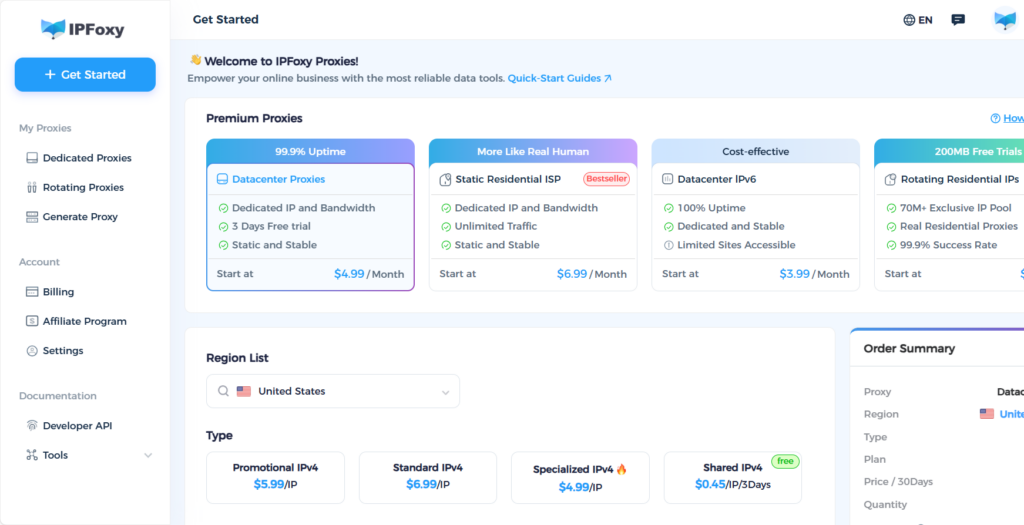
Benefits:
- Matches real residential traffic, avoiding geographic blocks.
- High IP purity with no sharing/abuse history.
- Stable connection, reducing “No Network” errors.
- Remove Your SIM Card
For serious regional operations, physically remove your local SIM card when using TikTok. This eliminates the conflict between your cellular carrier data and your proxy IP—a major red flag for risk control.
III. Conclusion
Fixing TikTok’s “No Network” error requires systematic action, not luck. Ensure a clean proxy IP, a consistent device environment, and stable user behavior. Together, these create a trustworthy “digital identity” that passes platform verification.