












If you are looking for an AI roleplay platform that lets you customize characters freely and maintain ongoing conversations, Janitor AI is a platform you may come across. However, getting started can raise questions at every step, from creating an account and choosing a character to configuring an AI model.
So, how can beginners get started with Janitor AI quickly? This guide covers the basics, including how to log in, chat with characters, configure an API, and handle common issues.
I. What Is Janitor AI? Key Features and Who It Is For
Janitor AI is a platform focused on AI character chat and interactive storytelling. Unlike general-purpose question-and-answer AI tools, it emphasizes character settings, scenario-based interaction, and continuous conversations. Users can interact around specific characters, storylines, or fictional scenarios.
Janitor AI’s main features include:
- AI character chat: Browse characters of different types and interact with AI through everyday conversations, story-based interactions, or roleplay.
- Custom characters: Create characters based on your ideas by setting their names, backstories, personalities, and opening messages.
- Personalized interactions: Use character settings and user Personas to make conversations better match your preferences.
- Model selection and configuration: Use built-in models from the options currently supported by the platform, or connect third-party AI models when eligible.
For users who enjoy roleplay, interactive stories, and creative writing, Janitor AI can provide a more immersive conversational experience. Keep in mind that available features, models, and usage restrictions may change as the platform is updated.
II. How to Log In to Janitor AI: What Do You Need?
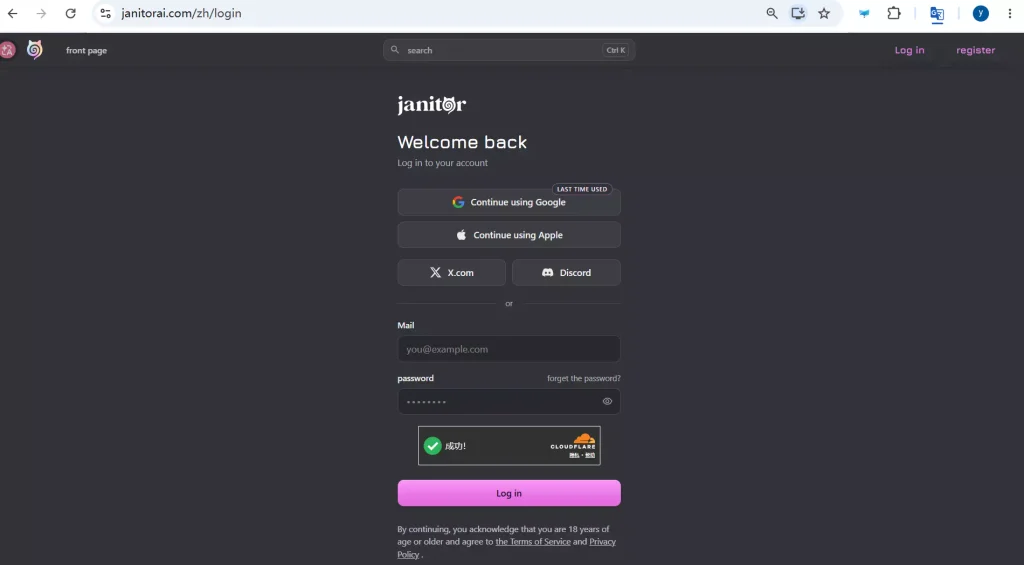
Before starting a conversation, you need to log in to your account. Janitor AI supports several login methods, including Google accounts, email, X, and Discord.
It is worth noting that Janitor AI access and chat requests, as well as the operation of accounts on services such as Google and X, can be sensitive to unusual IP changes. Frequently switching networks, proxies, or exit IP addresses, or using public data center IPs, may lead to failed AI requests, interrupted sessions, or even account restrictions triggered by platform security systems.
To maintain a more stable and trustworthy login environment, you can configure a dedicated residential IP for your Chrome profile. For example, the clean, dedicated static residential proxies provided by IPFoxy Proxies may be suitable for maintaining a consistent account environment.
You can create a separate Chrome profile and configure its proxy settings using the IPFoxy Proxy Manager Chrome extension to help maintain a stable environment for account login and AI requests.
Follow these steps:
Step 1: Choose a suitable proxy type in IPFoxy and obtain a residential proxy for your target location.
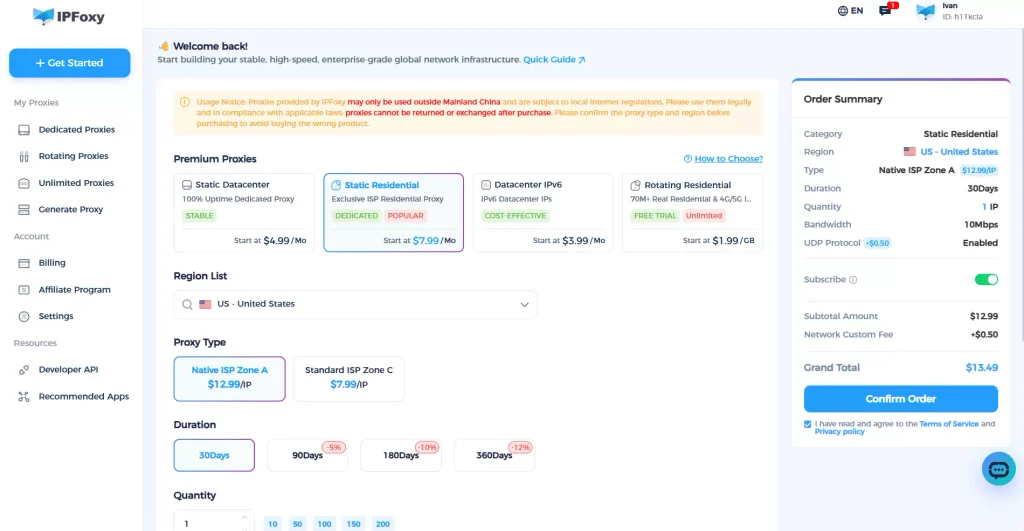
Step 2: Since Chrome does not have built-in proxy configuration for this workflow, use an extension such as IPFoxy Proxy Manager. After installing the extension, enter your IPFoxy account details.
Step 3: Save the information. IPFoxy Proxy Manager will synchronize the proxy IPs associated with your account. Select the residential proxy you want to use and enable it. Once connected, Chrome will use that proxy environment.
Step 4: Open the Janitor AI login page and select your preferred login method to register or sign in.
III. Janitor AI Tutorial: From Character Chat to API Setup
After registering and entering the platform, you can explore existing characters, create your own, and adjust chat settings according to your needs.
1. Choose a Character or Create Your Own
When you visit the Janitor AI homepage, you will see numerous character cards with tags. You can filter characters by category or search directly using keywords. Different characters typically have their own personalities, backstories, interaction themes, and opening messages. Before starting a conversation, review the character description to see whether the setup matches your preferences.
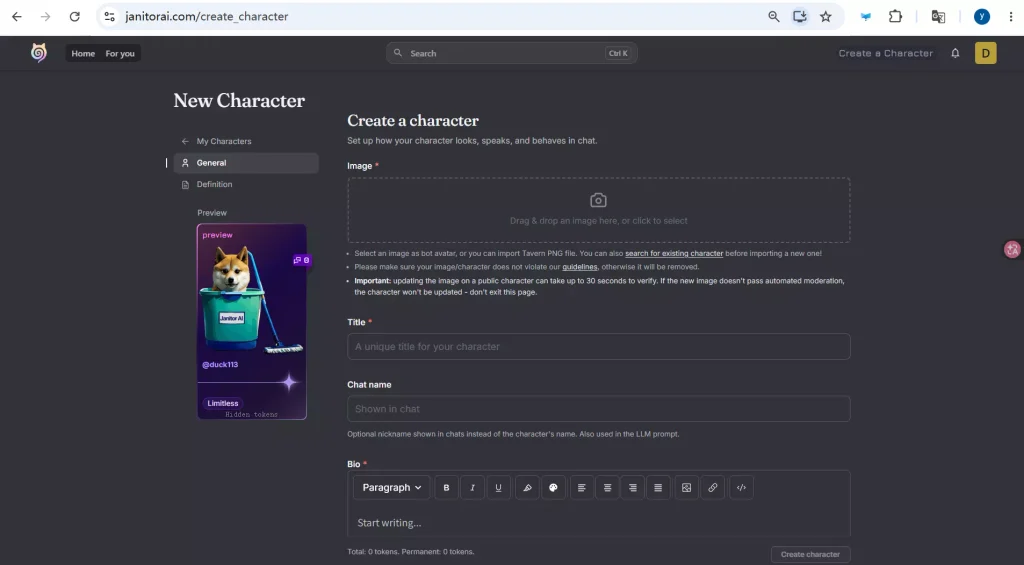
If the available characters do not meet your needs, you can create your own. Click the option in the upper-right corner to enter the character creation page, then fill in the character’s name, background, personality traits, opening message, and other available fields. The clearer the character description, the easier it is for the model to understand the intended character and interaction scenario.
2. Chat with AI Characters
After selecting a character, open its chat interface and send your first message in the input box to begin interacting. Your opening message does not need to be complicated. You can simply start a conversation or add descriptions of the setting and actions to help the AI understand the current scenario.
For example, in roleplay conversations, you can use quotation marks for spoken dialogue and asterisks for actions or environmental descriptions:
- Dialogue example: “Hello, it’s nice to meet you.”
- Action example: Pushes open the door and looks around the room.
If you are not satisfied with a reply, click Swipe next to the message. The system will generate another response based on the same context until you get a direction you prefer.
For a more coherent interaction, keep character behavior and background details consistent throughout the conversation. If the AI forgets an important detail, you can remind it in a later message instead of restarting the conversation each time.
3. How to Configure an API
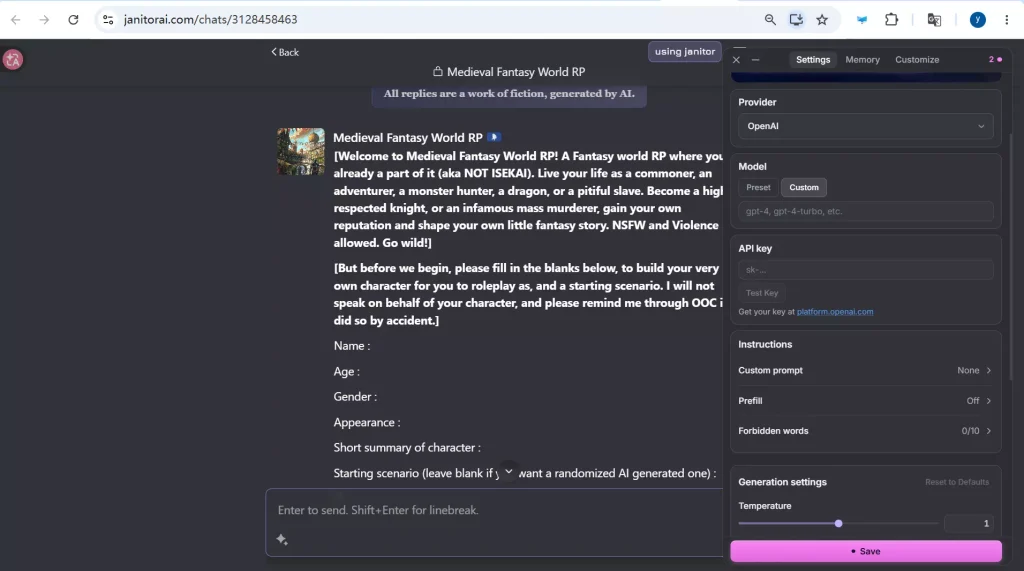
When the message allowance or response quality of built-in models does not meet your needs, connecting a third-party API is a common option. Janitor AI supports connecting external models through providers such as OpenAI and Claude.
Using OpenAI as an example, the main steps are:
- Generate an API key in OpenAI.
- Open API Settings for the character in Janitor AI, select the provider, and enter the configuration name, model name, API URL, and API key.
- Save the settings and refresh the page to test whether the configuration works.
The configuration process itself is not particularly complicated. Common mistakes include mismatched capitalization in model names, extra spaces when pasting the API key, and confusing the URLs of different providers.
IV. Janitor AI Tips: Account Security, API Costs, and Content Management
1. Protect Your Account Information and API Key
An API key serves as a credential for accessing a model service. Do not publish it publicly or paste it into untrusted websites, scripts, or third-party tools. If you suspect that your key has been exposed, revoke or replace it as soon as possible by following the provider’s instructions.
You should also avoid entering sensitive information, such as real passwords, payment details, or identity documents, into character chats. Before using third-party models or other connected services, review their privacy policies and data-handling practices.
2. Pay Attention to Model Restrictions and Costs
Janitor AI’s features and restrictions are not necessarily the same as those of third-party model services. Even if the platform offers a built-in chat option, this does not mean that all external model requests are free.
Before using a third-party model service, check its pricing structure, free usage allowance, request limits, and account balance requirements. Model prices and availability may change, so refer to the provider’s current information.
For APIs billed by usage, consider setting a reasonable budget or spending alerts to avoid unexpected charges.
3. Be Mindful of Content Rules and Minor Safety
Different characters and models may follow different content rules. Before using the platform, review its community guidelines and age requirements, and comply with applicable local laws and regulations.
If the platform provides content filters, blocking options, or preference settings, adjust them according to your needs. Minors should use age-appropriate AI services under the guidance of a parent or guardian. Do not attempt to bypass age restrictions or safety rules by changing your network environment.
V. FAQ
Whether Janitor AI is free depends on the features currently offered by the platform, the model you choose, and the applicable usage rules. Built-in models and third-party API connections may have different costs. Before getting started, check the restrictions displayed on the current platform page and confirm whether the external model provider charges fees.
First, check whether the website is accessible, your network connection is stable, and the registration page is experiencing a temporary issue. Then verify that your selected login method and verification details are correct.
If the issue is related to your current network or IP environment, try adjusting your network connection. If registration still fails, investigate the specific error message instead of repeatedly submitting your registration information.
No. Whether you need to configure an API depends on the built-in models currently supported by the platform and your usage requirements. If a built-in model works for you, you can start chatting directly. API configuration is only necessary when you want to connect an external model or the platform requires the relevant settings.
Being able to open the website does not necessarily mean the model service is working properly. Possible causes include temporary model service outages, an invalid API key, an incorrect API endpoint or model name, insufficient account balance, or request restrictions.
Try sending a simple message first, then troubleshoot each possible cause based on the error message.
VI. Conclusion
The basic Janitor AI workflow can be summarized as follows: register an account, check your access environment, choose or create a character, start chatting, and configure an AI model if needed. Beginners should start with basic character conversations before gradually exploring advanced features such as Personas and model settings.
If you encounter a problem, first identify which step is failing. If the website cannot be accessed, check your network and browser. If the chat cannot generate a response, check the model status and API configuration. If you encounter account verification issues, follow the instructions displayed on the page.
Identifying the source of the problem before making changes is generally more effective than repeatedly changing settings.